
On this page
How to install MediaWiki from Softaculous
Install MediaWiki on your hosting account quickly using the Softaculous app installer in cPanel.
You can install MediaWiki on your hosting account in just a few steps using the Softaculous app installer in cPanel.
Finding MediaWiki in Softaculous
- Log in to cPanel and open Softaculous Apps Installer.
- Search for MediaWiki, or browse to it in the Wiki category.
- Click MediaWiki to open the overview page, where you can read more about the software.
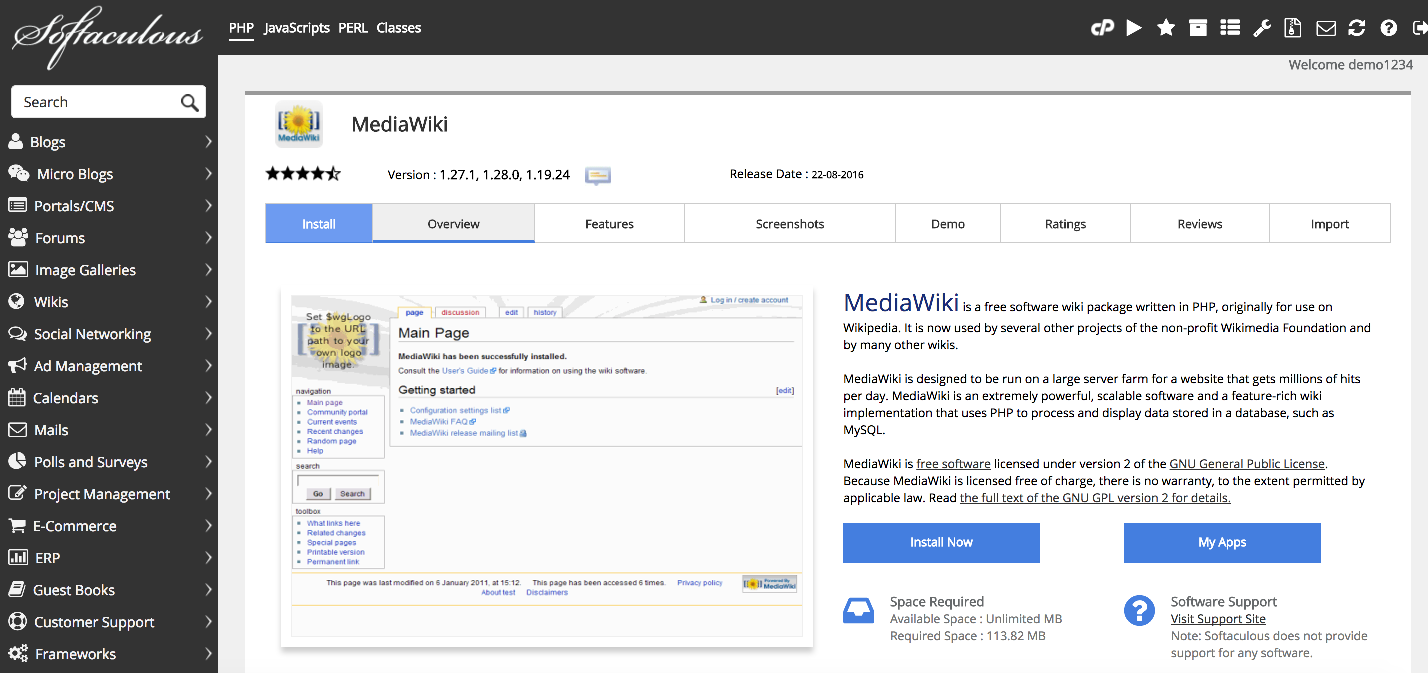
Installing MediaWiki
- Click the Install tab.
- Under Software Setup, choose the domain you want to install MediaWiki on. If you have multiple domains on the account, select the correct one from the dropdown.
- Enter a directory in the In Directory field, or leave it blank to install at the domain root. The directory must not already exist on the server.
- Enter a name for the database. This database must not already exist on the server.
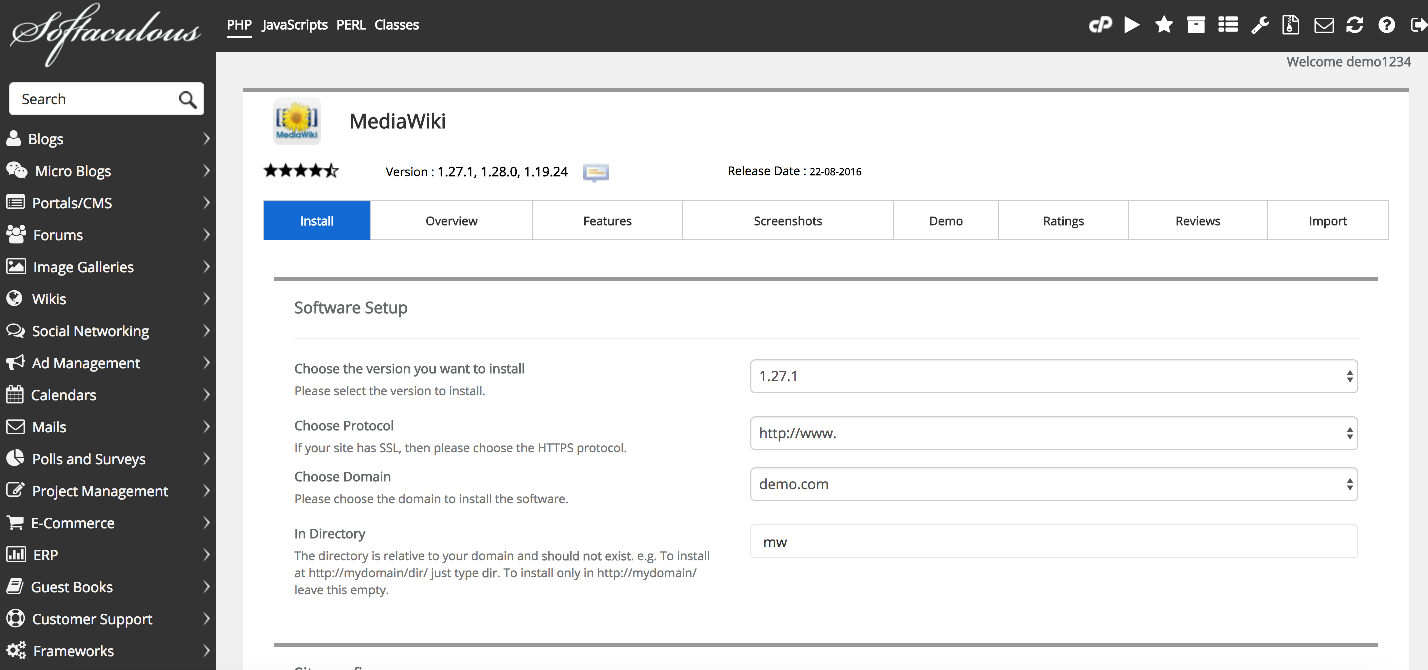
- Under Site Settings, fill in the following:
- Wiki Name - the name displayed across your wiki.
- Admin Email - used for admin notifications and password resets.
Both the wiki name and admin email can be changed later from within the MediaWiki admin panel.
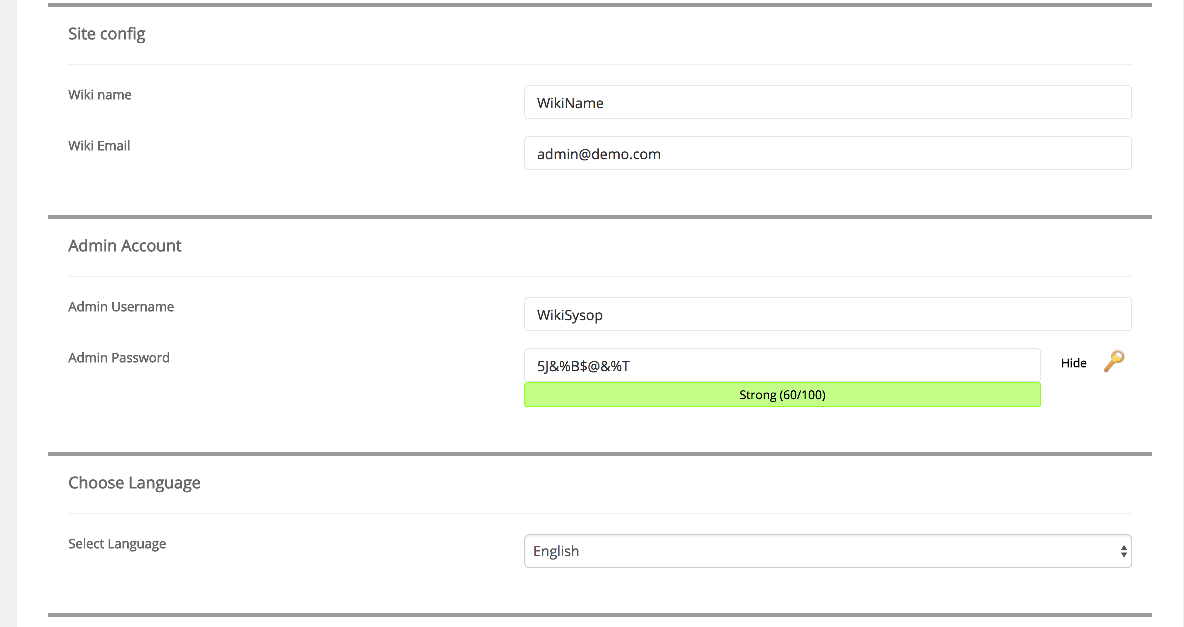
- Enter your chosen Admin Username and Admin Password. Keep these somewhere safe.
- Leave the remaining options at their defaults unless you have a specific reason to change them.
- Click Install.
Softaculous will take a moment to complete the installation.
Accessing your new wiki
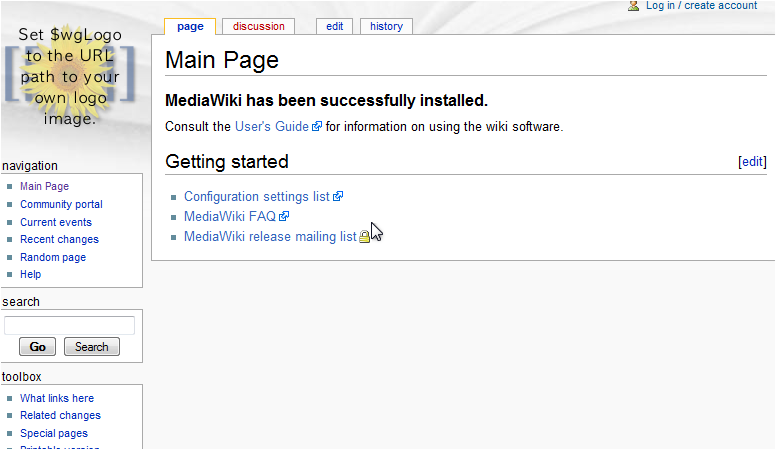
Once the installation finishes, Softaculous shows a confirmation screen with a link to your new site.
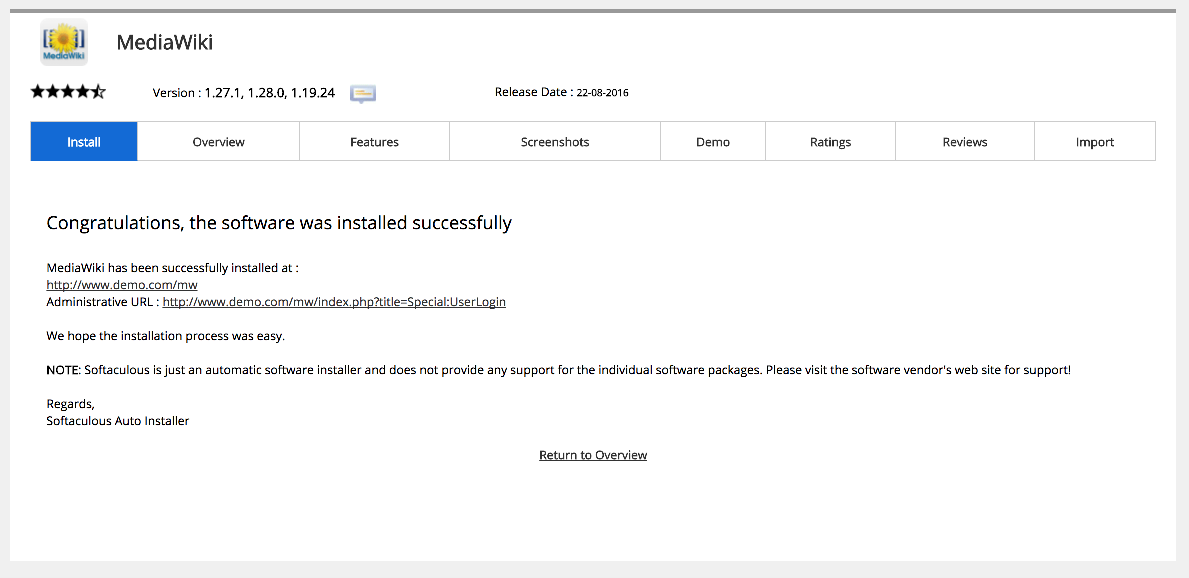
Click the link to open your wiki - it is ready to use straight away.
Was this helpful?
Your feedback helps us find gaps in the docs.
Thanks for the feedback!
Related articles
Softaculous app installer
Getting started with Softaculous
Softaculous lets you install popular web applications such as WordPress, Joomla, and Drupa...
Softaculous app installer
How to find Softaculous in cPanel
Softaculous is built into cPanel and lets you install popular web applications in just a f...
Softaculous app installer
How to decide which script in Softaculous is right for you
Softaculous includes ratings, demos, and feature lists to help you pick the right script b...
Softaculous app installer
How to install a script using Softaculous
Softaculous lets you install hundreds of web applications in a few clicks directly from cP...
Still need a hand?
Real people, around the clock - start a chat or open a ticket and we'll help you put it right.