
On this page
How to install Odoo with WSGI
Learn how to install and configure Odoo on Kualo hosting using WSGI for optimal performance and resource efficiency.
Kualo supports any application that can run on Linux, and Odoo is no exception. Rather than a standard process-based setup, we deploy Odoo using WSGI and run two sub-processes to handle cron jobs and IM chat (longpolling) separately. This approach gives you better performance and more efficient use of server resources.
Before you start
You will need a cPanel account to host your Odoo application. If you have not yet created one, see our guide on how to create a new cPanel account in WHM.
Also check the Odoo documentation for the Python version required by the release you intend to install:
- Odoo 14 installation docs
- Odoo 15 installation docs
- Odoo 16 installation docs
- Odoo 17 installation docs
Configure the Python virtual environment
-
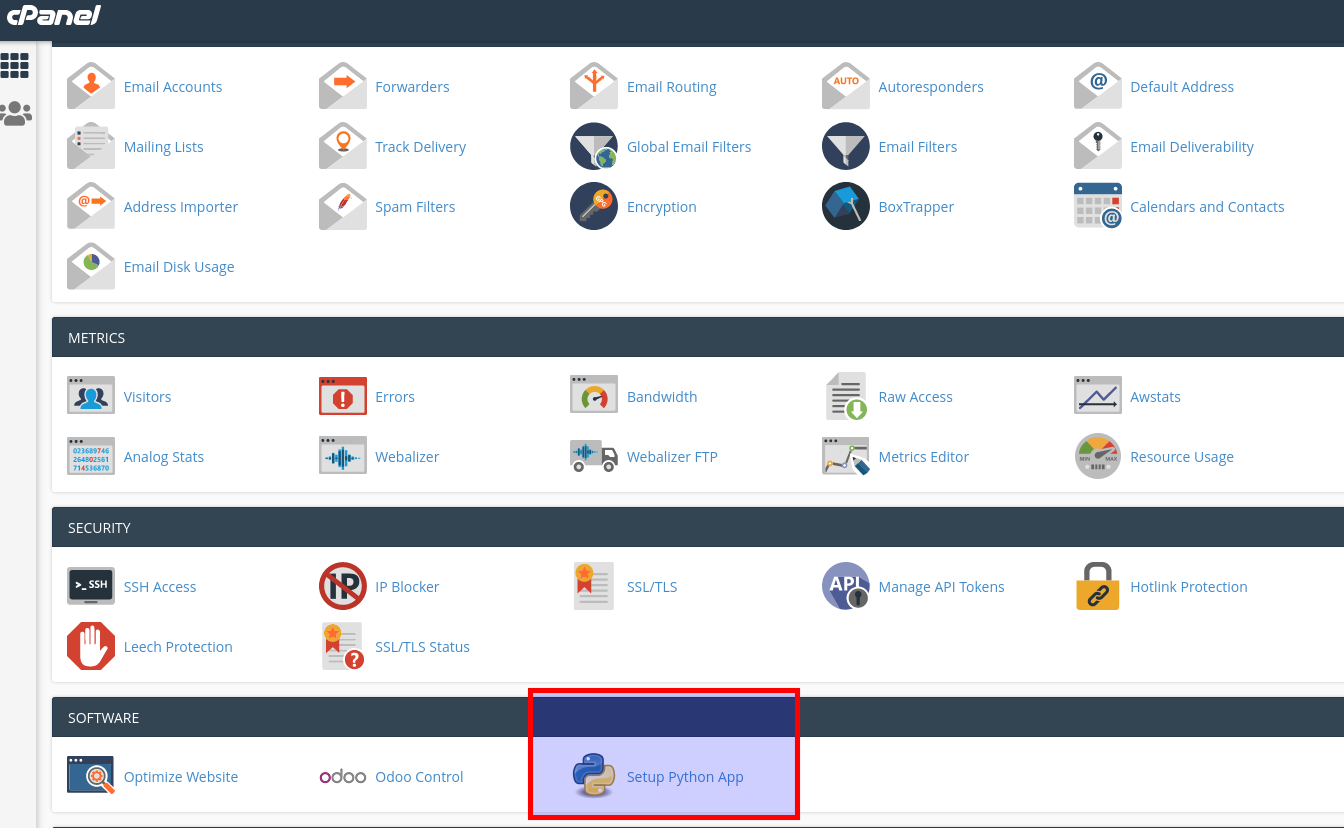
Log in to cPanel and open Setup Python App.
-
Click Create Application and configure the environment. To ensure compatibility with the Odoo Control plugin, set the application path to
my_apps/odoo.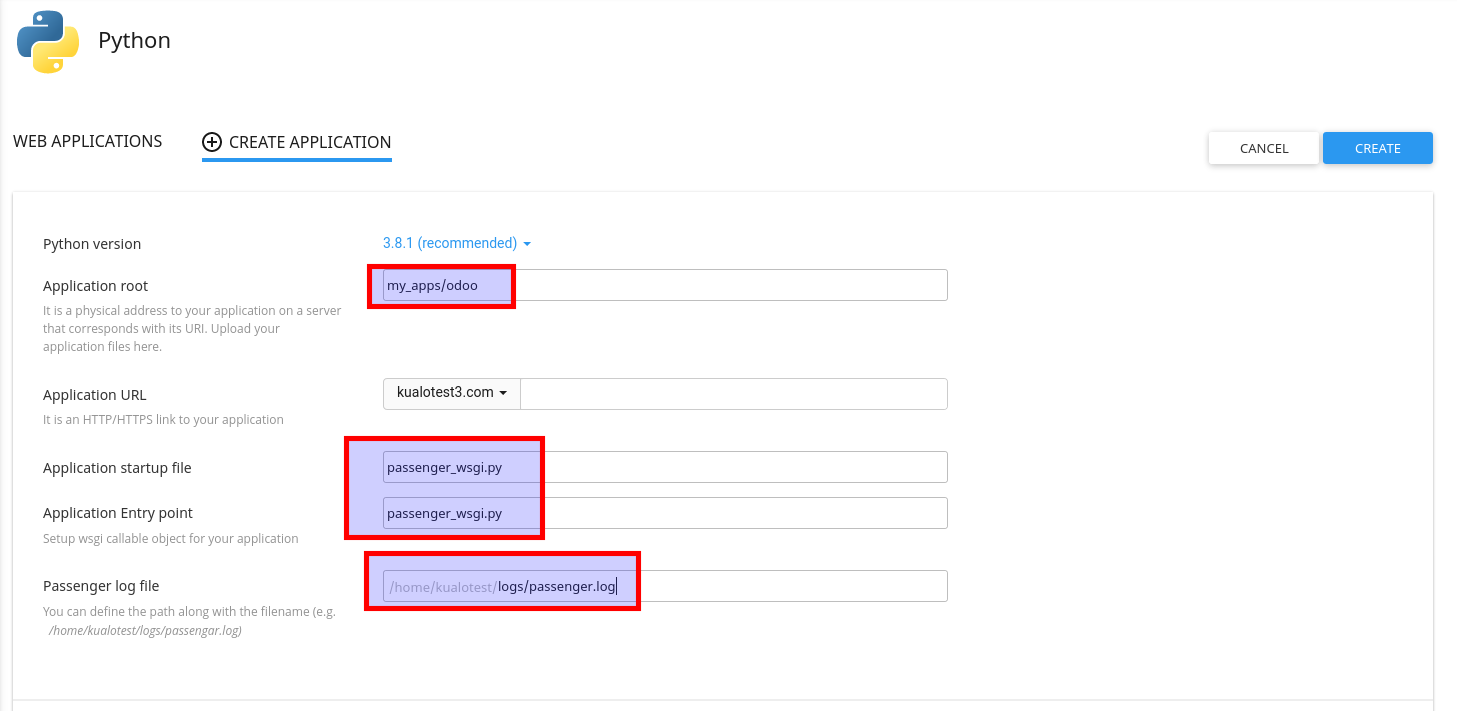
-
Click Create.
Install Odoo
After creating the application, cPanel will display the command to activate your virtual environment. Log in via SSH, activate the environment, then run the following commands.
This example installs Odoo 14 - adjust the branch name for your chosen version.
rm -rf public
git clone https://www.github.com/odoo/odoo --depth 1 --branch 14.0 ~/my_apps/odoo/odoo
Next, move into the cloned folder and install Odoo and its dependencies:
(odoo:3.7)kualotest@hostname ~/my_apps/odoo $ cd odoo
(odoo:3.7)kualotest@hostname ~/my_apps/odoo/odoo $ pip install ./
Odoo is installed as a Python module and can be upgraded easily later. Do not delete this folder - it also contains the addons directory.
Set up a PostgreSQL database
- In cPanel, go to Databases > PostgreSQL Databases.
- Create a new database, a new user, and a password.
- Assign the user to the database.
Initialise the Odoo database
Run the following command from your virtual environment to create the database and install the base modules. Replace the placeholder values with your own PostgreSQL credentials.
(odoo:3.7)kualotest@hostname ~/my_apps/odoo $ python odoo/odoo-bin --init \
  --addons-path=odoo/addons \
  --db_host=localhost \
  --db_user=YOUR-PG-USER \
  --db_password="YOUR-PG-PASSWORD" \
  -d YOUR-PG-DBNAME \
  --stop-after-init
This creates the database and places the Odoo filestore at:
/home/YOUR-USERNAME/.local/share/Odoo/filestore
To skip demo content, add --without-demo=all to the command above.
Configure the WSGI entry point
Create or edit the file passenger_wsgi.py in your application root and replace all placeholder values with your own details.
# WSGI entry point for Odoo
# Replace all YOUR-* placeholders with your actual values.

import sys, os
import odoo

# ----------------------------------------------------------
# Common
# ----------------------------------------------------------
odoo.multi_process = False

# Equivalent of the --load command-line option
odoo.conf.server_wide_modules = ['web']
conf = odoo.tools.config

conf['addons_path']  = '/home/YOUR-USERNAME/my_apps/odoo/odoo/addons'
conf['db_user']      = 'YOUR-PG-USER'
conf['db_password']  = 'YOUR-PG-PASSWORD'
conf['db_name']      = 'YOUR-PG-DATABASE'
conf['db_host']      = '127.0.0.1'
conf['db_port']      = 5432
conf['db_template']  = 'template1'
# conf['dbfilter']   = '^YOUR-PG-DATABASE$'
conf['data_dir']     = '/home/YOUR-USERNAME/.local/share/Odoo/filestore'
conf['admin_passwd'] = 'YOUR-MASTER-PASSWORD'

# ----------------------------------------------------------
# Generic WSGI application
# ----------------------------------------------------------
application = odoo.service.wsgi_server.application

odoo.service.server.load_server_wide_modules()
Once saved, visit your domain in a browser. The default login credentials are:
Username: admin
Password: admin
Change the default admin password immediately after your first login.
Enable crons and LiveChat (longpolling)
With Odoo running, you need to start the background cron and IM chat processes.
-
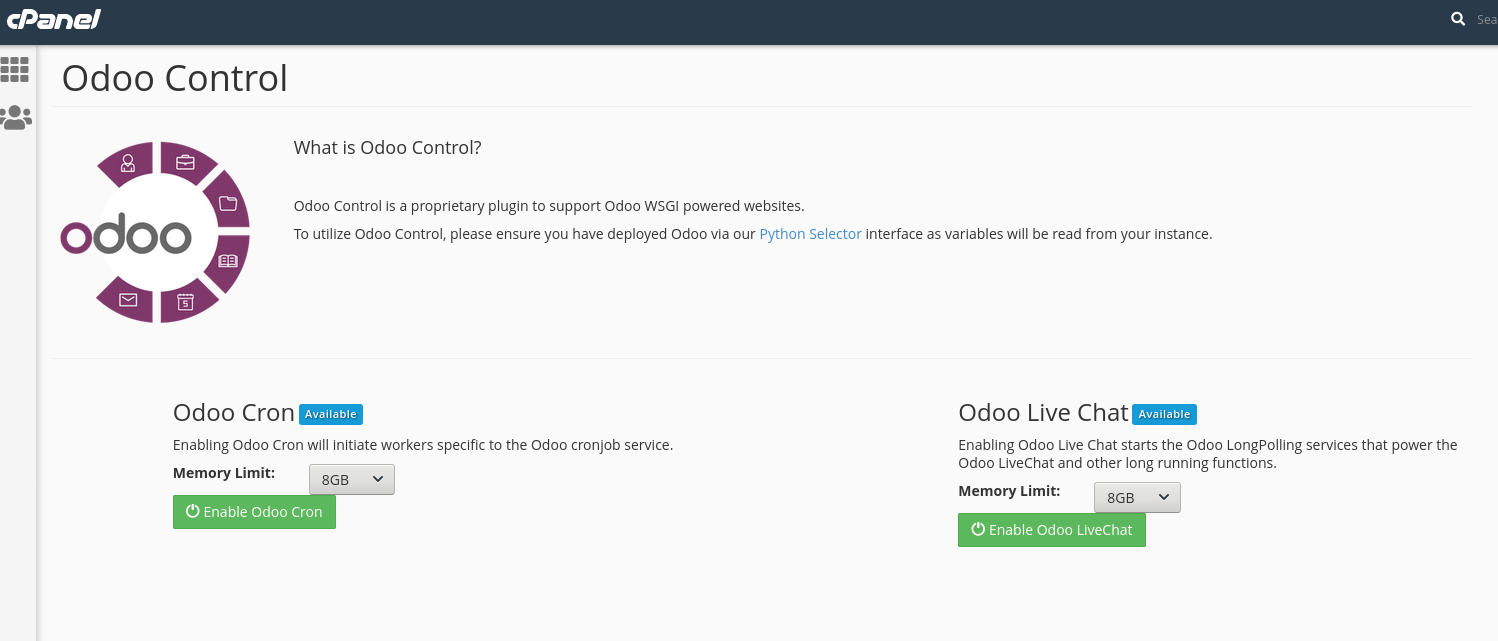
In cPanel, go to Software > Odoo Control.
-
Select the amount of RAM you want to allocate.
-
Start the processes.
Your Odoo installation is now fully operational.