
On this page
How to synchronize Softaculous with other auto installers
If you have scripts installed manually or via another auto installer, you can import them into Softaculous using the Synchronize feature.
If you have scripts installed manually or via another auto installer, you can bring them under Softaculous management using the built-in synchronise tool.
How to synchronise your scripts
-
Log in to cPanel and open Softaculous.
-
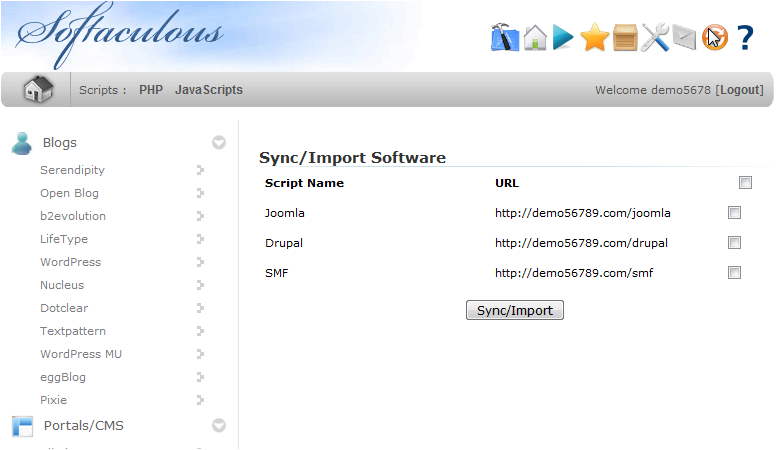
Click the Synchronize icon in the Softaculous toolbar.

The synchronise page lists all scripts that can be imported.
-
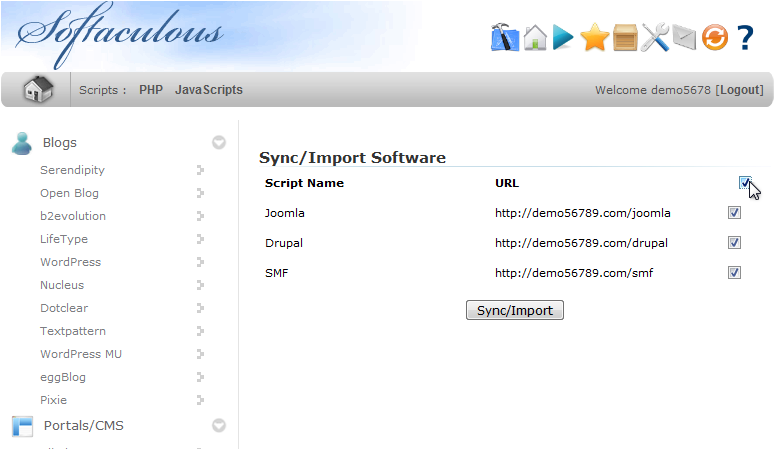
To select every script at once, tick the select all checkbox at the top of the list.
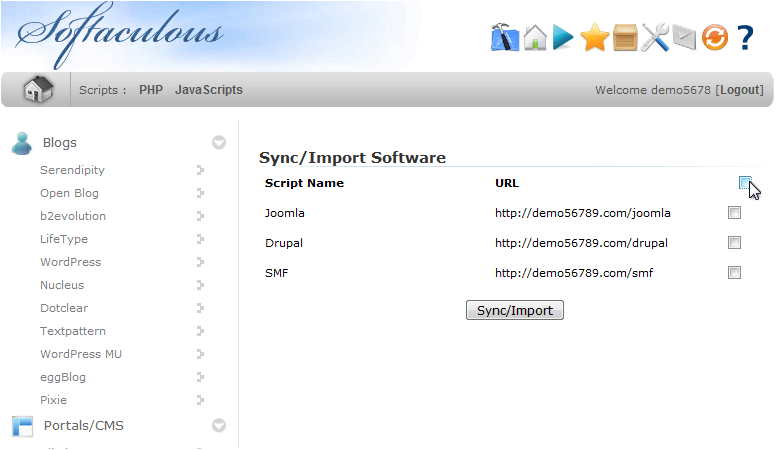
Tick it again to deselect everything.
-
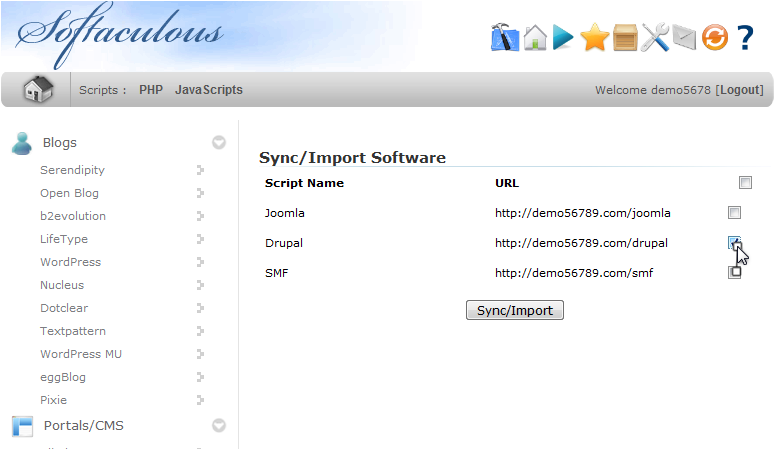
Alternatively, tick only the checkboxes next to the individual scripts you want to import.
-
Click Sync/Import.
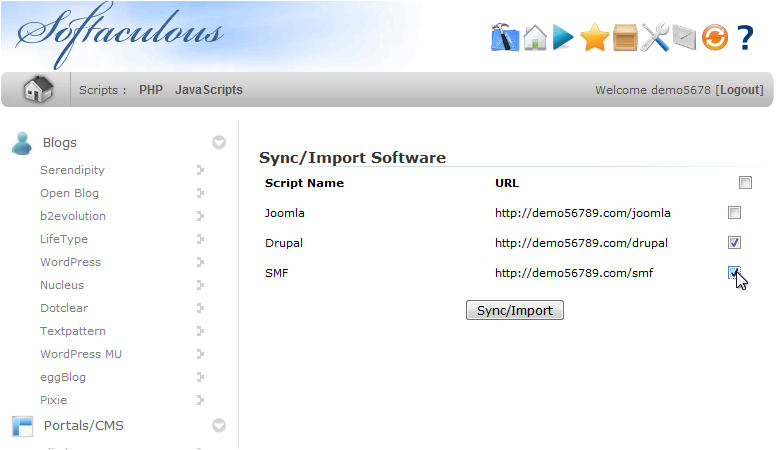
Softaculous will process the selection and import the chosen scripts.
-
Once complete, use the links shown to view each imported installation.
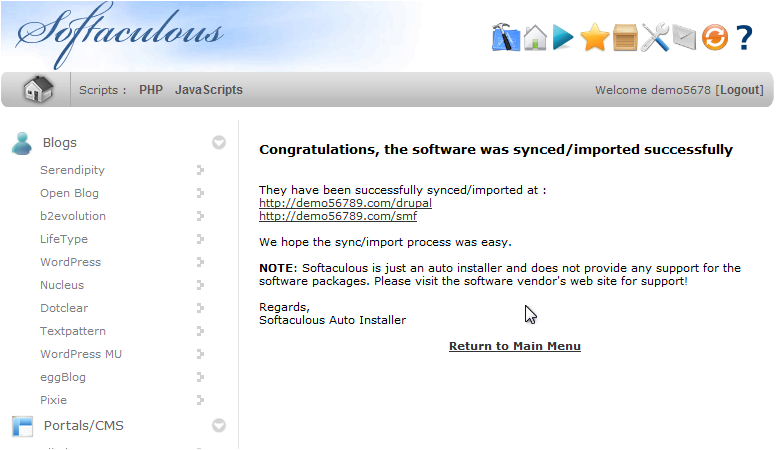
Your scripts are now managed through Softaculous alongside any installations you made directly through the installer.