
On this page
How to install WordPress from Softaculous
Install WordPress on your domain in minutes using the Softaculous app installer in cPanel.
You can install WordPress on your domain in just a few minutes using the Softaculous app installer built into cPanel.
Before you start
Make sure you are logged in to cPanel. If you want WordPress to run over HTTPS (recommended), ensure SSL is already active on your domain - you can do this for free using Let's Encrypt, available inside cPanel.
Installing WordPress
-
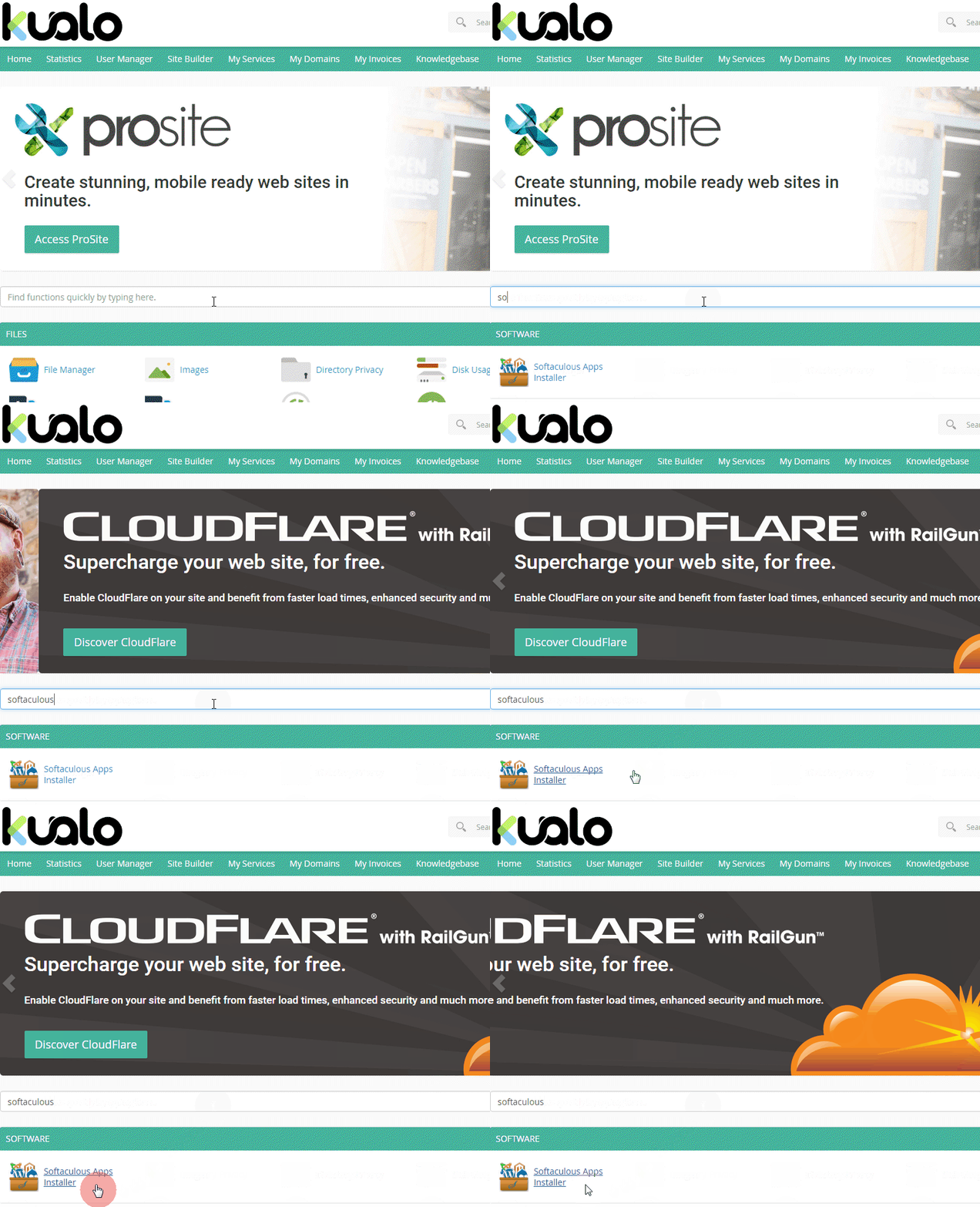
In cPanel, scroll to the Software section and click Softaculous Apps Installer.
-
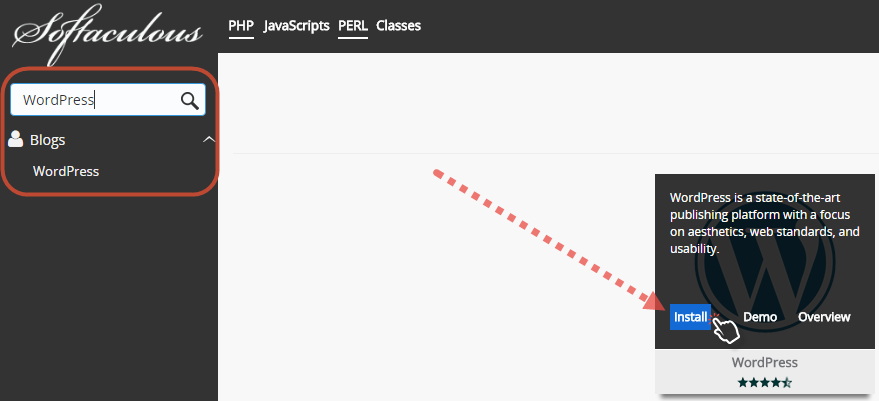
Find WordPress in the list and click Install.
-
Work through the configuration sections described below, then click the Install button at the bottom of the page.
Configuration options
Software setup
-
Choose protocol - If your domain has SSL, select
https://. Otherwise selecthttp://.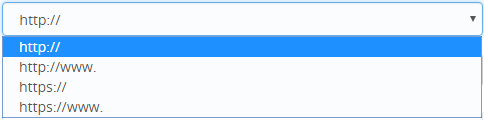
-
Choose domain - Select the domain you want to install WordPress on.
-
In directory - Leave this blank to install at the root of your domain (e.g.
https://mydomain.com/). To install in a subdirectory, type the folder name here (e.g.blogto install athttps://mydomain.com/blog/). The directory must not already exist.
Site settings
- Site name - The name of your site, shown in the browser title bar and in most theme headers. It does not need to match your domain name.
- Site description - A short phrase describing what your site is about.
- Enable Multisite (WPMU) - Tick this only if you want to run a network of WordPress sites from a single installation.
Admin account
Set your admin username, admin password, and admin email. Use a strong, unique password and keep these details safe.
Choose language
Select the language for your WordPress dashboard and site.
Select plugins
You can optionally install the Loginizer plugin at this stage. It limits failed login attempts to protect your site against brute-force attacks.
Advanced options
These settings are worth reviewing before you install:
- Auto upgrade - Keeps WordPress core updated automatically.
- Auto upgrade WordPress plugins and Auto upgrade WordPress themes - Keeps plugins and themes updated automatically.
- Automated backups and Backup rotation - Schedules regular backups of your installation.
We recommend leaving update notifications enabled and turning on automated backups so you always have a recent restore point.
Select theme
You can choose a theme to install now, or skip this step and use the default theme. You can always change your theme later from the WordPress dashboard.
Finishing the installation
Before clicking Install, you can enter an additional email address to receive a copy of the installation details.
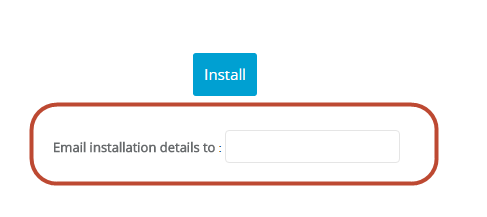
Click Install. Softaculous will set up WordPress and email the installation details to your admin email address.