
On this page
How to install a script using Softaculous
Softaculous lets you install hundreds of web applications in a few clicks directly from cPanel.
Softaculous lets you install hundreds of web applications in a few clicks directly from cPanel. The installation process is broadly the same for every script, with only minor differences between them.
Finding a script
- Log in to cPanel and open Softaculous.
- Browse or search the script list on the left-hand side until you find the application you want to install.
- Click the script name to open its detail page.
Reviewing a script before installing
Before you commit to an installation, Softaculous gives you several ways to evaluate a script.
- Overview - a description of the software and its average user rating.
- Features - a full list of what the software can do.
- Demo - launches a live demo so you can try the software before installing it.
- Ratings - shows the total number of ratings and the overall average score.
- Reviews - user-written reviews of the script. You can also submit your own review after you have tried the software.
- Import - if you already have this software installed manually or through another installer, you can import it here so Softaculous can manage it going forward.
Installing a script
When you are ready to proceed, click Install on the script's detail page.
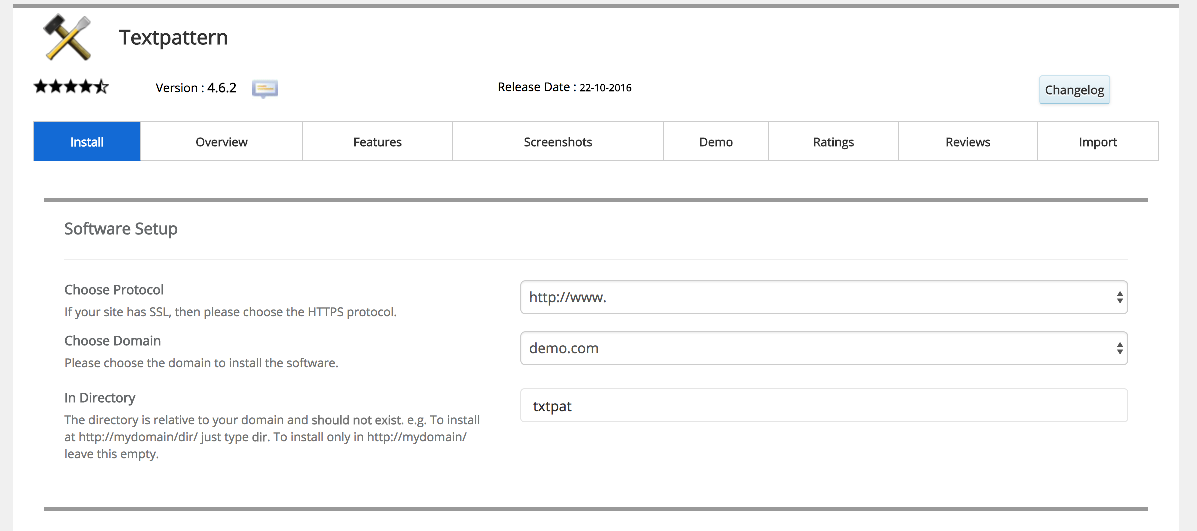
- Choose domain - if you have more than one domain on your account, select the one where you want the script installed.
- In directory - enter a subdirectory path if you want the script installed in a subfolder (for example,
blog). Leave this blank to install at the domain root. - Database name - Softaculous will suggest a name; you can leave the default or enter your own.
- Site name and description - enter a name and short description for your site. Both can be changed later from the software's own admin panel.
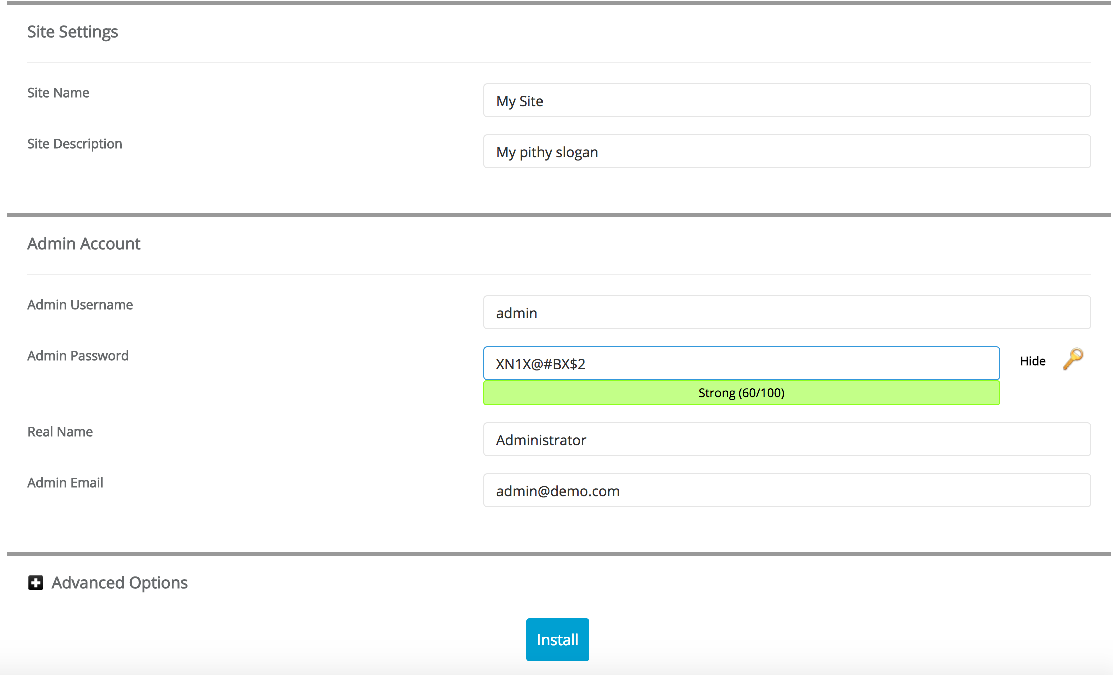
- Admin username and password - choose a strong, unique password for the admin account.
- Admin email - enter the email address you want associated with the admin account.
- Click Install.
Softaculous will run the installation. Once it completes, you will see two links - one to your new site and one to its admin panel.
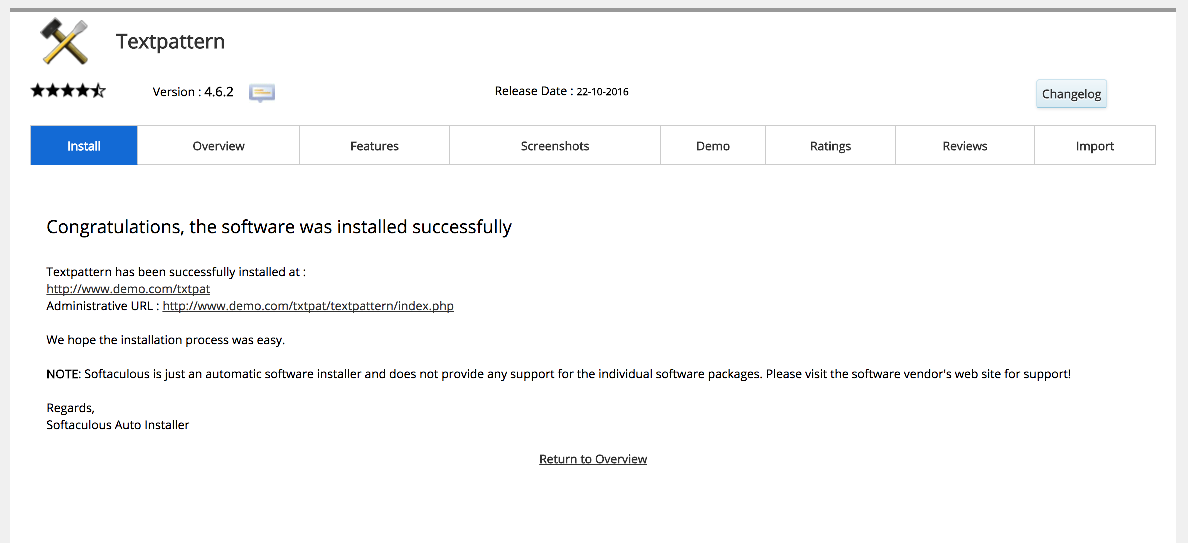
Save or bookmark both links straight away so you can find your admin panel easily later.
Was this helpful?
Your feedback helps us find gaps in the docs.
Thanks for the feedback!
Related articles
Softaculous app installer
Getting started with Softaculous
Softaculous lets you install popular web applications such as WordPress, Joomla, and Drupa...
Softaculous app installer
How to find Softaculous in cPanel
Softaculous is built into cPanel and lets you install popular web applications in just a f...
Softaculous app installer
How to decide which script in Softaculous is right for you
Softaculous includes ratings, demos, and feature lists to help you pick the right script b...
Softaculous app installer
How to import a script into Softaculous
If you have an existing script installed outside Softaculous, you can import it so it appe...
Still need a hand?
Real people, around the clock - start a chat or open a ticket and we'll help you put it right.