
On this page
Setting up log retention in Magento v2
Keep Magento v2 log files under control by scheduling a cPanel cron job to archive or truncate them regularly.
Magento v2 does not let you disable system and exception logs, so over time those files can grow to several gigabytes - a real problem if you are on a plan with limited disk space. A cPanel cron job is the cleanest way to keep them under control.

Option 1: archive the logs (recommended)
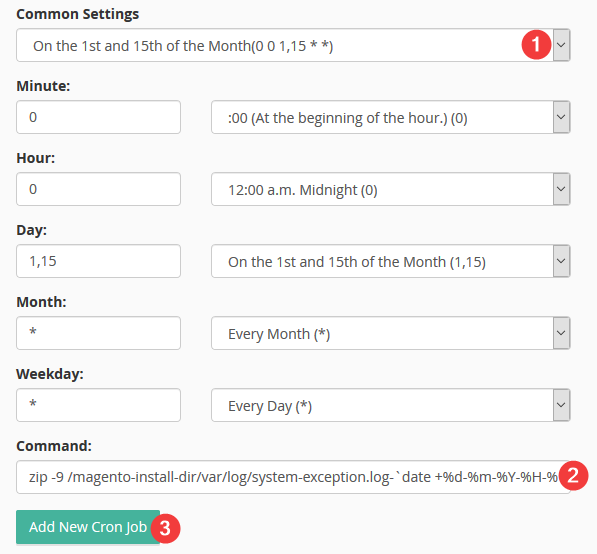
This command compresses both log files into a dated zip archive, then leaves the originals in place. Compression typically reduces log file size by over 90%.
zip -9 /magento-install-dir/var/log/system-exception.log-`date +%d-%m-%Y-%H-%M`.zip /magento-install-dir/var/log/system.log /magento-install-dir/var/log/exception.log
Replace magento-install-dir with the actual path to your Magento installation.
A good schedule is the 1st and 15th of each month (cron expression: 0 0 1,15 * *).
Option 2: truncate the logs (no archive kept)
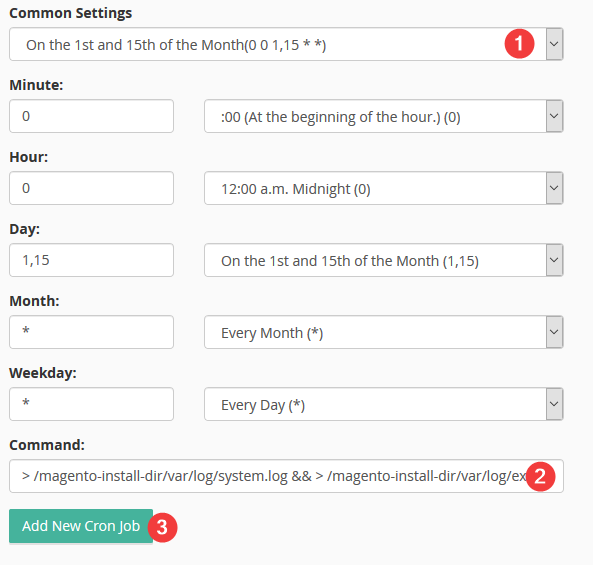
If you do not need to retain a copy, this command simply empties both log files:
> /magento-install-dir/var/log/system.log && > /magento-install-dir/var/log/exception.log
Replace magento-install-dir with the actual path to your Magento installation.
Setting up the cron job in cPanel
- Log in to cPanel and open Cron Jobs.
- Choose your preferred frequency, or enter a custom cron expression.
- Paste the command for your chosen option into the Command field.
- Click Add New Cron Job.
If you are unsure of your Magento installation path, check the file manager in cPanel or run pwd from within the Magento root directory via SSH.
If you need any further help, please contact us.