
On this page
How to upgrade Magento extensions
Upgrade your Magento extensions quickly using the built-in Magento Connect Manager.
You can upgrade your Magento extensions directly from the Magento admin panel using the built-in Magento Connect Manager.
Always back up your Magento store - including files and database - before applying any extension upgrade. You can create a backup from within cPanel.
Access the Magento Connect Manager
- Log in to your Magento admin panel.
- Navigate to System > Magento Connect > Magento Connect Manager.

Check for available upgrades
- On the Manage Existing Extensions tab, click Check for Upgrades.
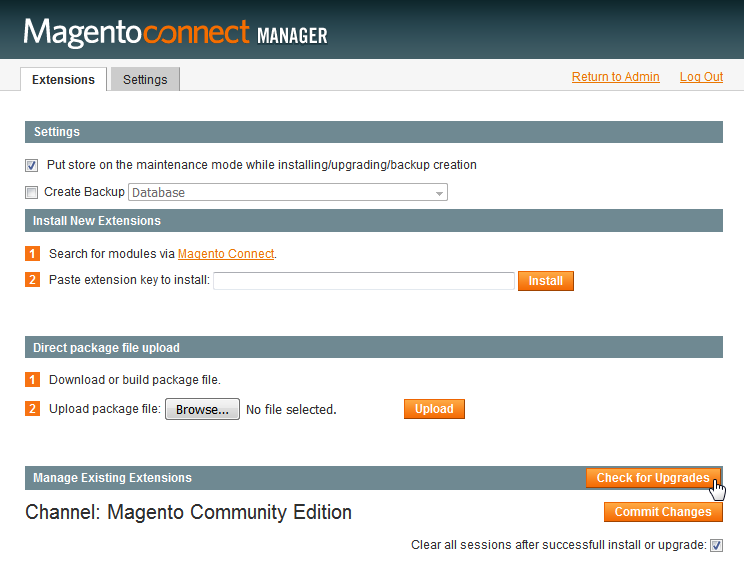
The Magento Connect Manager will connect to the Magento server and check for updates. Any extension with an available upgrade will be highlighted in yellow.

Apply the upgrade
- Use the Actions drop-down menu next to the extension to select the version you want to upgrade to.
- Click Commit Changes to begin the upgrade.
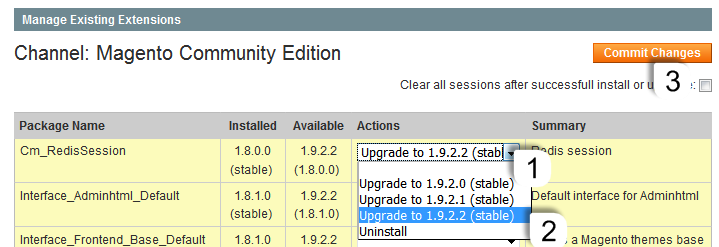
The selected upgrade will be downloaded and applied automatically.
- Once the upgrade is complete, click Refresh to update the extension list.
- Click Return to Admin to check whether any new configuration settings or features are available for the upgraded extension.
If you need further help, please open a support ticket from within your MyKualo client area.
Was this helpful?
Your feedback helps us find gaps in the docs.
Thanks for the feedback!
Related articles
Getting started
Choosing a Magento theme
Choosing the right Magento theme affects your store's speed, search rankings, and conversi...
Getting started
How to install Magento from Softaculous
Install Magento on your hosting account quickly using the Softaculous app installer in cPa...
Getting started
How to upgrade Magento
Upgrading Magento 2 is done via Composer and the Magento CLI rather than a graphical manag...
Getting started
How to upgrade Magento v2
There are two ways to upgrade Magento 2: via the Web Setup Wizard in the admin dashboard,...
Still need a hand?
Real people, around the clock - start a chat or open a ticket and we'll help you put it right.