
On this page
Best practices to optimise images in Magento 2
Speed up your Magento 2 store by losslessly compressing product and theme images using the Apptrian Image Optimizer extension.

Page speed matters for both SEO and user experience, and images are one of the biggest contributors to slow load times. Magento 2 ships well optimised out of the box, but once you change your theme and start adding products, image optimisation becomes essential.
Why lossless image optimisation?
Lossless optimisation compresses images by stripping unnecessary metadata, with absolutely no reduction in visual quality. Even images you have already processed - for example using Photoshop's Save for Web feature - can typically be reduced further. The gains per image are modest (around 10-15% on average), but across a full product catalogue they add up quickly.
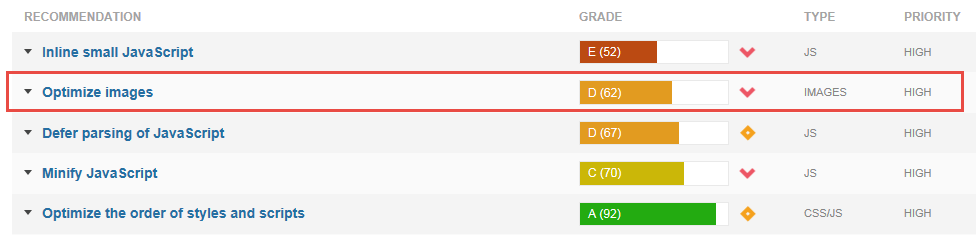
Kualo servers have the required optimisation utilities pre-installed, so you can use the Apptrian Image Optimizer extension without any additional server configuration.
To benchmark your site before and after, we recommend GTmetrix.
Installing Image Optimizer
Step 1 - Connect your store to Magento Marketplace
- Log in to Magento Marketplace and go to your name > My Profile > Access Keys.
- Copy your Public and Private keys.
- In your Magento Admin, go to System > Web Setup Wizard > System Config.
- Enter your Public and Private keys and save.
Step 2 - Purchase the extension
- Go to the Apptrian Image Optimizer extension page.
- Add it to your cart and complete the checkout (the extension is free).
Step 3 - Install via Extension Manager
- In your Magento Admin, go to System > Web Setup Wizard > Extension Manager > Review and Install.
- If your store is correctly linked to Marketplace, the extension will appear in the list:
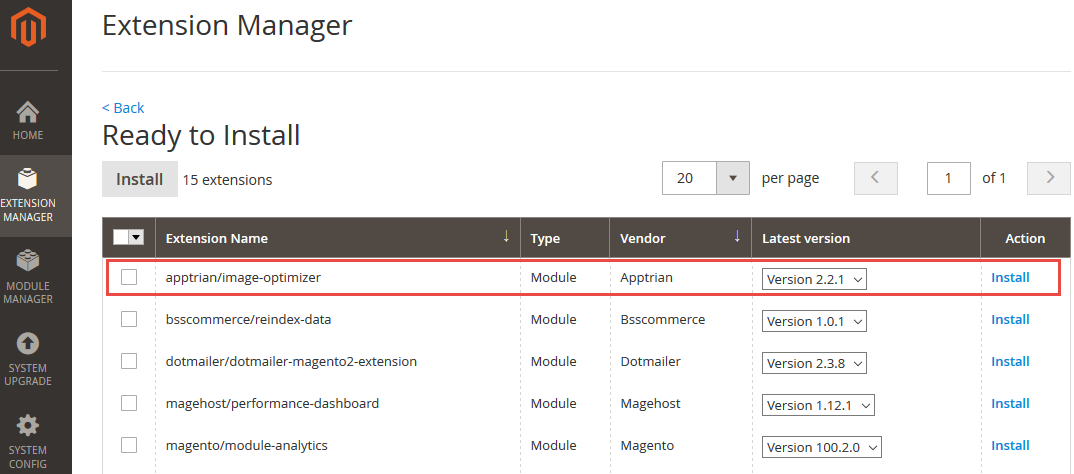
- Click Install and follow the prompts to complete the installation.
If the installation stalls on "Update pending", check that your Magento cron jobs are correctly configured.
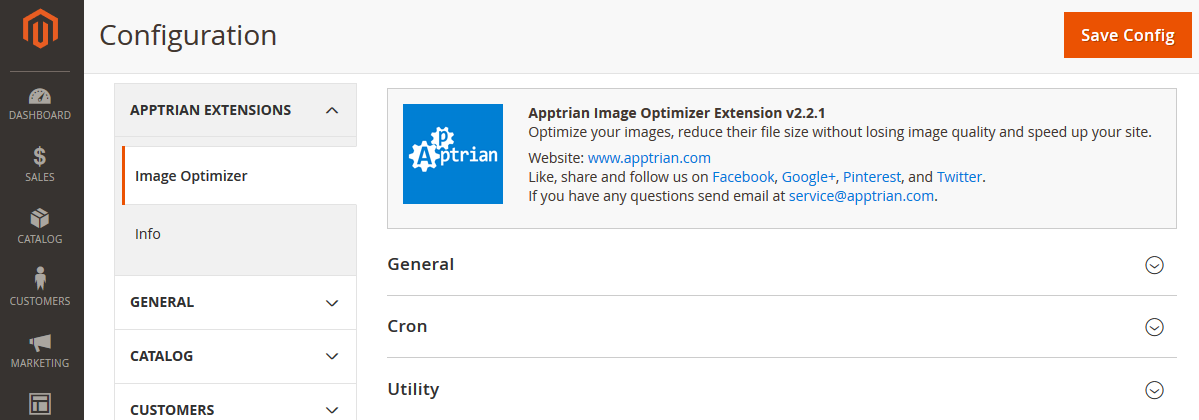
Once installed, go to Stores > Configuration where you will find the Apptrian Extensions section:
Configuring Image Optimizer
- Click on Utility and set the following values:
| Setting | Value |
|---|---|
| Use 64-bit utilities | No |
| Log utility output | Yes |
| GIF utility exact path | /usr/bin/gifsicle |
| JPG utility exact path | /usr/bin/jpegtran |
| PNG utility exact path | /usr/bin/optipng |
-
Click Save Config.
-
Go back to the General section and set the Batch Size. A value between 50 and 100 is a sensible starting point - adjust based on the number of images in your store and your hosting plan.
Running the optimisation
- Click Start Scan and Reindex Process and wait for it to complete:

- Click Start Optimization Process. The extension will process one batch of images at a time:

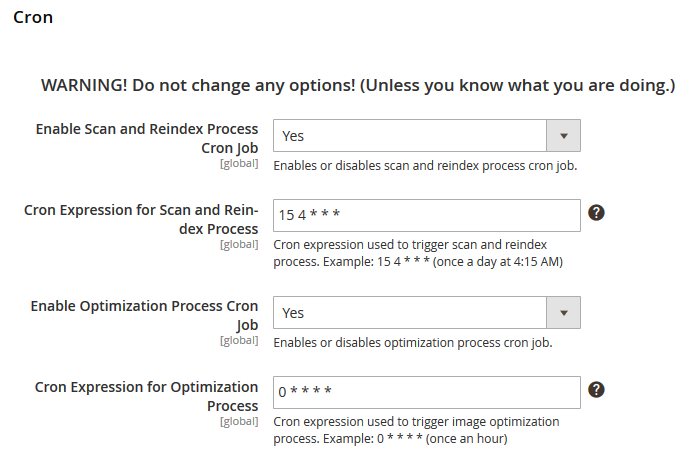
You can also schedule optimisation to run automatically as a cron job:
Flushing the cache
Once all images have been optimised, clear the Magento cache to ensure your store serves the updated files:
- Go to System > Cache Management.
- Click Flush Magento Cache, Flush Cache Storage, and Flush Catalog Images Cache.
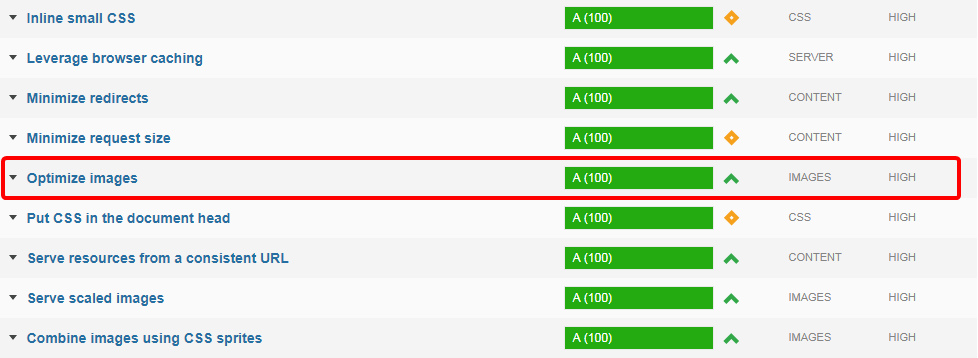
Run your GTmetrix benchmark again to confirm the improvement:
If you need any help with this, contact us and we will be happy to assist.