
On this page
How to switch Magento v2 to use a flat catalog
Enable the Flat Catalog feature in Magento 2 to consolidate product and category data into simpler tables for faster queries.
Magento uses the Entity-Attribute-Value (EAV) model to store customer, product, and category data, spreading attributes across multiple tables. This can make SQL queries long and complex. The Flat Catalog feature creates consolidated tables where each row contains all the data about a product or category, which can noticeably improve storefront performance.
Enabling flat catalog
- In the Magento Admin, go to Stores > Settings > Configuration.
- In the left-hand menu, select Catalog > Catalog.
- Expand the Storefront section.
- Set both Use Flat Catalog Category and Use Flat Catalog Product to Yes.
- Click Save Config.

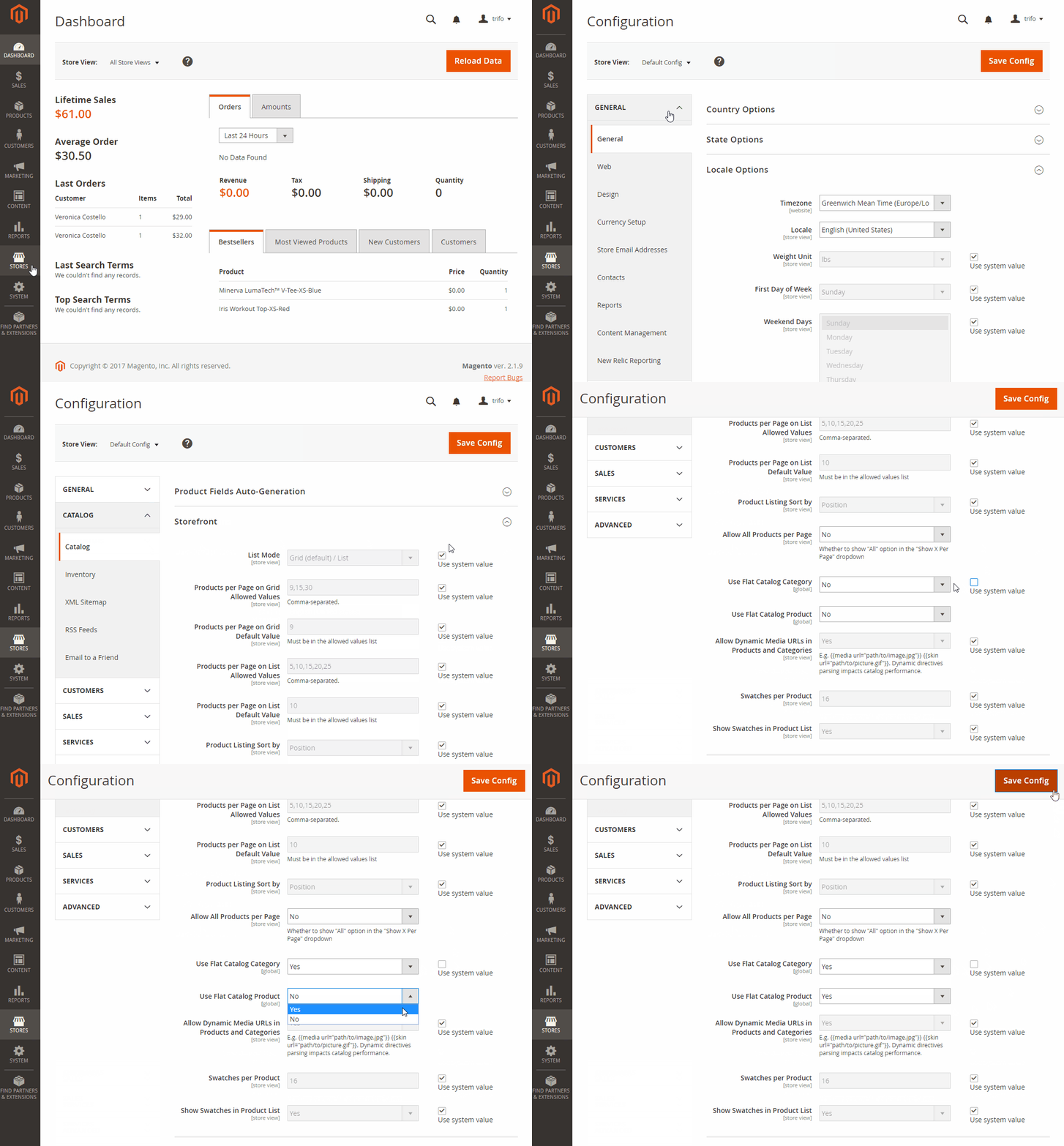
When prompted to clear the cache, click Cache Management and flush the cache.
Verifying the results
Once you have enabled flat catalog and flushed the cache, use one of the methods below to confirm the change is working.
Method 1: verify for a single product
- In the Admin Dashboard, go to Products > Catalog.
- Choose a product, then open it in edit mode via Actions > Edit.
- In the Product Name field, append
_DEMOto the name. - Click Save.
- In a new browser tab, go to your store's home page.
- Search for the product you edited, or browse to its assigned category.
If the change does not appear immediately, refresh the page. Updates will show within a minute or according to your cron job schedule.
Method 2: verify for multiple products
- In the Admin Dashboard, go to Products > Categories.
- In the upper-left corner, set the store view to All Store Views.
- In the left-hand panel, select an existing category, then click Add Subcategory.
- In the Category Name field, enter
Test Category. - Set Enable Category to Yes.
- Click Save Category.
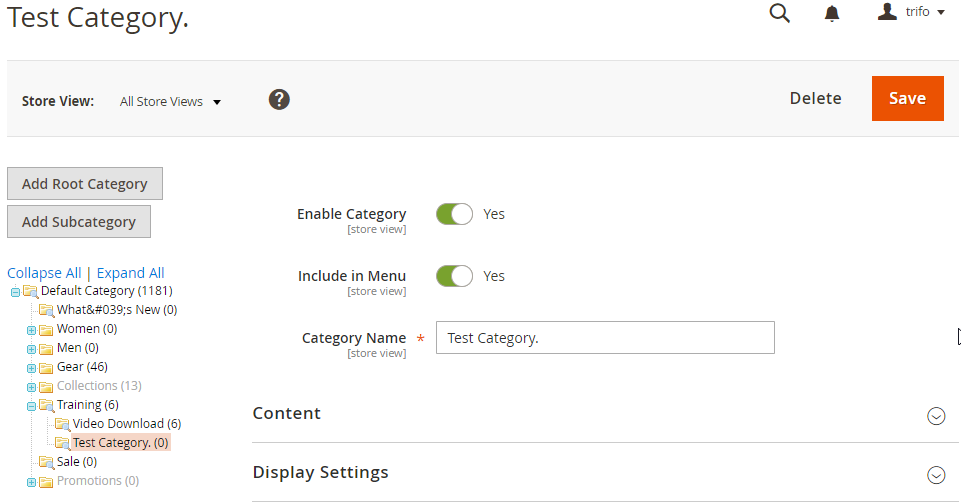
- Click the Products in Category tab, then click Reset Filter to display all products.
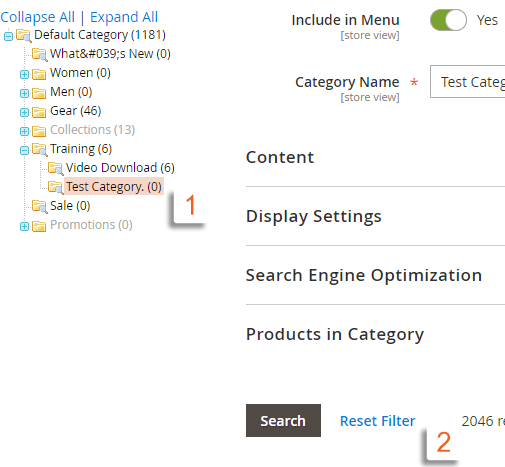
- Select the checkboxes of several products to add them to the new category, then click Save Category.
- In a new browser tab, navigate to your store's home page and find the category you created.
If the change does not appear immediately, refresh the page. Updates will show within a minute or according to your cron job schedule.
Flat catalog works best on stores with large product catalogues. On smaller stores the performance benefit may be minimal.
If you need any further help, please contact us.