
On this page
How to enable Cloudflare in Magento (and why it helps)
Enable Cloudflare on your Magento store to serve content faster to visitors around the world, straight from your Kualo cPanel.
Cloudflare is a Content Delivery Network (CDN) included free with all Kualo Magento plans, and you can switch it on in a couple of clicks from cPanel - no changes inside Magento required.
What is a CDN and why does it matter?
Data travels fast across the internet, but distance still adds up. A visitor loading your store from the other side of the world will wait longer than one loading it from the same city as your server. The further the data has to travel, the more noticeable the delay.
A CDN solves this by mirroring your static content - images, CSS, and JavaScript - across a global network of caching servers. When a visitor requests your site, the CDN serves that content from whichever server is closest to them. The result is a faster experience for visitors everywhere, not just those near your datacentre.
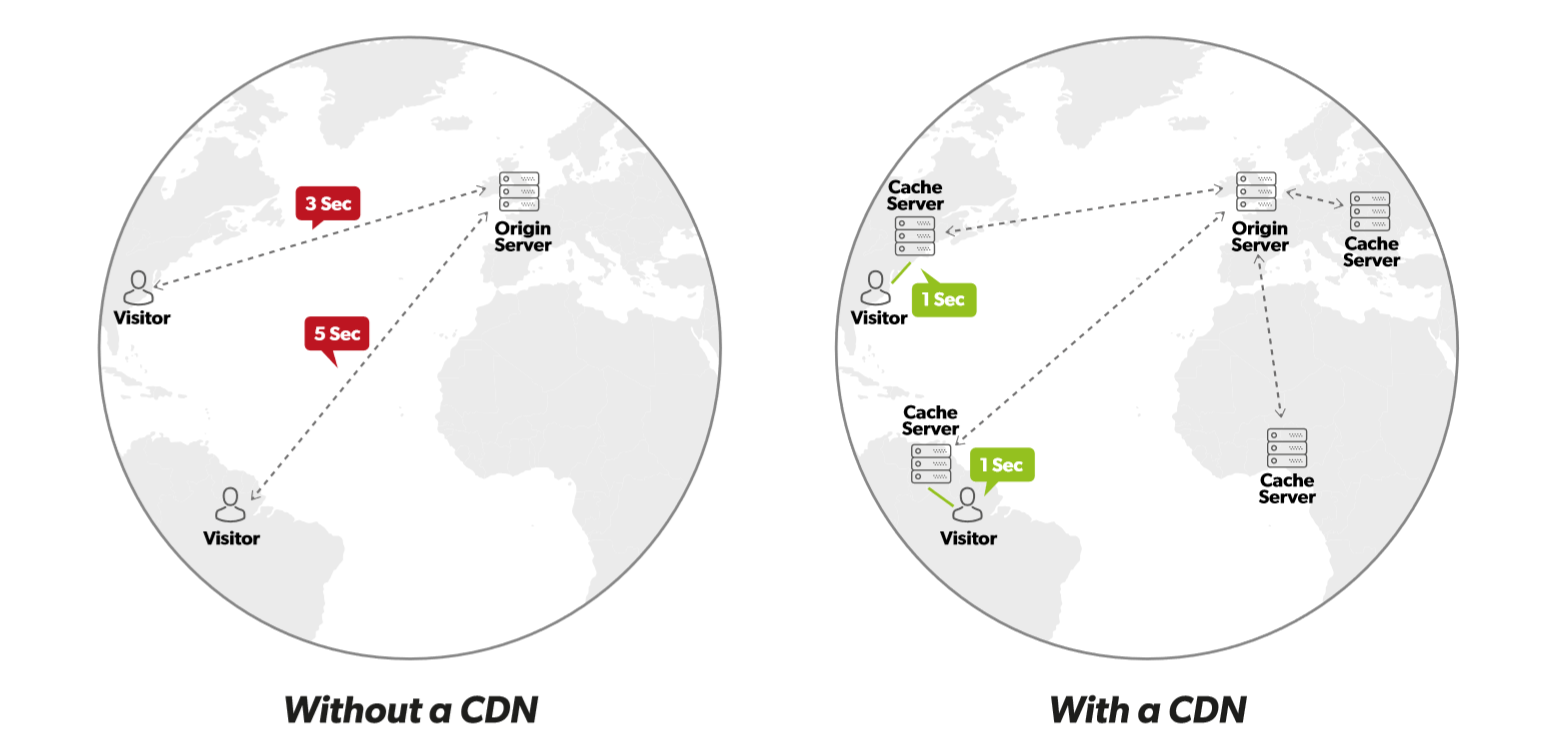
Cloudflare works at the network layer, so it requires no integration work inside Magento itself. Once it is enabled for your domain, it starts working automatically.
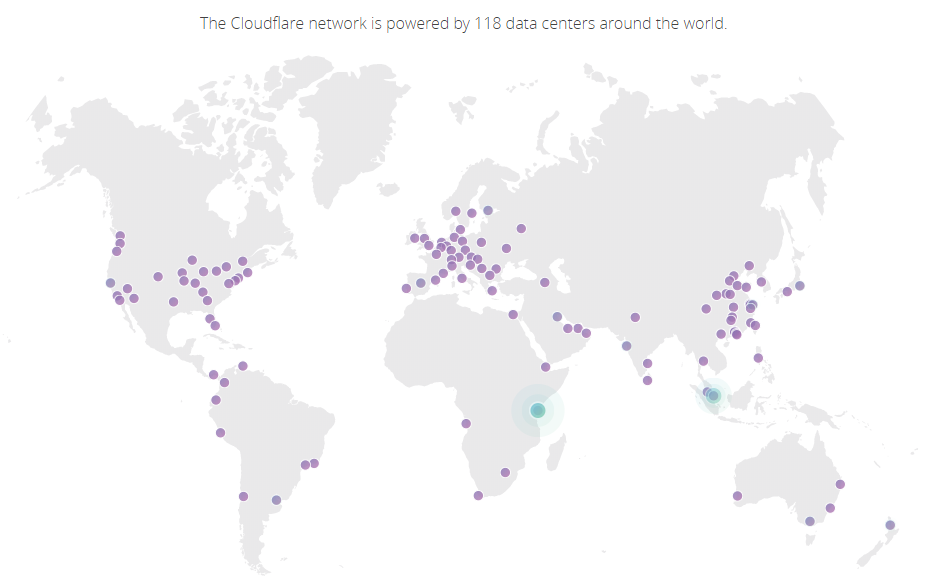
How to enable Cloudflare
-
Log in to your cPanel account.
-
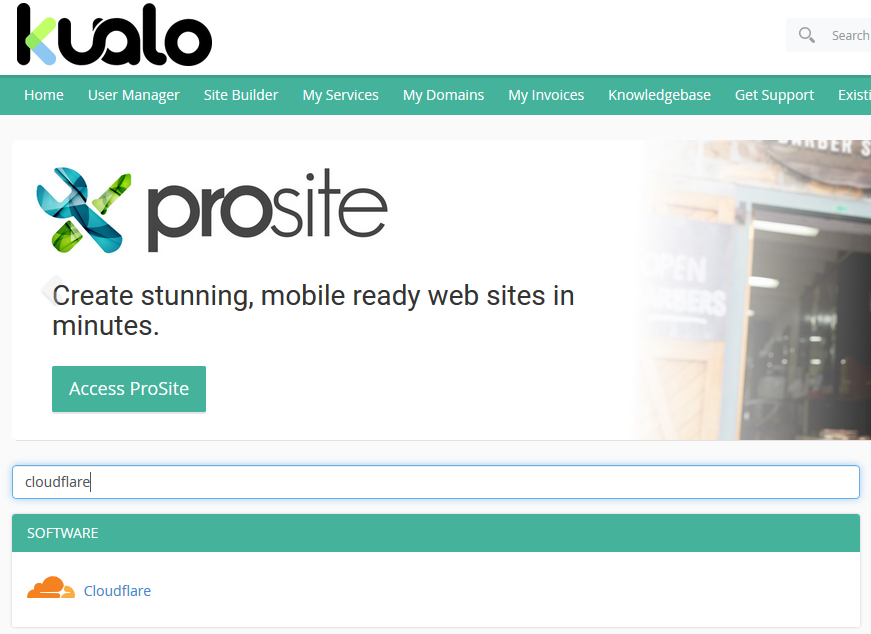
Under the Software section, click Cloudflare.
-
Log in to an existing Cloudflare account or create a new one.

-
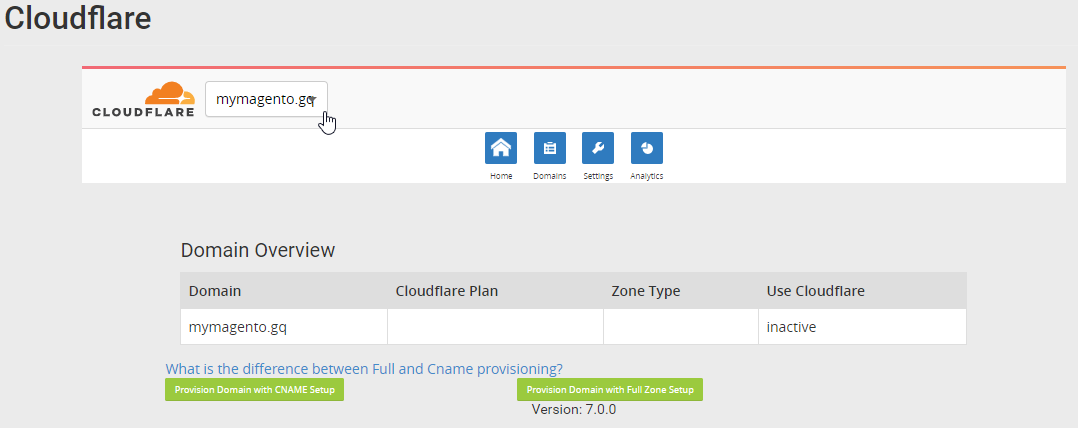
If your cPanel hosts more than one domain, select the domain you want to provision Cloudflare for.
-
Choose a provisioning type (see below), then complete the setup.
Provisioning types
| Type | How it works | Best for |
|---|---|---|
| CNAME setup | Adds a CNAME record pointing www.your-domain.com to Cloudflare. No change of DNS provider needed. |
Sites using the www prefix only |
| Full zone setup | Cloudflare becomes your authoritative DNS. You update your nameservers to those provided by Cloudflare. | Sites using both www.your-domain.com and the bare domain your-domain.com |
If you are unsure which to choose, full zone setup is the more flexible option and works in all cases.
Once provisioning is complete, Cloudflare will begin caching and serving your static assets from its global network. You can manage caching rules, security settings, and performance options from within the Cloudflare dashboard.
If you need any help getting set up, please contact us.