
On this page
How to manually run AutoSSL for a domain in cPanel
AutoSSL issues free SSL certificates for your domains automatically - here is how to trigger it manually in cPanel and check the result.
AutoSSL is a cPanel feature that automatically issues free SSL certificates for your domains every few hours. If you have just pointed a domain to your server - for example, after a migration - you can trigger it manually to get a certificate issued straight away.
Prerequisites
Before running AutoSSL, make sure your domain is pointing to your hosting account's IP address. AutoSSL must be able to reach your domain over HTTP to verify ownership, so DNS must have propagated first.
- If you are using Kualo nameservers, this is handled automatically.
- If you manage DNS externally, ensure your domain's A record points to your hosting account's IP address.
For help updating your nameservers, see updating nameservers at Kualo.
DNS changes can take up to 24-48 hours to propagate fully. If AutoSSL fails immediately after a DNS change, wait a little longer and try again.
Steps to manually run AutoSSL
-
Log in to cPanel. You can do this by going to
https://yourdomain.com/cpaneland entering your credentials. -
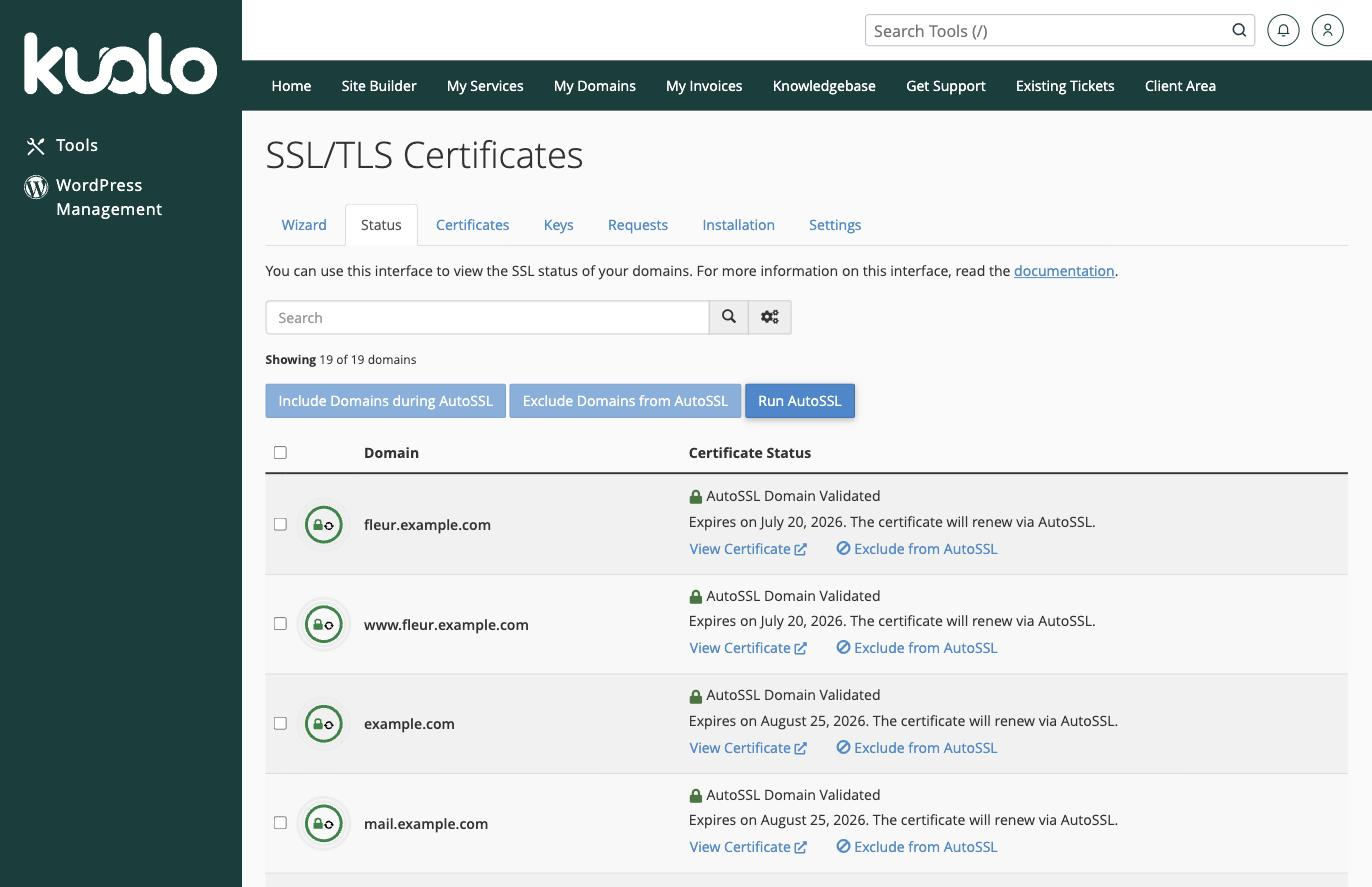
In the Security section, click SSL/TLS Status. This opens the SSL/TLS Certificates tool on its Status tab, which lists every domain and subdomain on your account along with its current certificate status.
-
Click the Run AutoSSL button above the list. You do not need to select individual domains unless you want to exclude specific subdomains.
-
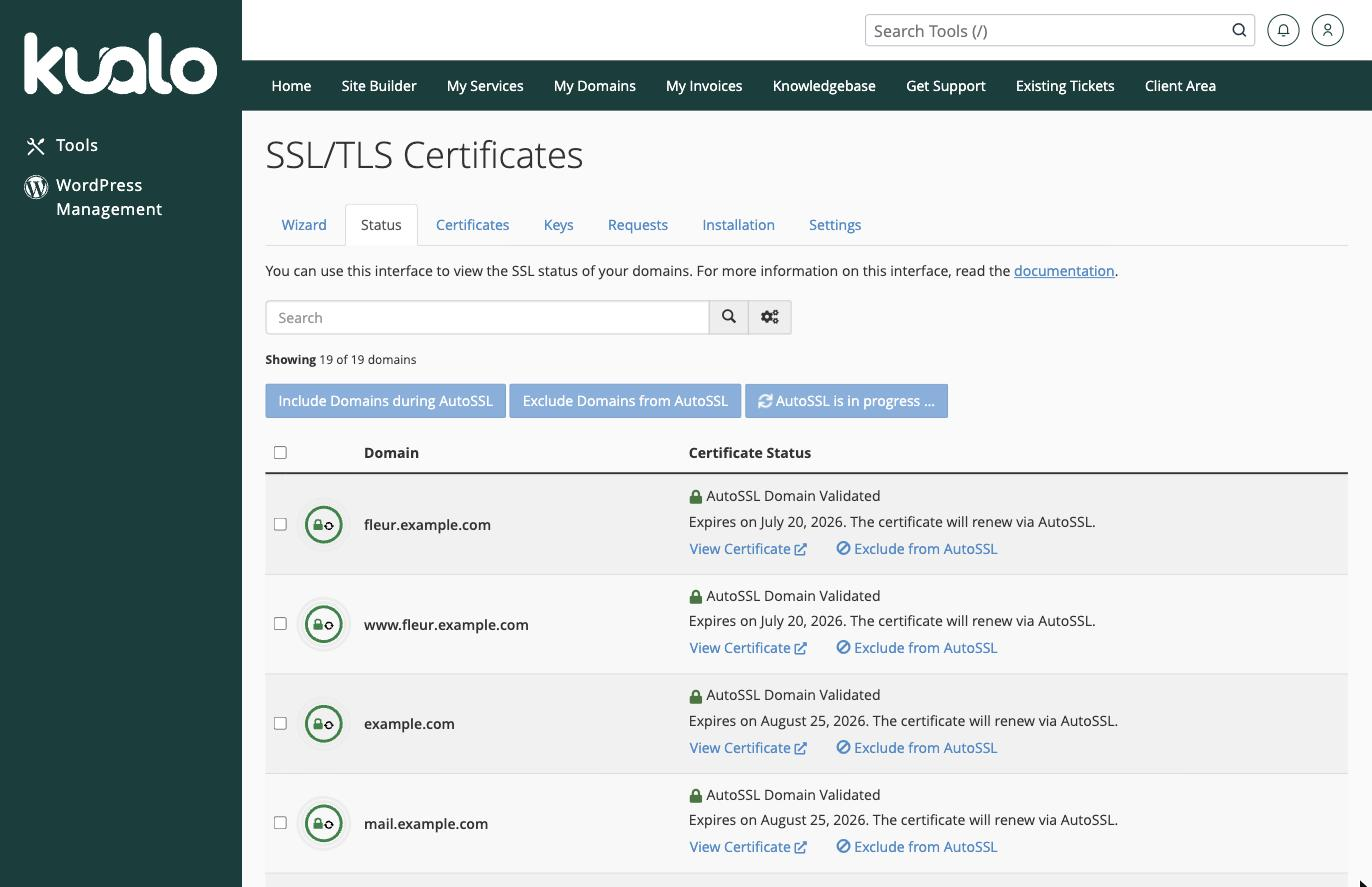
AutoSSL now checks each domain and issues certificates where it can. While it works, the button shows AutoSSL is in progress; this usually completes within a few minutes.
-
When it finishes, each domain's status shows AutoSSL Domain Validated, along with the certificate's expiry date and a note that it will renew automatically.
-
You can also confirm by visiting your site in a browser - a padlock icon in the address bar means the certificate is working.
The checkboxes next to each domain let you exclude subdomains from AutoSSL. This is useful if a subdomain is not yet live, or if you are using external DNS and have not added the required record. If this does not apply to you, simply click Run AutoSSL without changing any selections.
The rest of the SSL/TLS Certificates tool
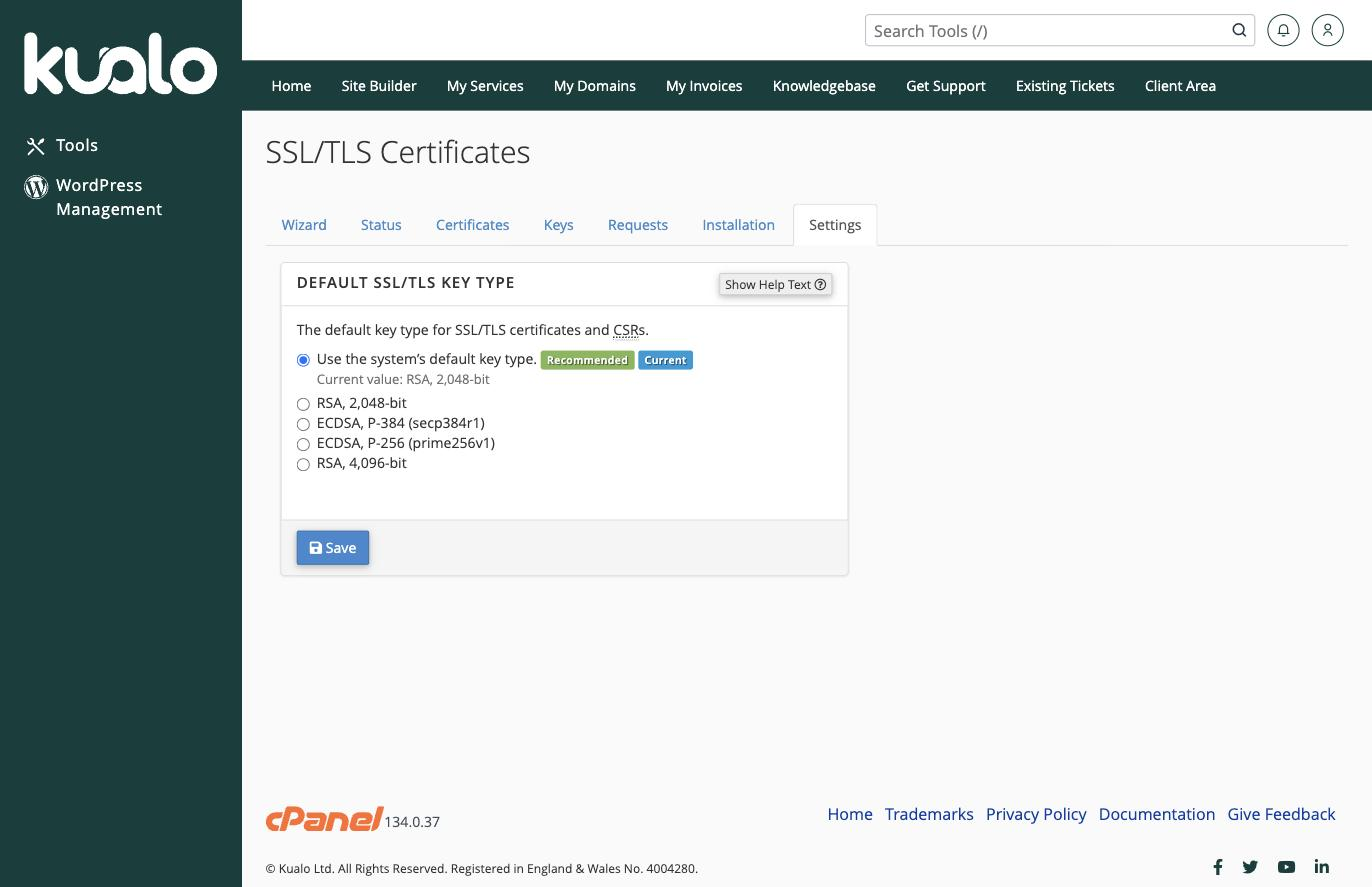
The same tool has other tabs across the top - Wizard, Certificates, Keys, Requests, and Installation - for managing certificates by hand if you ever need to, for example installing a certificate you bought elsewhere. The Settings tab lets you choose the default key type for new certificates.
Most sites never need these, because AutoSSL handles certificates for you. But if you do need to install your own certificate, see how to generate a key and CSR in cPanel.
If AutoSSL does not issue a certificate
If a certificate will not issue, the usual cause is that AutoSSL cannot reach your domain over plain HTTP to validate it - often because of a redirect. If your domain is behind Cloudflare, see using AutoSSL with Cloudflare. Otherwise, our support team will be happy to help.