
On this page
Accessing Patchman via cPanel
Patchman scans your hosting account for vulnerabilities. Here is how to open its dashboard from cPanel to review detections and act on them.
Patchman scans your hosting account for known vulnerabilities and outdated applications, and can patch many of them automatically. You can open its dashboard directly from cPanel to review what it has found.
Open Patchman
- Log in to cPanel and find the Security section.
- Click the Patchman icon. cPanel signs you straight in to your Patchman dashboard.
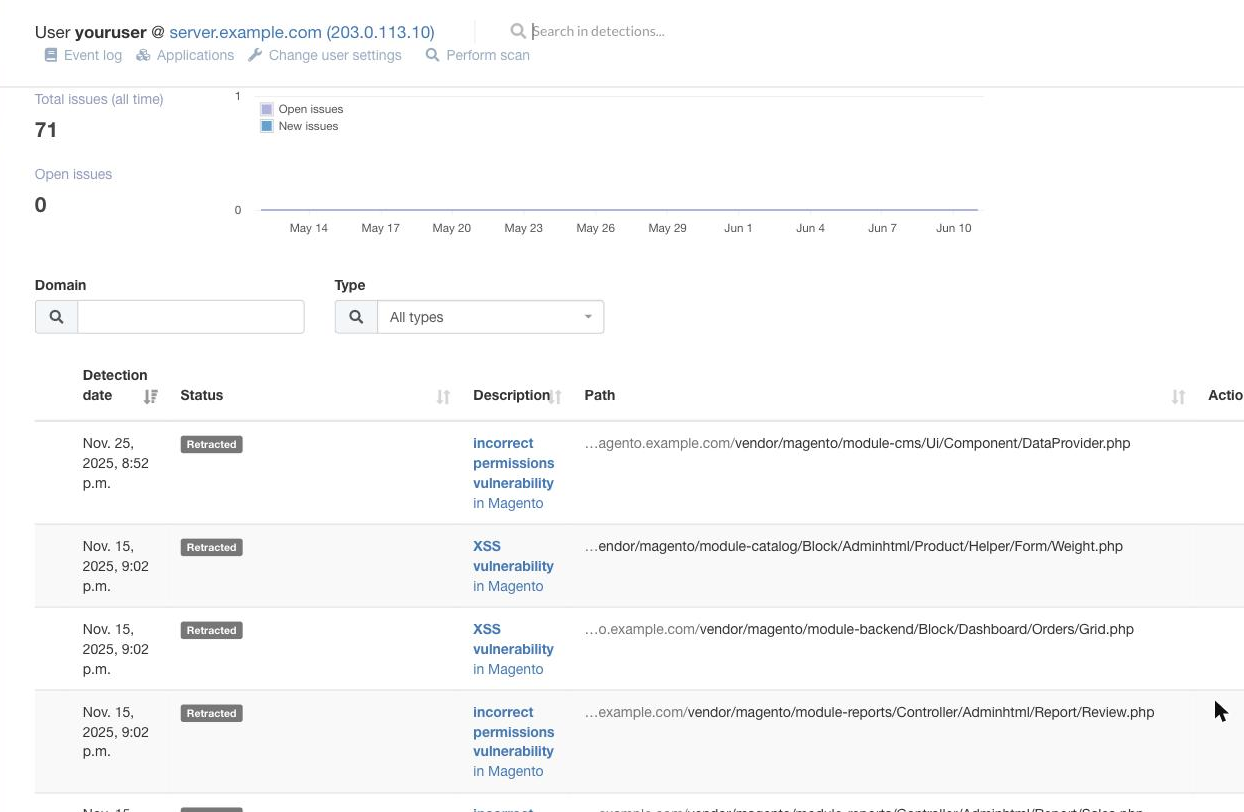
The dashboard
The dashboard opens on Detections and shows:
- Total issues and Open issues counts, plus a chart of detections over time, so you can see your security at a glance. The goal is to keep open issues at zero.
- Domain and Type filters to narrow the list (for example, to malware or to vulnerabilities).
- A detections table listing each finding with its date, Status, a Description of the vulnerability, the affected file Path, and an Actions menu.
Acting on a detection
Use a detection's Actions menu to deal with it - most commonly to patch the vulnerability, which fixes the affected file in place. If a patch ever causes a problem with your site, you can undo it - see reverting Patchman patches.
You can also use Perform scan at the top to run a manual scan, or Applications to review which of your installed applications are up to date.
Patchman runs automatically in the background, so you usually do not need to do anything - but it is worth checking in occasionally to keep your open issues at zero.