
On this page
Help! My WordPress site has been compromised, what should I do?
If your WordPress site has been hacked, follow these steps to clean it and prevent it happening again.
Finding out your WordPress site has been compromised is stressful, but try not to take it personally. In 99% of cases your site was not specifically targeted - spammers and hackers run highly automated systems that probe millions of sites for known vulnerabilities and exploit them at scale.
Almost every compromise comes down to insecure software installed in your account. Before you start cleaning, read our article on understanding account vulnerabilities - it explains why vulnerabilities exist, what we already do to protect you, and what you need to do to stay secure.
Two ways to fix a compromised site
There is a simple option and a more involved option, depending on whether you have a clean backup.
The simple option: restore from a clean backup
If you have a backup that pre-dates the compromise, restore from it. The catch is that malware is often injected into a site well before it is actually triggered - so your backup may already contain infected files. If you do restore from your own backup, carefully check it against any files we identified as malware in our report to you before restoring.
You can generate and download a full backup of your site and database at any time from cPanel's backup tools. See our guide on how to back up your website in cPanel.
The complex option: clean the site manually
If you do not have a clean backup, fixing a compromised site takes time and care. The steps below walk you through the full process.
If you did not set up your site yourself, consider passing this article to your web developer - the process is more involved than simply updating WordPress and plugins.
If you do not have a developer and would like us to clean your site for you, this is a chargeable service that typically takes one to three hours. Contact us and we can provide a quotation.
Step-by-step: cleaning your WordPress site
1. Download a backup of your site files and database
Before you change anything, take a backup of everything currently installed - even a hacked copy of your site contains useful data. If something goes wrong during the repair, you can restore to this state and start again.
Download a full backup (files and database) from cPanel using the backup wizard. Save it to your computer and keep it somewhere safe.
2. Copy your uploaded files and wp-config.php
Images and uploaded files in /wp-content/uploads are generally not infected. Copy them from the backup you just downloaded - you will need to re-upload them later. Also take a copy of your wp-config.php file, which contains your database connection details.
3. Download a fresh copy of WordPress and your theme
Updating plugins and themes through the WordPress admin is not enough when a site has been hacked. Updates only replace files that have changed - they do not remove obsolete files, and they will not touch new files that a hacker has injected. You need a completely clean set of files.
- Download the latest WordPress release from wordpress.org/download/release-archive/.
- If your theme came from the WordPress theme directory, download a fresh copy from wordpress.org/themes/.
- If your theme was a paid theme, log in to the developer's site and download a fresh copy from there.
4. Delete everything in your WordPress install directory
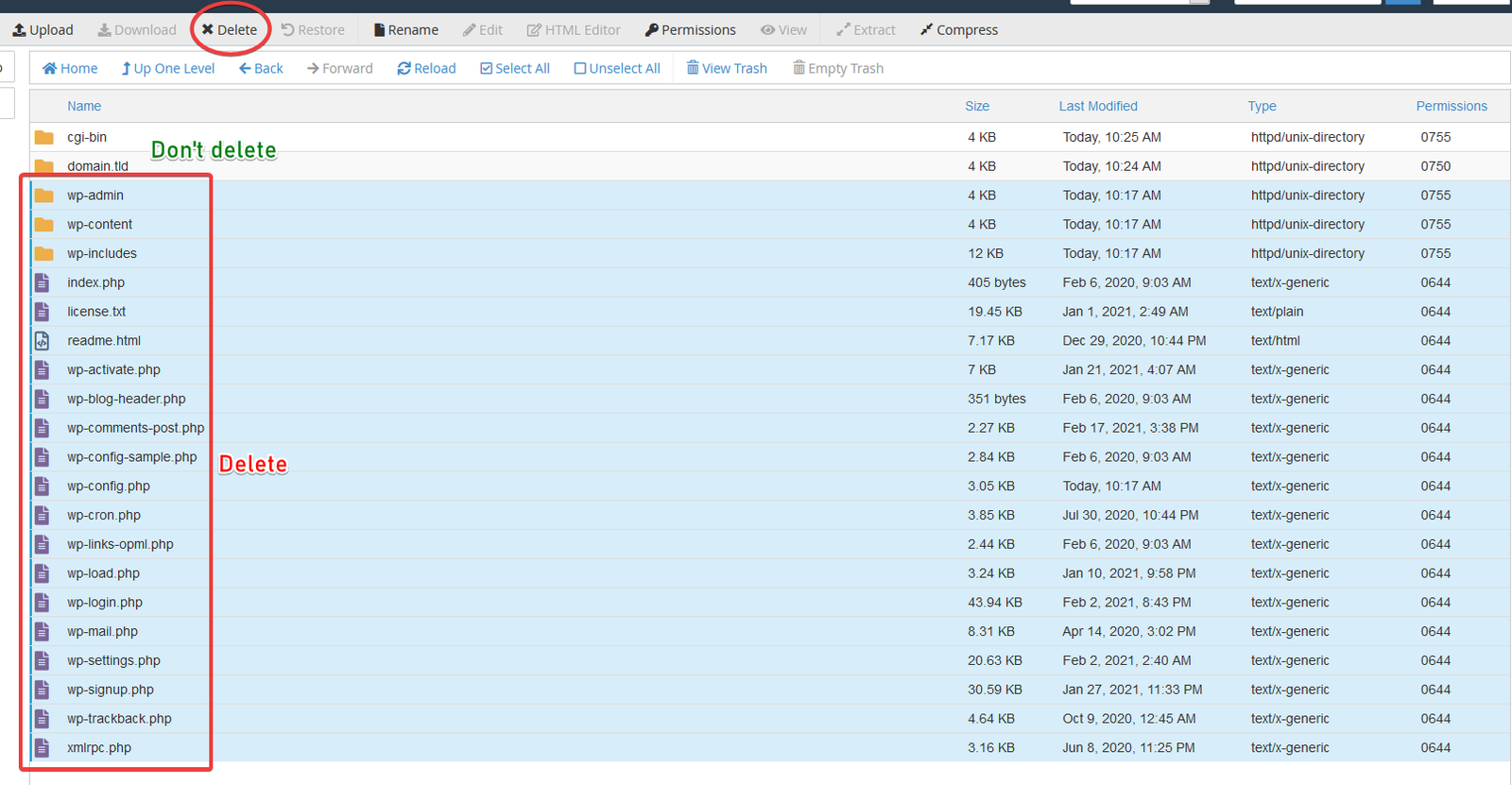
Now that you have a backup, copies of your uploads, and clean files ready to go, delete every single file and folder in your WordPress install directory. This is the only reliable way to remove all infected files - hackers routinely inject files with names that look like legitimate theme or plugin files, and hunting them down individually takes far longer than starting clean.
The fastest way to do this is via cPanel's File Manager.
- If WordPress is installed in
public_html, select every file and folder in that directory. - Do NOT delete
cgi-bin- this is a system folder. Open it and check its contents; in a standard hosting account it will be empty. If there is anything in there that you did not put there, delete it. - If you have addon domains hosted within the same account, deselect their root folders (usually named
www.yourdomain.com) so you do not accidentally remove other sites.
Your selection should look something like this:
If you have addon domains, those sites may also be compromised. Repeat this cleaning process for any other WordPress installs or applications in your account.
5. Change your database password in cPanel
When a site is compromised, attackers may have read your database credentials from wp-config.php. You must change the MySQL database password to prevent them reconnecting.
- Log in to cPanel and open MySQL Databases.
- Scroll to the Current Users table at the bottom of the page.
- If you have multiple WordPress installs or other applications, identify the correct user by opening your saved copy of
wp-config.phpand finding the line:
/** MySQL database username */
define('DB_USER', 'yourcpanelusername_wp686');
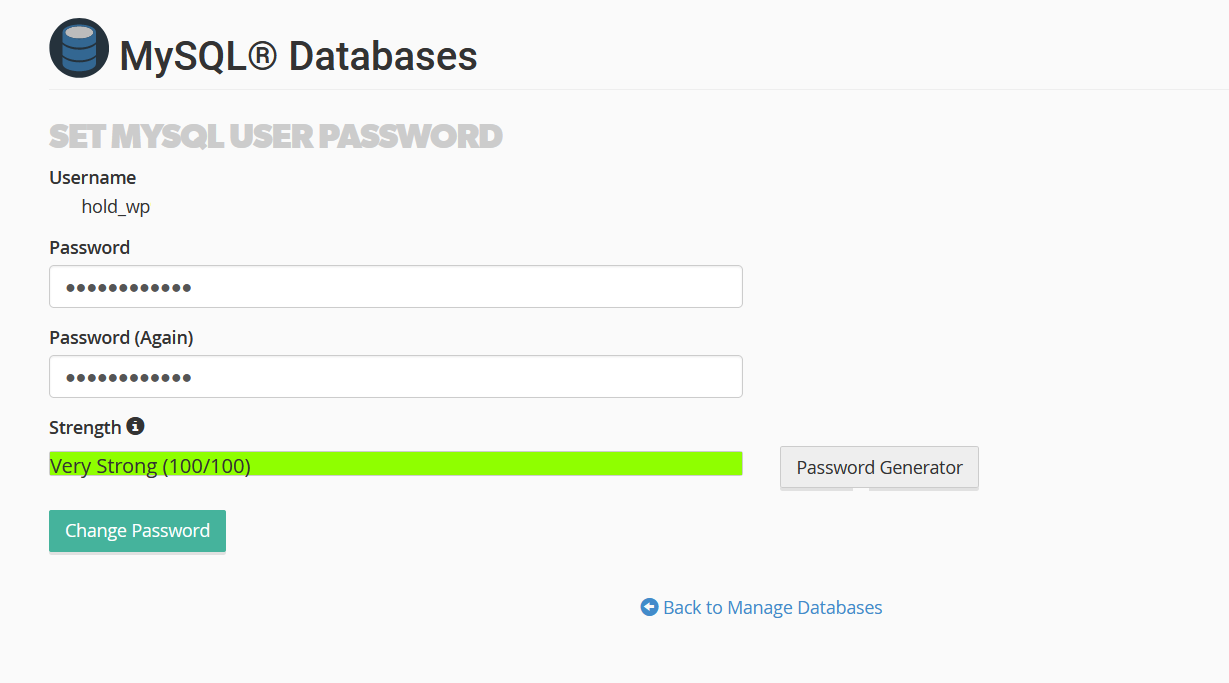
- Locate that username in cPanel, click Set Password, then use the Password Generator to create a strong password. Copy it.
- Click Change Password.
Your password change screen will look like this:
- Open your saved copy of
wp-config.php. Find the line:
/** MySQL database password */
define('DB_PASSWORD', 'old-password-here');
- Replace the old password with the new one you just generated.
While you have wp-config.php open, also update the authentication keys and salts (the section headed Authentication Unique Keys and Salts). Replace the random strings between the quote marks with new random values of similar length. You can generate a fresh set at api.wordpress.org/secret-key/1.1/salt/.
6. Re-upload the clean files
Upload the fresh WordPress core files to your install directory, then upload the updated wp-config.php (with the new database password and new keys). Finally, upload your clean theme following your theme developer's instructions.
Uploading a clean WordPress core and theme does not wipe your content. All your pages, posts, and settings are stored in the database and will still be there. In almost all cases your site will look exactly as it did before. If theme customisations are missing, it is likely the theme was storing config in files rather than the database - a sign that the theme itself may have been the root cause of the compromise.
7. Re-upload your images and uploads
Upload the contents of the /wp-content/uploads folder you copied in step 2 back into the same location. This restores any images and files linked in your pages and posts.
8. Run the WordPress database upgrade script
Visit https://www.yourdomain.com/wp-admin/upgrade.php in your browser. This applies any necessary database structure changes for the version of WordPress you have just installed.
9. Change your WordPress admin password immediately
Log in to WordPress and change your admin password to a strong, unique one. If there are other users with administrator-level access who cannot change their passwords straight away, temporarily downgrade their role until they can log in and update their own password, then restore their administrator access.
10. Install the Wordfence security plugin
Install the Wordfence plugin. It provides a web application firewall and malware scanner specifically for WordPress and will significantly improve your site's security posture. Once installed, review the Wordfence options in the WordPress sidebar and configure it carefully - correct configuration is important both for protection and to avoid any impact on site performance.
Keeping your site secure going forward
Your site is only as secure as you keep it. We do everything we can on our end - we run a server-side firewall, Patchman to detect and patch known vulnerabilities in WordPress installs, and Imunify360 for active malware protection. We also provide a way for you to configure automatic updates for WordPress, themes and plugins.
But the ultimate responsibility for keeping your software up to date lies with you, or with your web design agency if you pay them for ongoing maintenance. The most important thing you can do is keep WordPress core, your theme, and all plugins updated to the latest secure releases. That process takes a few minutes every now and again - far less time than cleaning a compromised site.
Do not forget your other sites and applications
If you have addon domains or other applications installed in your account, they may also be compromised. Run the same cleaning process for any other WordPress installs, and make sure all other applications are equally up to date.