
On this page
How to view your Imunify360 security in cPanel
Imunify360 protects your site automatically. Here is how to open it in cPanel to check malware scans, scan history, and proactive defence events.
Imunify360 runs automatically on Kualo servers, scanning for malware and blocking attacks in the background. You do not need to set anything up - but cPanel gives you a window into what it is doing, so you can check your account's security at any time.
Open Imunify360
Log in to cPanel and, in the Security section, click Imunify360 (it may also appear as ImunifyAV - both open the same tool).
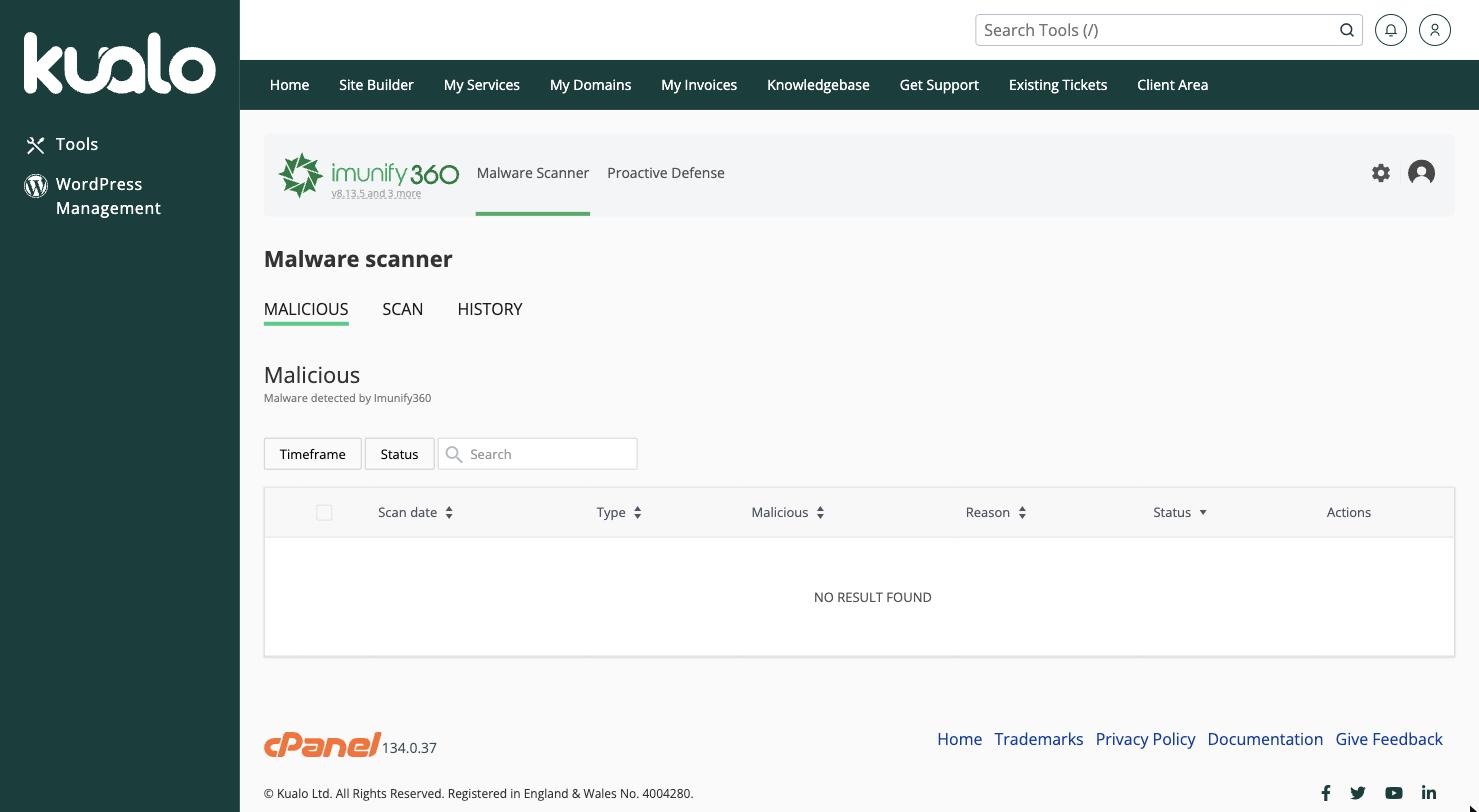
It opens on the Malware Scanner, with the app's two main areas along the top: Malware Scanner and Proactive Defense.
Malware Scanner
The Malware Scanner has three tabs:
-
Malicious - any malware Imunify360 has found on your account. On a clean account this shows No result found - exactly what you want to see.
-
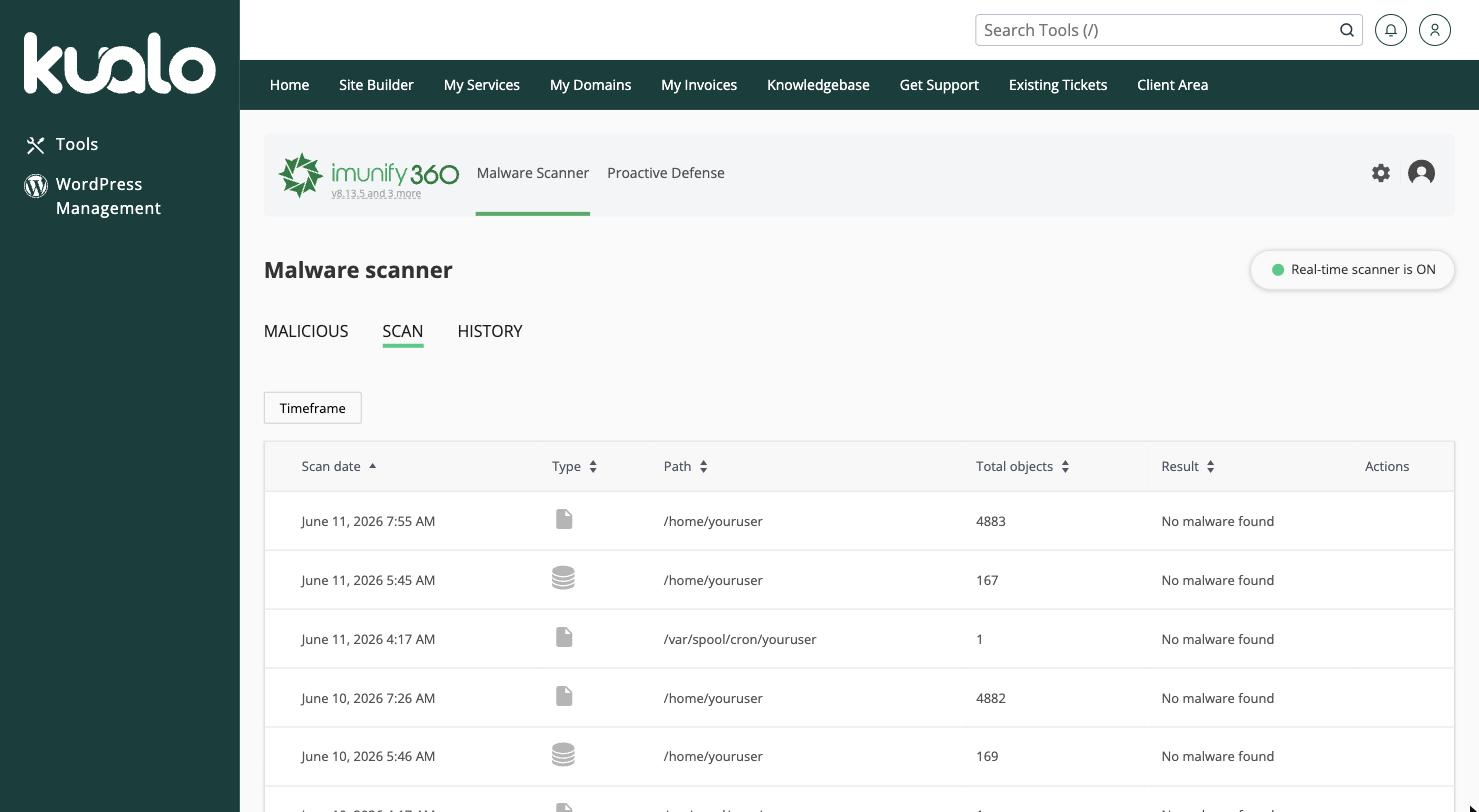
Scan - a history of the automatic scans Imunify360 has run, showing when each one ran, how many files it checked, and the result. A green Real-time scanner is ON badge confirms that new files are checked as they are written.
-
History - a fuller log of past scan activity.
Because scanning is automatic and real-time, there is nothing for you to start - Imunify360 is always working in the background.
Proactive Defense
Proactive Defense watches for PHP-based attacks and can stop a malicious script the moment it runs.
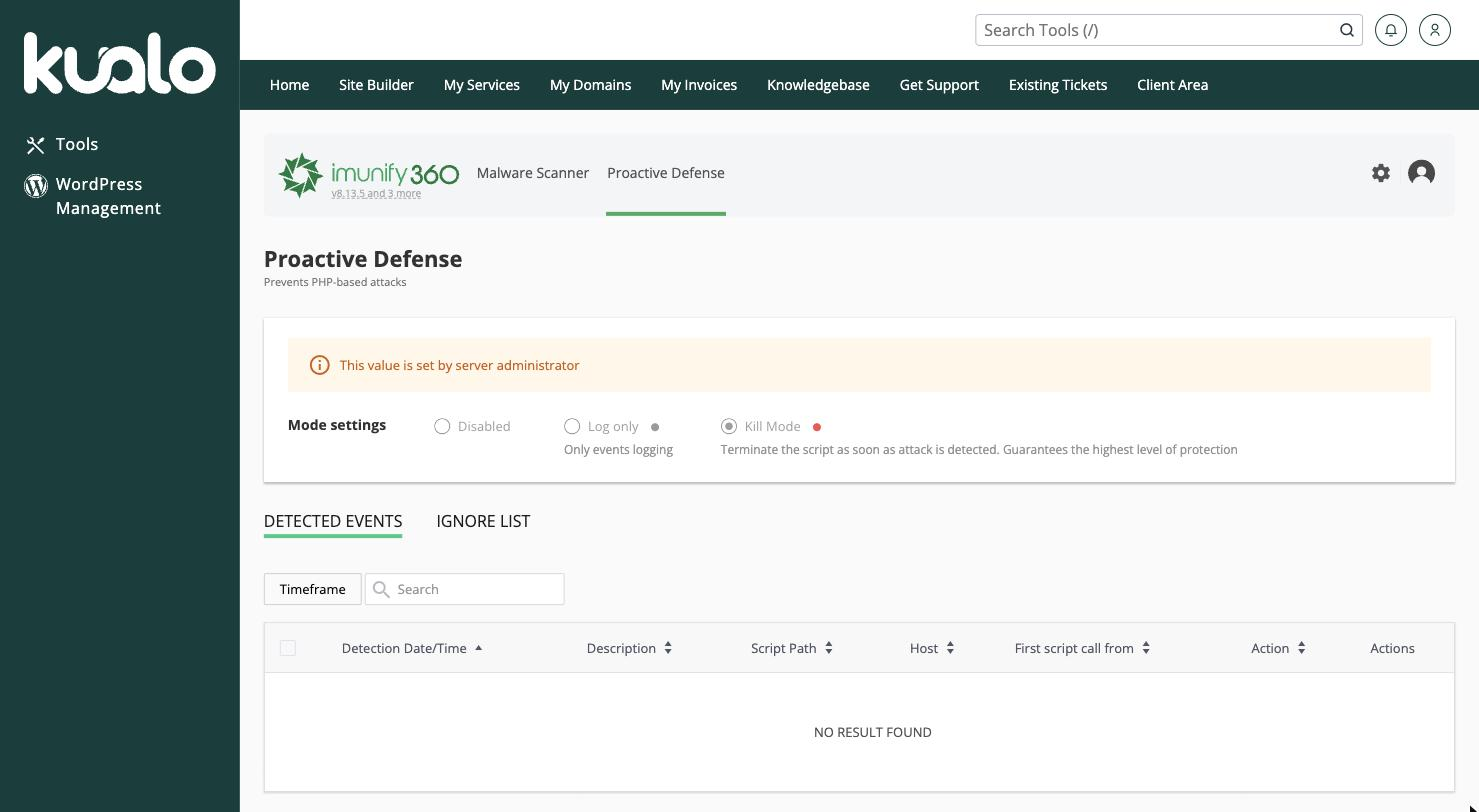
The Detected Events tab lists anything it has acted on (again, No result found on a healthy account). The protection settings shown here are managed for you by our team, so they are for information only.
What if malware is found?
If Imunify360 detects malware, it quarantines the affected files automatically and, where possible, cleans injected code to restore the original file. If you ever see a detection you are unsure about, open a support ticket and our team will help.
To learn more about what Imunify360 does, see an introduction to Imunify360.