
On this page
How to generate a key and CSR in cPanel for your SSL certificate
Generate a private key and Certificate Signing Request (CSR) in cPanel, ready to order an SSL certificate you will install yourself.
Before you can order an SSL certificate, you need to generate a private key and a Certificate Signing Request (CSR) in cPanel. The CSR contains your site and organisation details, and you paste it into the order form when buying your certificate. Both live in the SSL/TLS Certificates tool, on its Keys and Requests tabs.
Most sites never need to do this - Kualo issues free certificates automatically with AutoSSL, so HTTPS just works. See how to manually run AutoSSL for a domain in cPanel. Only generate a key and CSR if you are buying a commercial certificate that you will install yourself.
Generate a private key
-
Log in to cPanel and, in the Security section, click SSL/TLS.
-
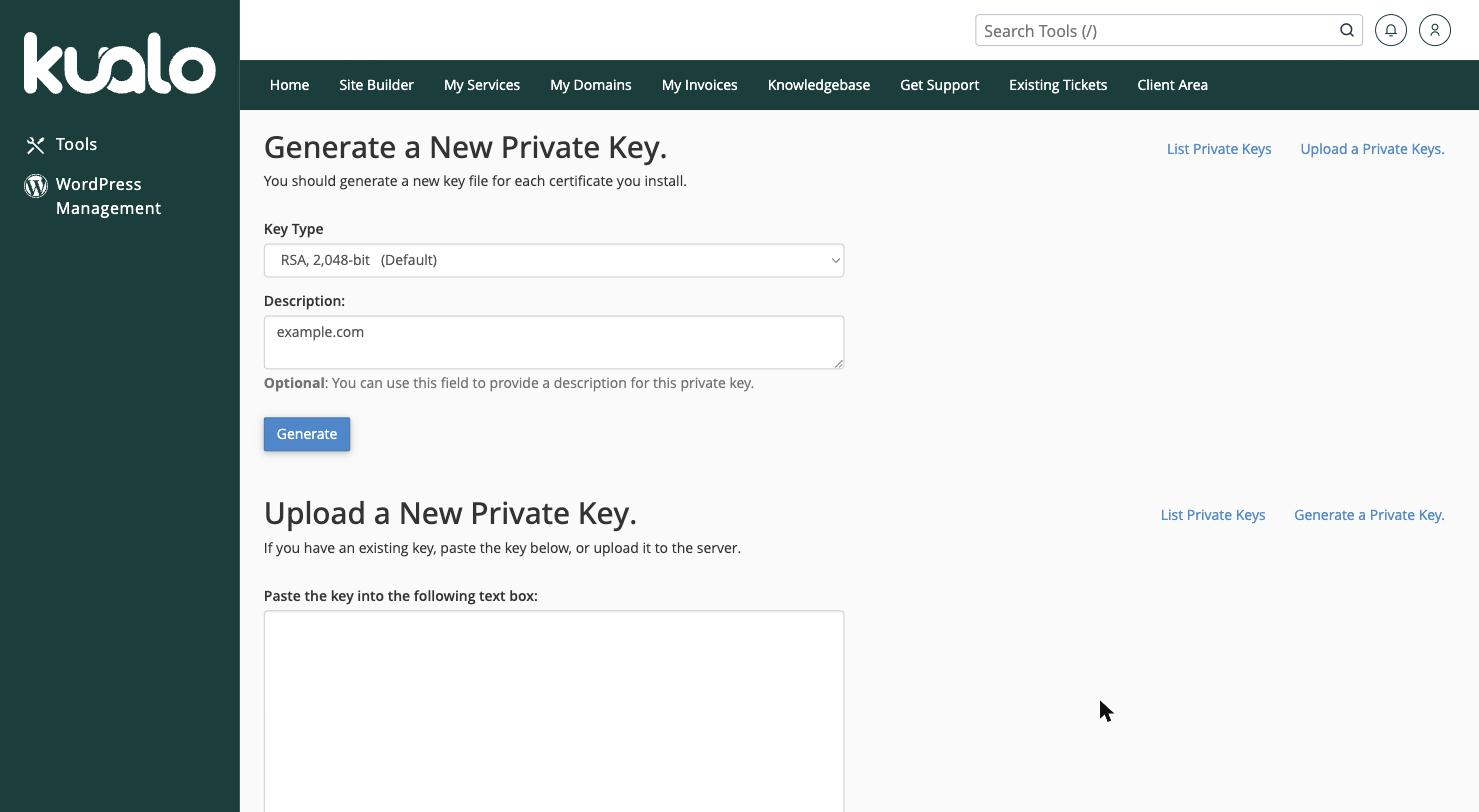
Open the Keys tab. Under Generate a New Private Key, choose the Key Type (the default RSA, 2,048-bit is fine for most certificates), optionally add a Description to help you identify the key, then click Generate.
-
cPanel creates the key and shows it on screen. You do not need to copy it - it stays safely in cPanel, ready for when you install your certificate.
Generate a Certificate Signing Request (CSR)
-
Open the Requests tab.
-
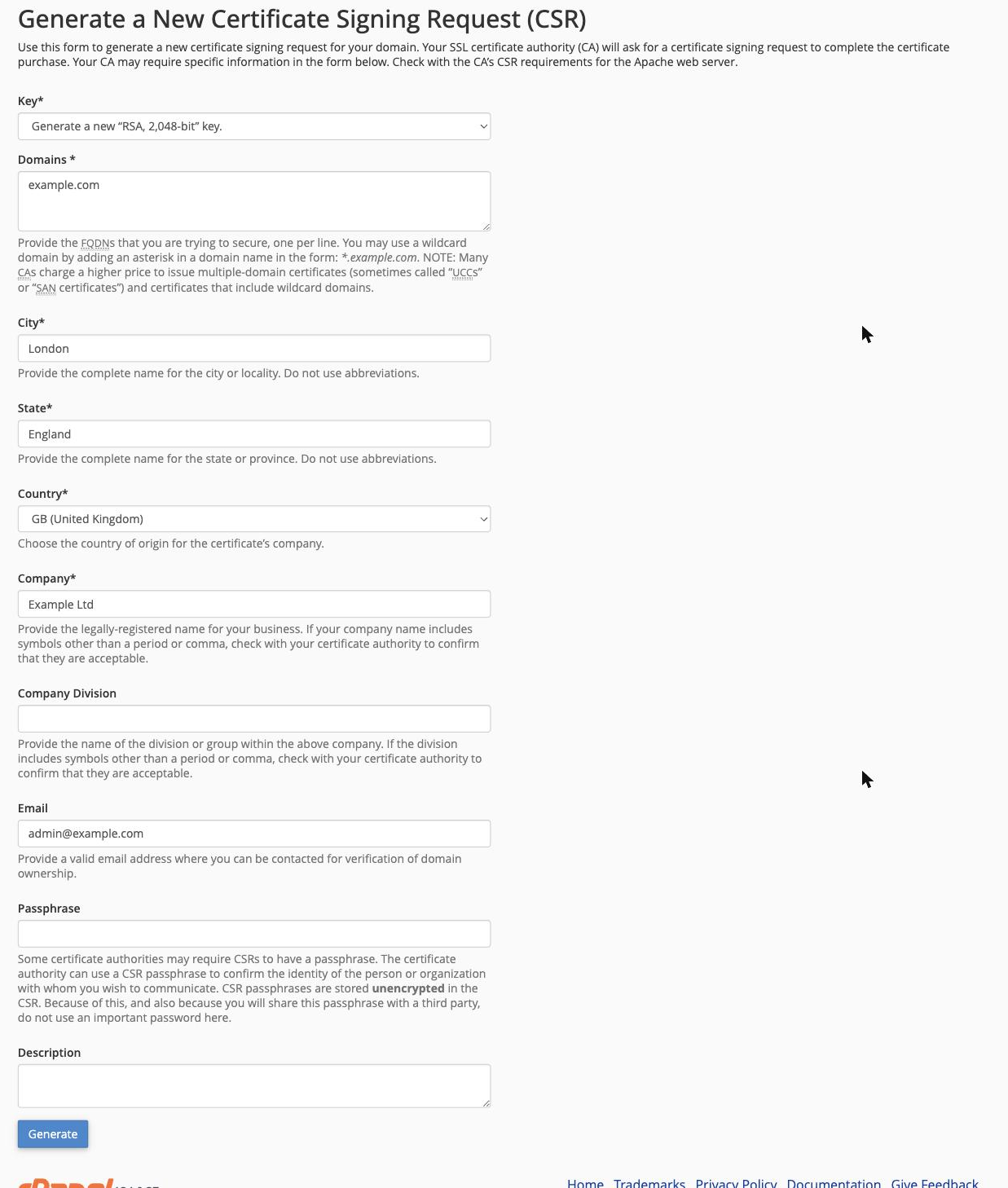
Under Generate a New Certificate Signing Request (CSR), choose the Key you just generated, then fill in your details: the Domains the certificate is for, your City, State, Country (choose it from the list), and Company, plus a contact Email. Optional fields such as Company Division and a CSR passphrase can be left blank.
-
Click Generate. cPanel displays your CSR. Copy the entire block, including the
-----BEGIN CERTIFICATE REQUEST-----and-----END CERTIFICATE REQUEST-----lines, and paste it into your certificate provider's order form.
Keep your private key safe and never share it - it stays in cPanel and is used later when you install the certificate. The CSR, by contrast, is not secret: it is meant to be handed to your certificate provider.