
On this page
Verify if LiteSpeed Cache is working
Check whether LiteSpeed Cache is active by inspecting the response headers returned by your server.
The quickest way to confirm that LiteSpeed Cache is working is to inspect the HTTP response headers your server returns when a page is loaded. Your browser's developer tools make this straightforward.
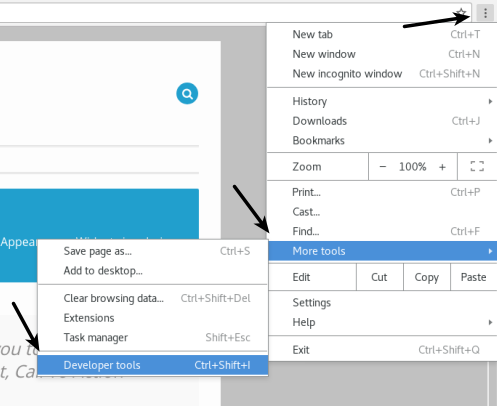
Open the developer tools in Chrome
- Open Chrome and navigate to a page on your website.
- Press Ctrl + Shift + I (Windows/Linux) or Cmd + Option + I (Mac) to open the developer tools, or right-click anywhere on the page and choose Inspect.
Check the response headers
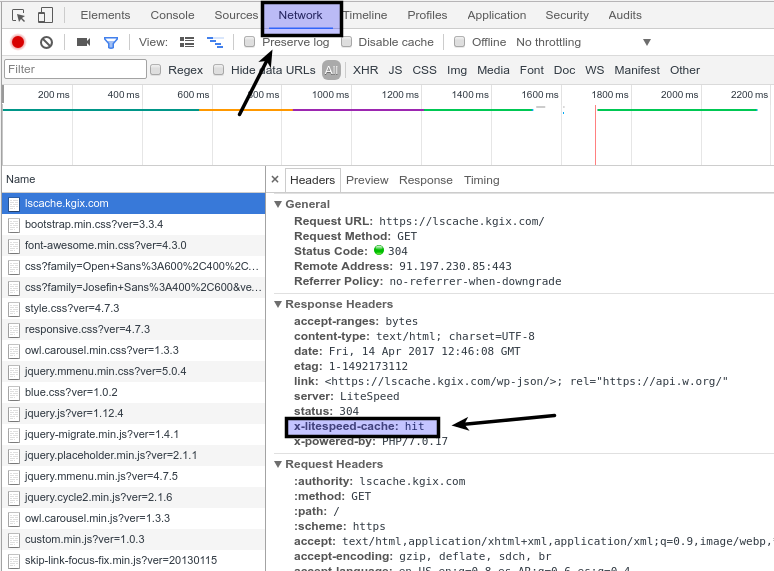
- In the developer tools panel, click the Network tab.
- Reload the page by pressing F5 (or Cmd + R on Mac).
- In the list of requests that appears, click the entry that matches your domain name.
- Select the Headers sub-tab and scroll down to the Response Headers section.
Interpreting the result
Look for the x-litespeed-cache header. Its value tells you the cache status:
| Header value | Meaning |
|---|---|
x-litespeed-cache: hit |
The page was served from the LiteSpeed Cache. |
x-litespeed-cache: miss |
The page was not in cache and was generated fresh. |
A miss on the very first load after clearing cache is normal. Reload the page once more - if caching is working correctly, the header should change to hit.
If you continue to see miss on repeated loads, check that the LiteSpeed Cache plugin (for WordPress) or your cache configuration is enabled and that the page is not excluded from caching by a rule.
Was this helpful?
Your feedback helps us find gaps in the docs.
Thanks for the feedback!
Related articles
LiteSpeed Cache
What is LiteSpeed Cache?
LiteSpeed Cache is a high-performance, server-level page cache built directly into LiteSpe...
LiteSpeed Cache
How to enable LiteSpeed Cache in cPanel
Enable LiteSpeed Cache in cPanel to start serving faster, dynamically cached pages on your...
LiteSpeed Cache
Public cache vs. private cache
Understand when LiteSpeed Cache should use a public cache, a private cache, or no cache at...
LiteSpeed Cache
Configuring LiteSpeed Cache with WordPress
Learn how to install and configure LiteSpeed Cache for WordPress, from enabling it in cPan...
Still need a hand?
Real people, around the clock - start a chat or open a ticket and we'll help you put it right.