
On this page
How to deploy a Node.js application
Deploy a Node.js application on Kualo hosting using cPanel's Node.js Selector and Phusion Passenger.
Kualo hosting supports Node.js applications through cPanel's Node.js Selector, which uses Phusion Passenger as the web server. This guide walks you through the setup process using Ghost CMS as a practical example.
Before you begin, make sure you have enabled Node.js in cPanel. See Enabling Node.js in cPanel for instructions.
How it works
The Node.js Selector handles the environment setup for you. Specifically, it:
- Adds the Phusion Passenger configuration lines to your
.htaccessfile - Installs and configures Node.js inside a virtual environment
Set up the environment
-
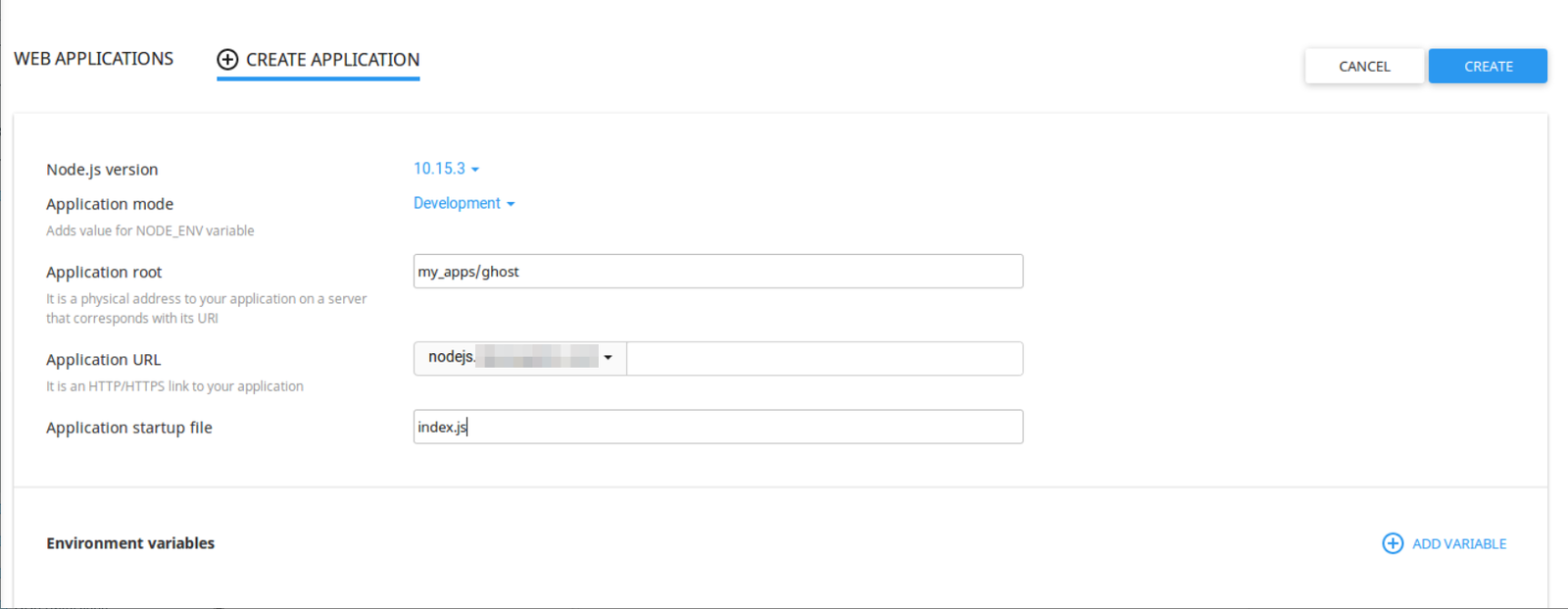
Open the Node.js Selector in cPanel and create a new application. Choose the Node.js version that matches your application's requirements. For Ghost CMS, check the Ghost Node.js version requirements before selecting a version.
-
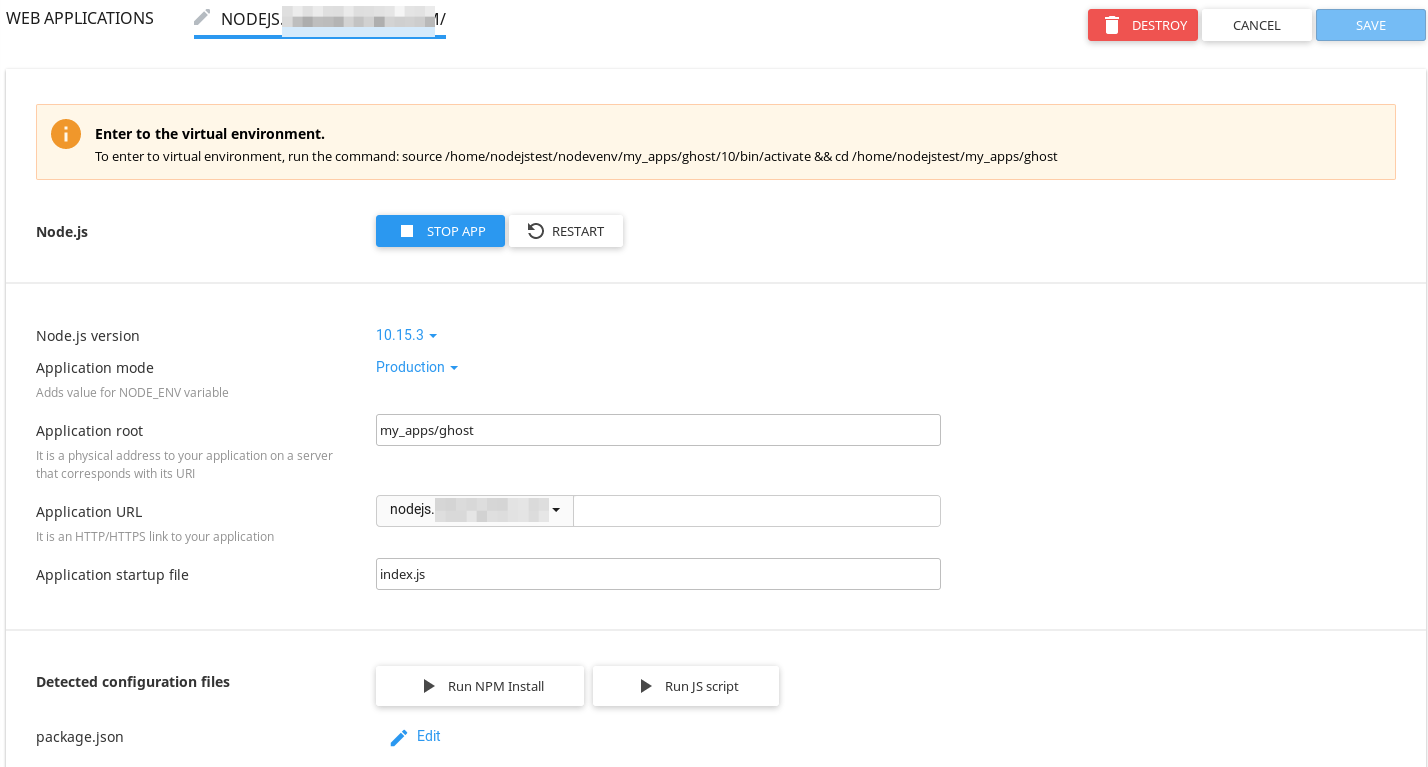
After clicking Create, the selector creates the application and displays the command you need to activate the virtual environment.
-
Set the application mode to Production, then click Save.
-
Set the startup file name. For Ghost CMS, this is
index.js.
Install Ghost CMS
-
Log in to your account via SSH and activate the virtual environment using the command shown in the Node.js Selector. For example:
source /home/nodejstest/nodevenv/my_apps/ghost/10/bin/activate && cd /home/nodejstest/my_apps/ghostYour prompt will change to confirm the environment is active:
[my_apps/ghost (10)] nodejs@ ~/my_apps/ghost $ -
Download and unzip Ghost CMS into the application folder:
wget https://ghost.org/zip/ghost-latest.zip unzip ghost-latest.zip -
Remove the default Passenger placeholder files:
rm -rf public rm -f app.js -
Install the production dependencies. This reads
package.jsonand installs all required modules - similar tocomposer.jsonfor PHP or aGemfilefor Ruby:npm install --production -
Create a MySQL database and database user in cPanel, then edit
./core/server/config/env/config.production.jsonwith your database credentials:{ "database": { "client": "mysql", "connection": { "host" : "127.0.0.1", "user" : "nodejstest_ghostusr", "password" : "my_password", "database" : "nodejstest_ghostdb" } }, "paths": { "contentPath": "content/" }, "logging": { "level": "info", "rotation": { "enabled": true }, "transports": ["file", "stdout"] } } -
Edit
./core/server/config/defaults.jsonand update the URL and server host to match your domain:{ "url": "http://nodejs.mydomain.com", "server": { "host": "nodejs.mydomain.com", "port": 80 } } -
Return to the Node.js Selector in cPanel and click Restart.
After restarting, you may briefly see a 503 error page. This is normal - click Return to home page and your application should load correctly.