
On this page
How to set up SSH keys in cPanel
SSH keys let you log in over SSH securely without a password. Here is what an SSH key is, why it is safer, and how to create one in cPanel.
An SSH key is a far more secure alternative to a password for logging in over SSH. Instead of a single secret you type in, a key comes as a matched pair: a private key that stays safely on your own computer, and a public key that you place on the server. When you connect, the two are checked against each other - so there is no password to be guessed, stolen, or brute-forced.
Why use a key instead of a password?
- Much harder to break - a key is far longer and more complex than any password a person would choose, so it cannot realistically be guessed or brute-forced.
- Nothing to type or remember - once it is set up, you connect without entering a password each time.
- You stay in control - your private key never leaves your computer, and you can remove a public key from the server at any time to revoke that access.
For more on connecting over SSH, see Using SSH on Kualo hosting.
Manage your SSH keys in cPanel
Log in to cPanel and, in the Security section, click SSH Access, then Manage SSH Keys.
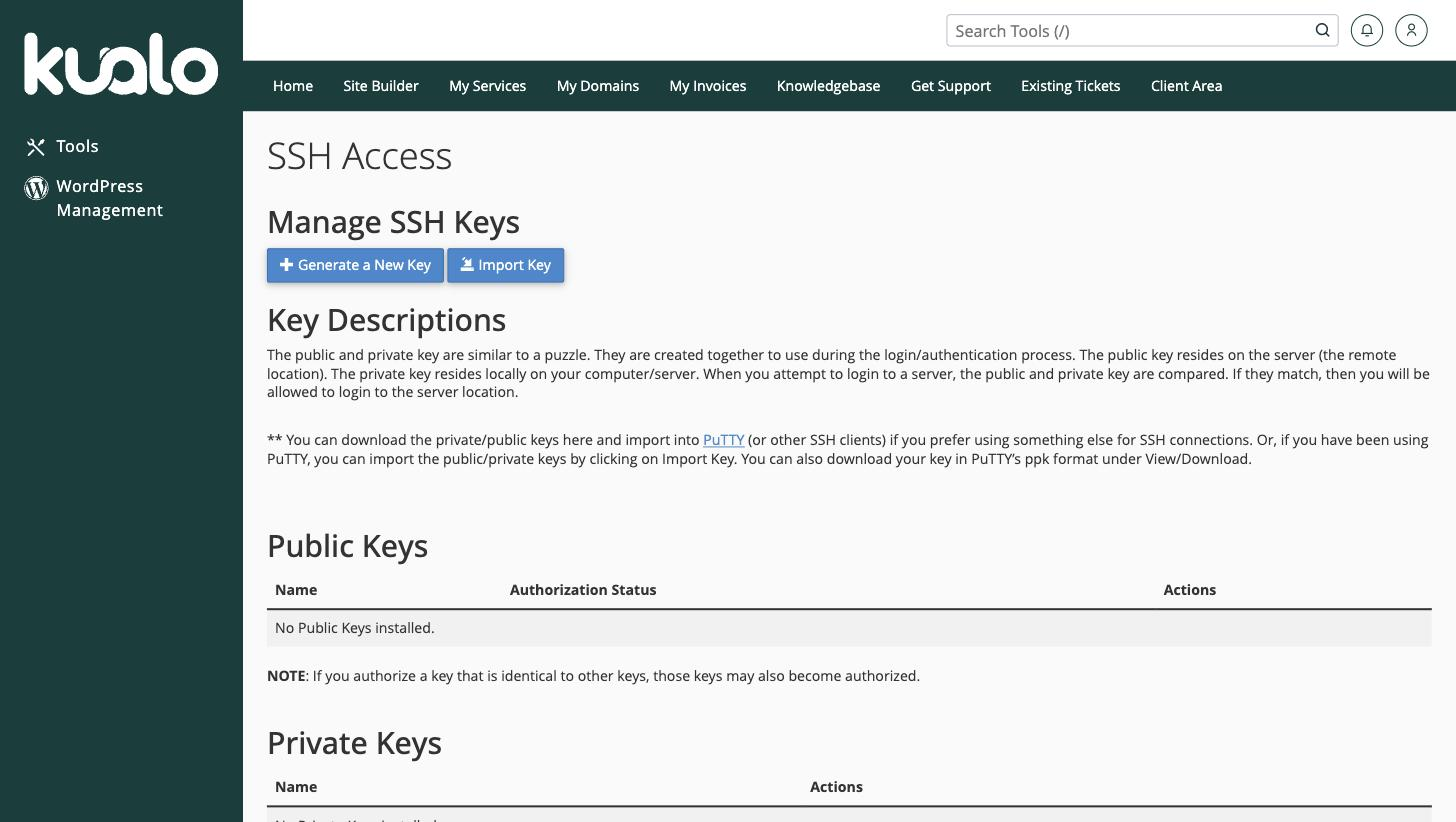
From here you can generate a new key pair on the server, or import a key you already have.
Generate a new key
-
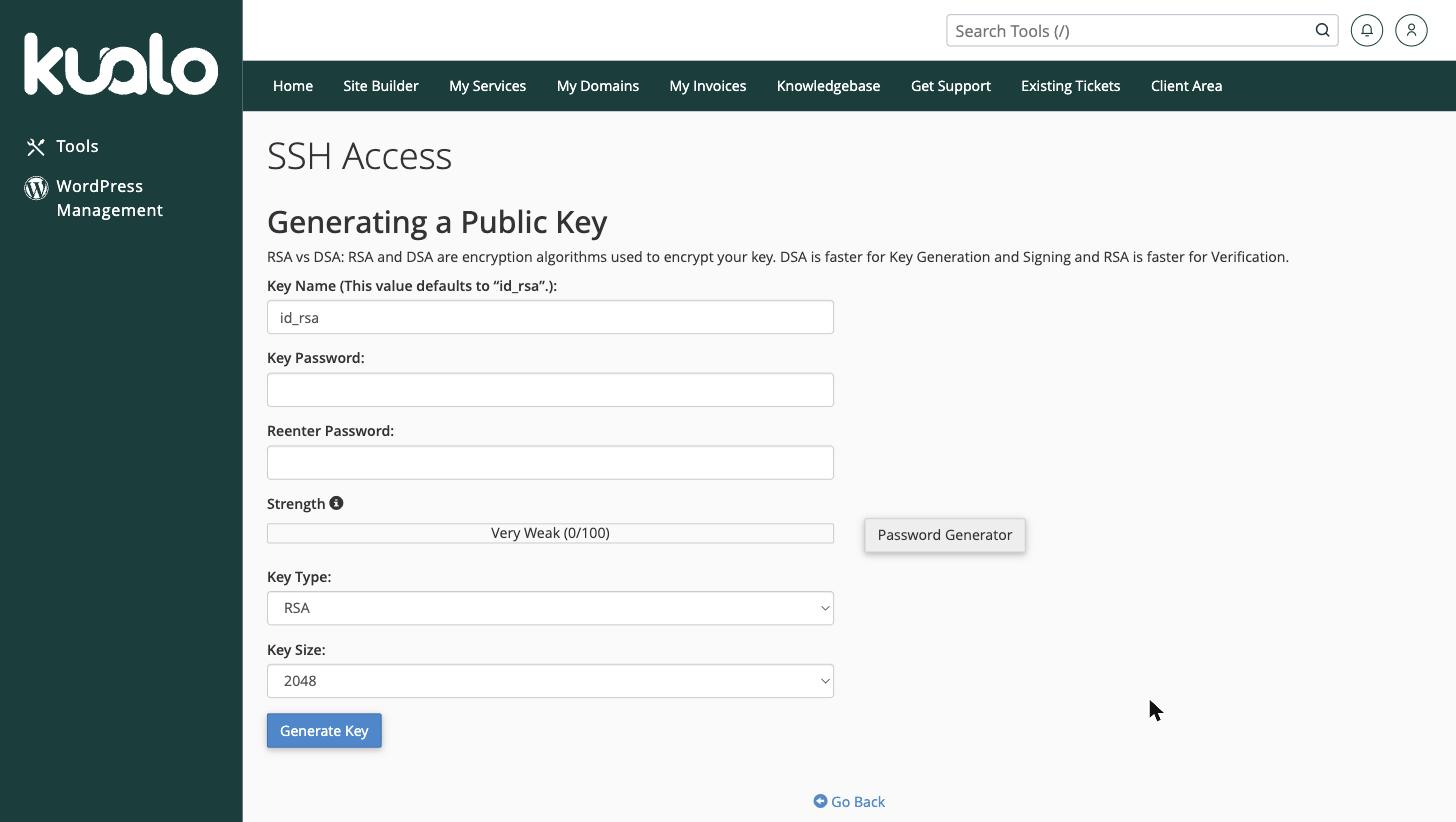
Click Generate a New Key.
-
Give the key a name (or leave the default
id_rsa), set a strong Key Password, and choose the Key Type (RSA is recommended) and Key Size (2048 bits or higher - 4096 for extra strength). -
Click Generate Key.
Authorize and use the key
- Back on the Manage SSH Keys page, find your new public key, click Manage, then Authorize. This tells the server to accept that key for logins.
- Download the private key to your own computer and keep it safe - never share it. You then point your SSH client (or the
ssh -ioption) at it to connect.
If you already created a key on your own computer, use Import Key instead and paste in just the public key - your private key should never leave your machine.