
On this page
Enabling Ruby in cPanel
Set up and manage Ruby applications directly from cPanel, with separate directories, domains and modules for each app.
You can set up multiple Ruby applications from within cPanel. Each application can have its own directory, Ruby version, and modules, and can be served on its own domain, subdomain, or subfolder.
Creating an application
- Log in to cPanel.
- Click the Setup Ruby App icon.

- Choose your Ruby version, then set the App Directory and App Domain you want to use.
- Click Setup.
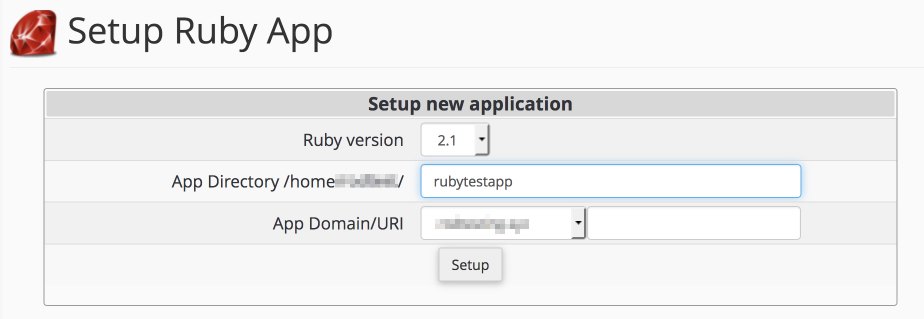
Once the application is created, you will see a confirmation screen similar to the one below.
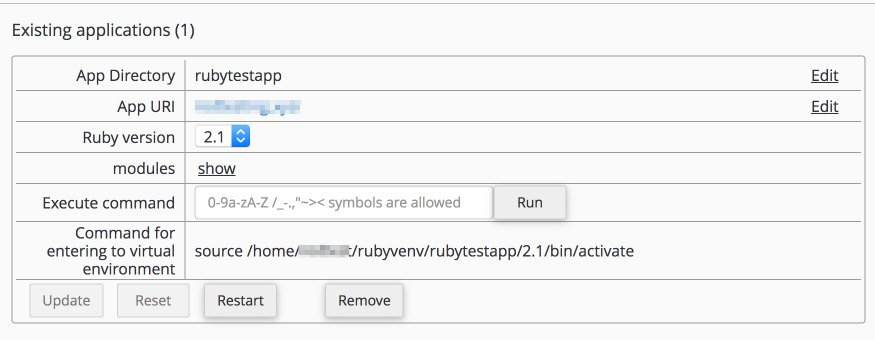
Changing, updating, and removing applications
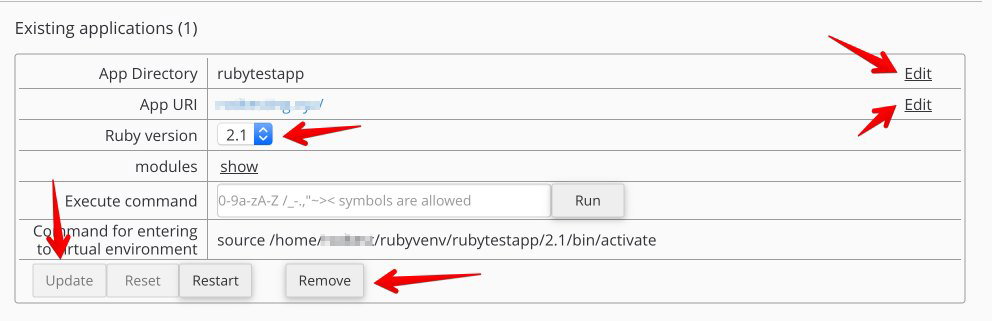
To change settings or update the Ruby version, click the relevant edit button next to the application.
You must click Update for any changes to take effect.
To remove an application entirely, click the Remove button at the bottom of the application entry.
Installing modules
Once your application is set up, you can install additional modules from the same page.
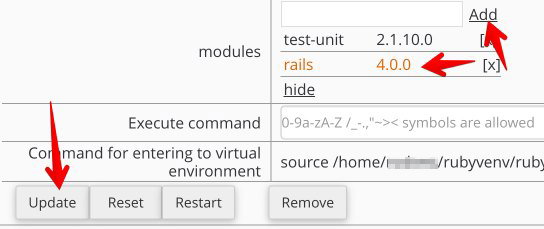
- Click the Show link next to Modules.
- Use the search box to find the module you want. For example, search for
railsto find the Rails gem.

- Click the module name to see the available versions.

- Select the version you want and click Add.
- Click Update to complete the installation.
If you are comfortable with SSH, you can also manage gems and modules from the command line. For a more detailed walkthrough, see How to deploy a Ruby on Rails application.