
On this page
Enabling Node.js in cPanel
Use the Node.js Selector in cPanel to deploy and manage Node.js web applications on your hosting account.
This guide explains how to deploy and manage Node.js web applications using the Node.js Selector in cPanel. This tool is designed for apps that need to be accessible via a web browser - for example, Express-powered APIs, server-side rendered apps like Next.js or Nuxt, or headless CMS platforms like Ghost.
What is the Node.js Selector?
The Node.js Selector is a cPanel tool that lets you:
- Run multiple Node.js applications side by side, each in its own isolated environment
- Choose the specific Node.js version your app requires
- Host apps on your main domain, subdomains, or within subdirectories
- Use a preconfigured web server (Phusion Passenger) that automatically serves your app over standard web ports (80 and 443)
Under the hood, the Node.js Selector uses Phusion Passenger to manage your application. Passenger handles routing and process management, which means your app:
- Does not need to bind to a port (e.g.
3000or3001) - Should not call
app.listen(...) - Must instead export the app object so Passenger can handle web requests properly
This article walks you through the graphical method of creating and managing Node.js apps in cPanel, and explains how to set them up to work correctly in this environment. It also covers installing dependencies and using SSH to enter the app's virtual environment for development tasks.
Prefer to use the terminal? See the CloudLinux documentation on creating a Node.js app via the command line.
Only using Node.js for build tools? You may want to use Node.js via NVM instead.
Creating a Node.js application
Step 1: Access the app setup
- Log in to cPanel.
- Navigate to Setup Node.js App.

Step 2: Configure your app
- Click Create Application and fill in the following fields:
- Node.js version - pick from the available versions.
- Application mode - choose Production or Development. This sets the
NODE_ENVenvironment variable automatically: - Production: enables optimisations and disables debugging
- Development: enables verbose logging, stack traces, and error details
- Application root - the folder where your app files will live (e.g.
myapp). - Application URL - the domain or subdomain that will serve the app.
- Startup file - the entry point for your app (e.g.
app.jsorserver.js).
Unless you are actively developing the app, choose Production for better performance and security.
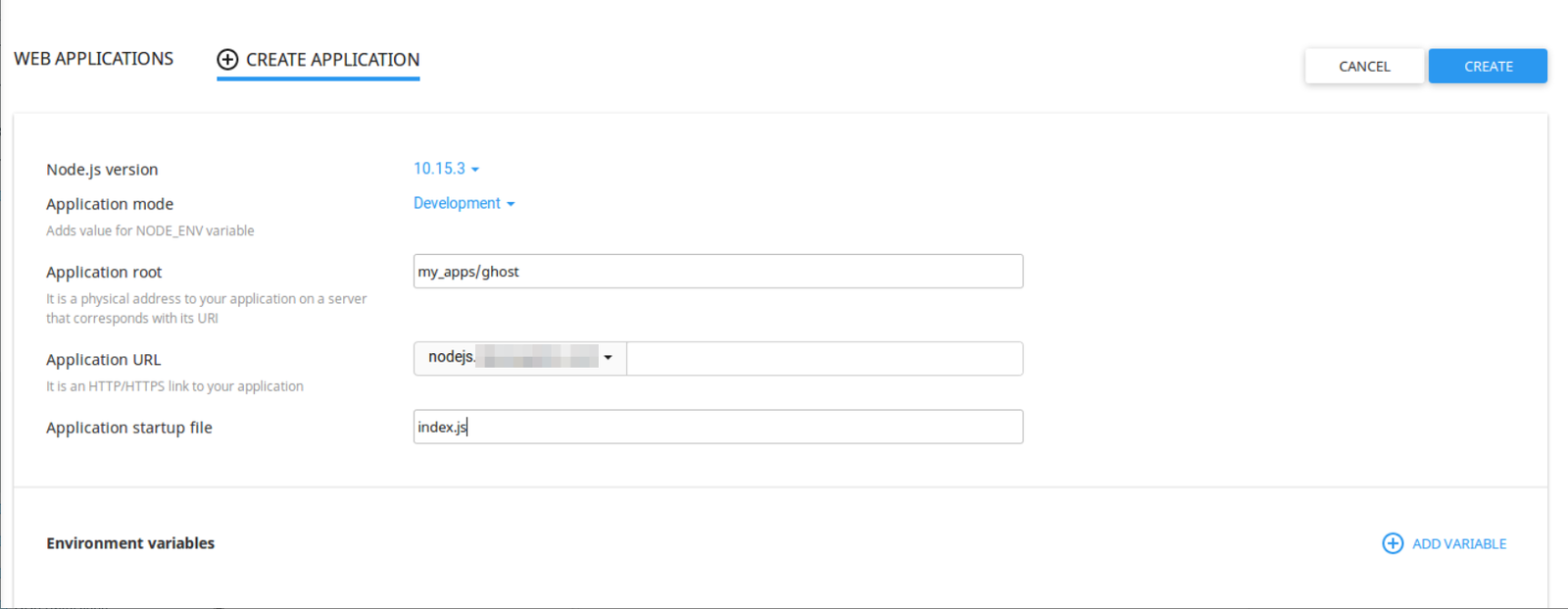
- Click Create when done.
Uploading files and installing dependencies
Upload your code
Use File Manager or SFTP to upload your app files into the application root directory you specified above.
Make sure your app includes a package.json file.
Example package.json:
{
  "name": "myapp",
  "version": "1.0.0",
  "description": "Example Node app",
  "main": "app.js",
  "dependencies": {
    "express": "^4.18.2"
  }
}
Install dependencies via the GUI
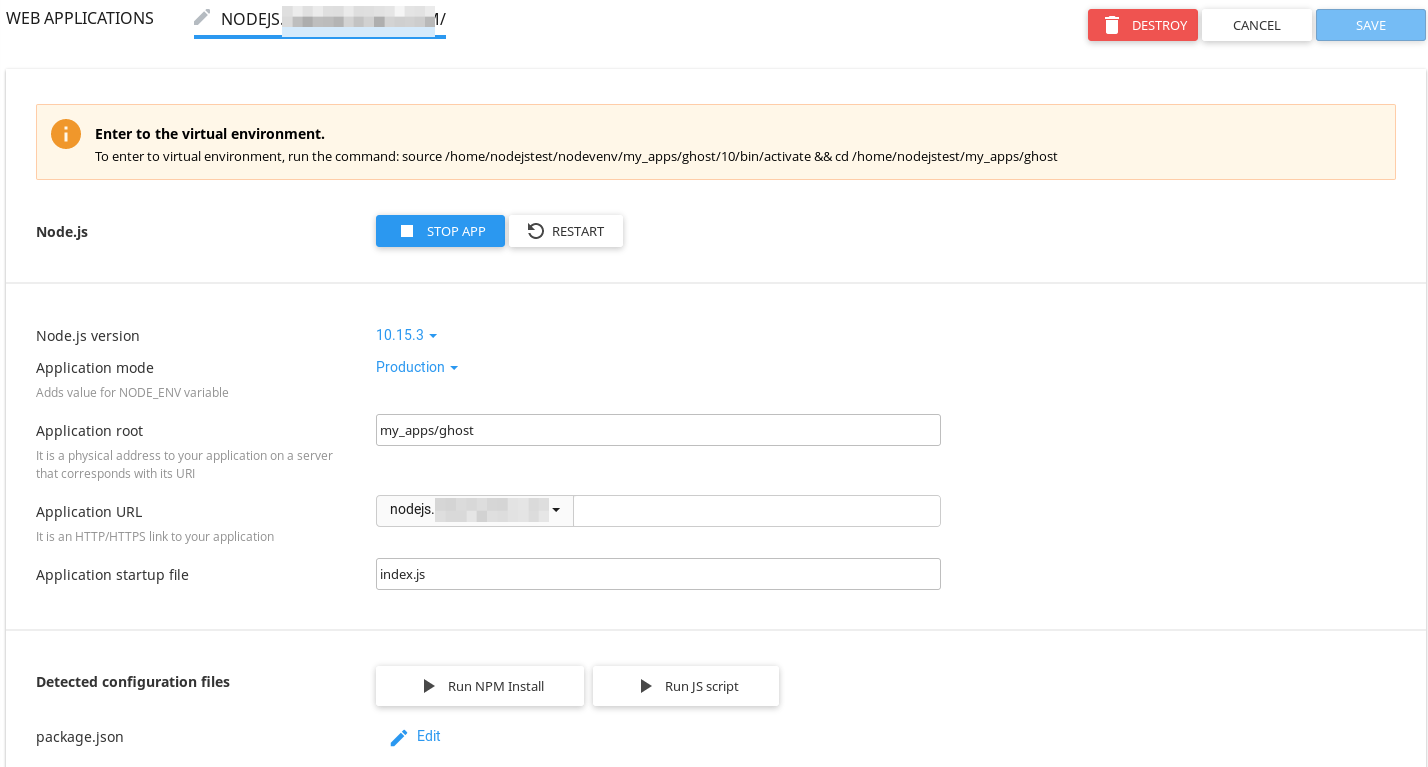
- Go back to Setup Node.js App in cPanel.
- Click the pencil icon to edit your app.
- Click Run NPM Install - this installs all modules listed in
package.json.
Writing the startup file
Your startup file is the main entry point for your application - it is the file you specified during app creation. Phusion Passenger uses it to launch and serve your app.
Unlike standalone Node.js apps that listen on a custom port, applications deployed through the Node.js Selector must:
- Not call
app.listen() - Export the app object using
module.exports = app
Passenger automatically handles routing and serves your application through standard web ports (80/443).
Correct example (Express)
This pattern ensures your app is compatible with Passenger:
// app.js
const express = require('express');
const app = express();

app.get('/', (req, res) => res.send('Hello from Express!'));

// Instead of app.listen(), export the app
module.exports = app;
By exporting the app rather than listening on a port, you are letting Passenger take full control of starting and serving your app.
Incorrect - do not do this
const express = require('express');
const app = express();
app.listen(3000); // This will break under Passenger
If your code tries to bind to a specific port with app.listen(3000), it will conflict with Passenger. The application will not start correctly and you may see a 503 Service Unavailable error when you visit your site.
Phusion Passenger is integrated into your hosting environment's web server. It:
- Spawns and manages your Node.js process
- Routes incoming HTTP requests to your exported app object, without needing custom ports
- Ensures your app runs on demand and scales as needed
Calling app.listen() assumes you are managing the HTTP server yourself, but under Passenger that is already handled for you.
Managing your app
- Use the pencil icon to edit settings such as the Node.js version or application root.
- Click Save after making any changes.
- Use the Restart button after you:
- Change your startup file
- Install new modules
- Modify environment variables
Using SSH for development
Over SSH you can activate your app's virtual environment to run npm commands, use build tools, or debug interactively. First, enter the Node.js virtual environment using the command shown when you edit the app in the cPanel UI. It will look something like this:
source /home/username/nodevenv/myapp/20/bin/activate && cd /home/username/myapp
Replace:
usernamewith your cPanel usernamemyappwith your application root folder20with the Node.js version you selected
Inside the virtual environment you can:
- Run
npm install <module>manually - Execute build commands or scripts
- Test application logic with
node app.js(for non-web code)
To exit the environment, type:
deactivate
SSH access also lets you create, configure, and fully manage Node.js applications without using the cPanel interface. For full instructions, see the CloudLinux Node.js documentation.
Common issues and troubleshooting
503 Service Unavailable errors
- Your startup file may not be exporting the app correctly -
module.exports = appis required. - Your code might still be calling
app.listen(...), which is not permitted under Passenger. - You may need to restart the app after making changes.
Custom ports are not supported
Do not attempt to bind to ports such as 3000 or 3001. Phusion Passenger manages all routing internally via standard web ports (80/443).
Remove default files if not needed
If you are uploading a complete app, it is safe to delete the auto-generated public/ folder and app.js file from the app root.
Viewing logs
- Use
console.log()to output diagnostic messages. - Logs may be located in
~/.nodeapp/or under the~/logs/directory in your cPanel account.