
On this page
Updating nameservers at Kualo
Follow these steps to update the nameservers for a domain registered with Kualo.
You can update the nameservers for any domain registered with Kualo directly from your client area. Note that this only applies to domains registered with us - if your domain is registered elsewhere, you will need to update nameservers with that registrar.
Steps to update your nameservers
-
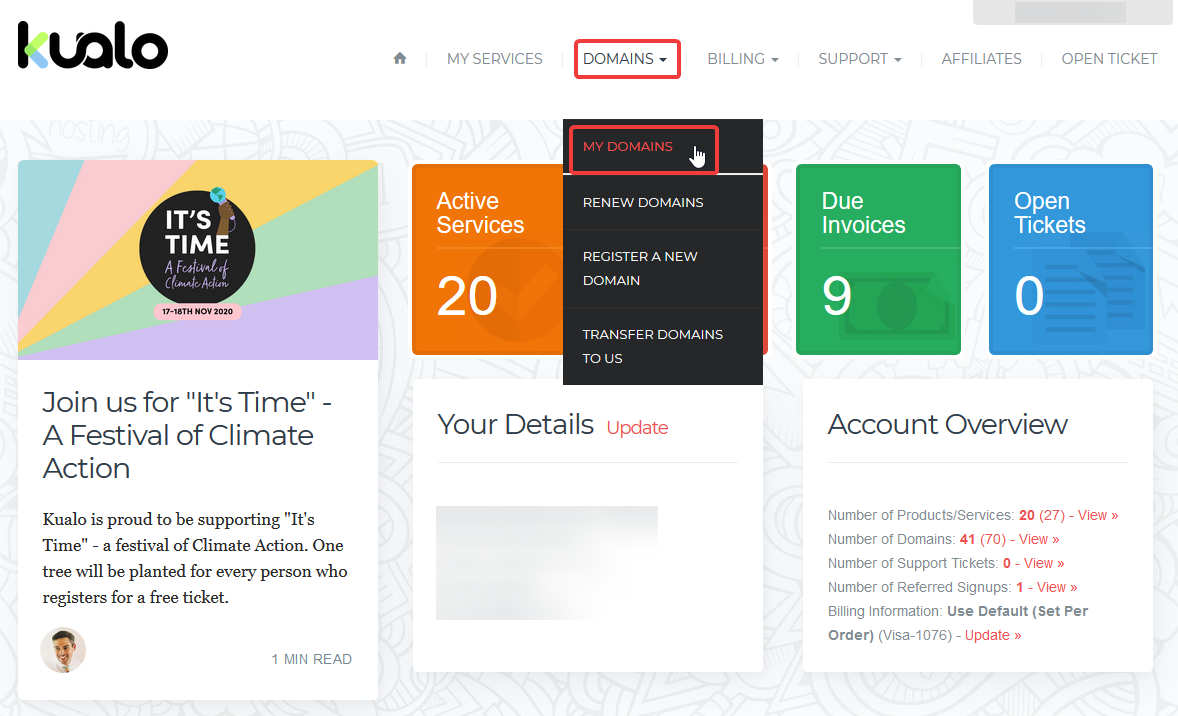
Log in to my.kualo.com and click Domains, then My Domains to see a list of your registered domains.
-
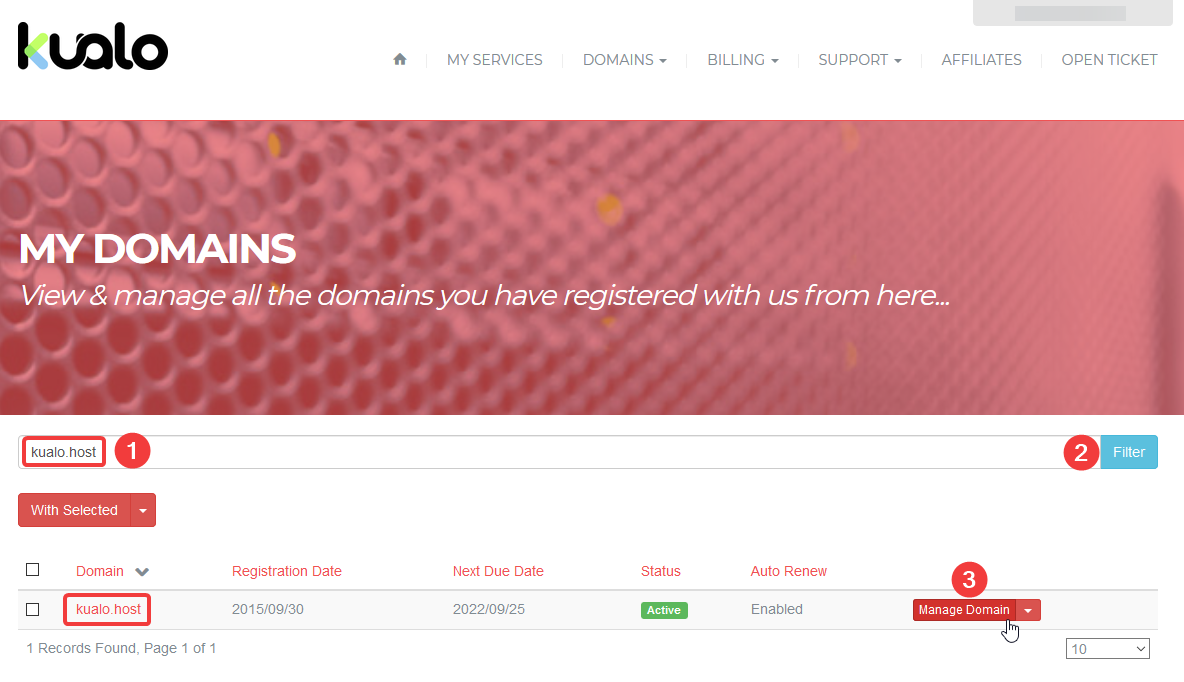
Find the domain you want to manage and click Manage Domain. You can also use the search box to locate it.
-
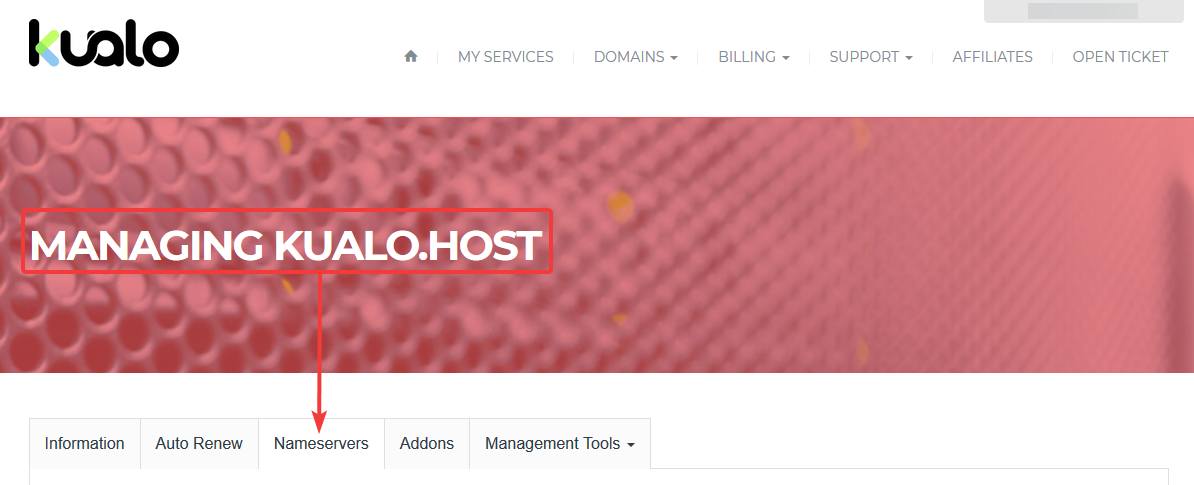
Click the Nameservers tab.
-
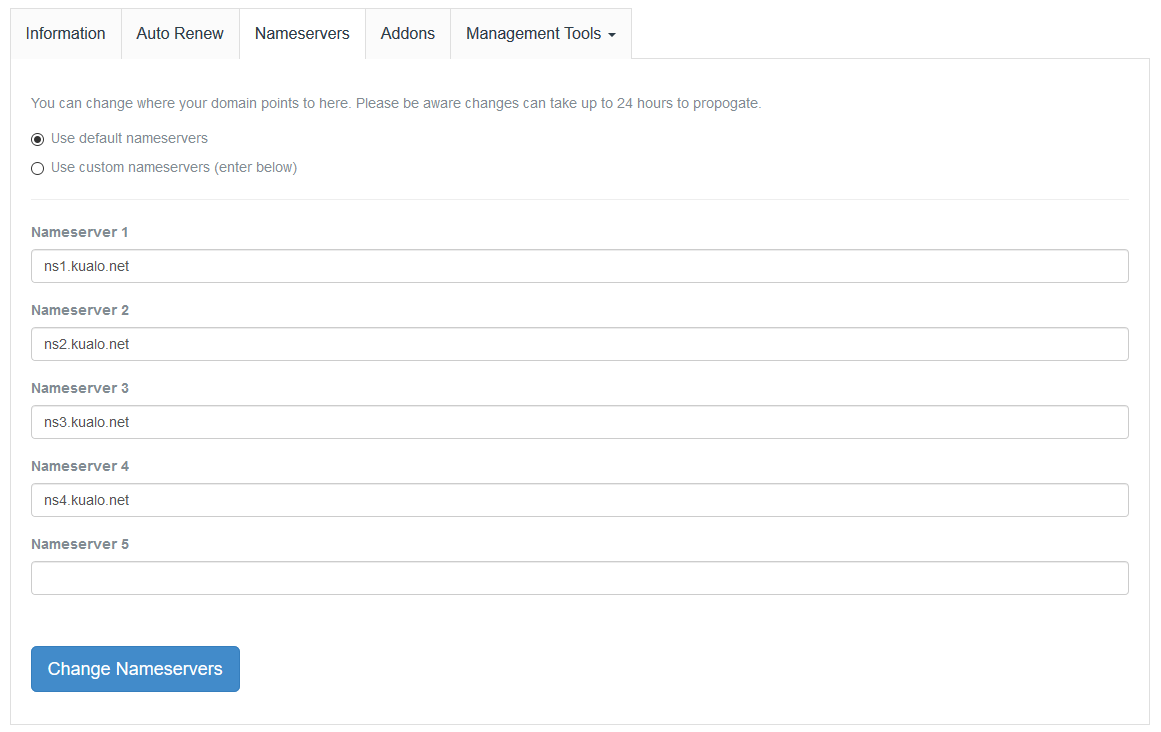
Choose one of the following options:
-
Use default nameservers - select this if you want to point the domain at your Kualo shared hosting account. No further input is needed; just click Change Nameservers.
-
Use custom nameservers - select this to enter nameservers manually. You can add up to five. If you are pointing the domain at a Kualo shared hosting account, the nameservers are:
ns1.kualo.net
ns2.kualo.net
ns3.kualo.net
ns4.kualo.net
If you have a reseller or dedicated server with Kualo, your nameservers may differ from those above. They will have been provided in your welcome email. If you are unsure, contact us before making any changes.
-
-
Click Change Nameservers to save.
After updating your nameservers
DNS changes can take up to 24-48 hours to propagate fully across the internet. During this time, some visitors may still be directed to the old nameservers. This is normal and will resolve on its own once propagation is complete.