
On this page
How to place a link back to our charity hosting page on your website
As a condition of free charity hosting, you need to place a single text link to Kualo's Charity Hosting page on your website.
As a condition of your free Charity Hosting account, we ask you to include a single, unobtrusive text link to our charity hosting page somewhere on your website - for example in the footer, on your home page, or on an About Us page.
The link does not need to appear on every page; in fact we prefer it does not. If you run a blog, a brief post thanking us and mentioning the initiative works just as well. The goal is to spread the word so we can help even more charities get online for free.
The link code
Use the following HTML wherever you want to place the link:
<a href="https://www.kualo.com/free-charity-hosting" title="Free Charity Hosting">Free Charity Hosting by Kualo</a>
How you add this code depends on the platform your website runs on. The sections below cover the most common options.
WordPress
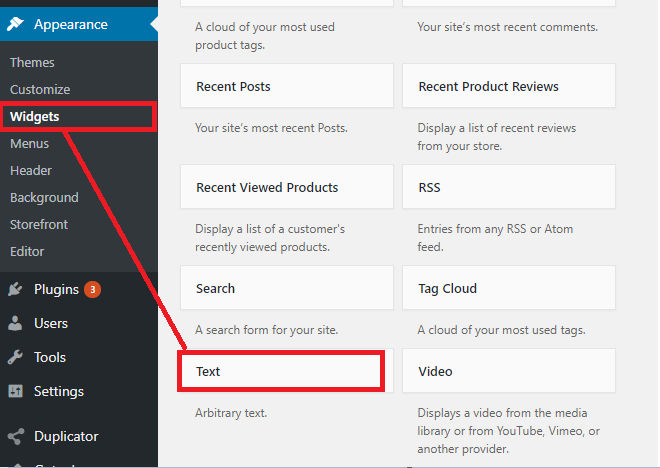
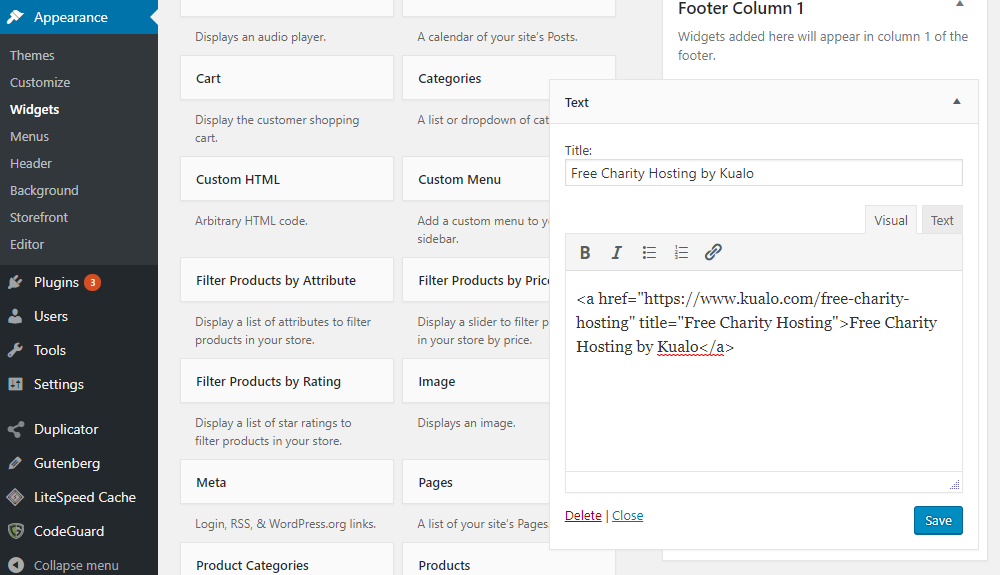
Option 1 - add the link as a widget
- Log in to your WordPress dashboard and go to Appearance > Widgets.
- Find the Custom HTML widget and drag it into the Footer widget area.
- Paste the HTML code into the content field.
- Click Save.
Option 2 - embed the link in a page or post
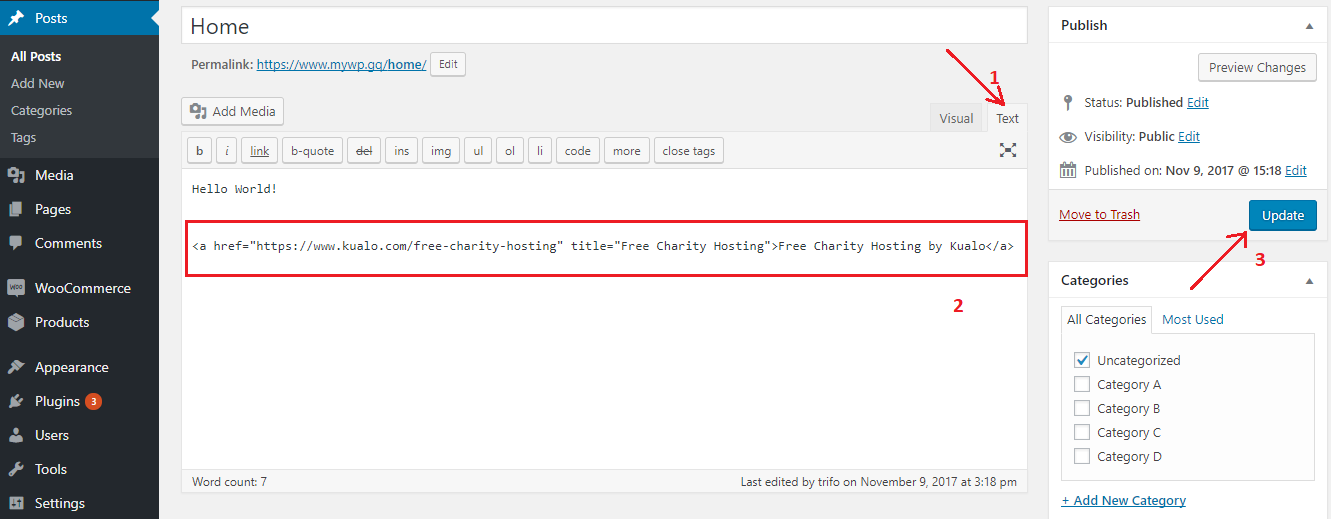
- Open the page or post where you want the link to appear.
- Add a Custom HTML block (in the block editor, search for "Custom HTML").
- Paste the HTML code into the block.
- Click Update.
Joomla
- Log in to your Joomla admin area and go to Components > Banners > Banners.
- Click New to create a new banner.
- Set the type to Custom and paste the HTML code into the Custom Code field.
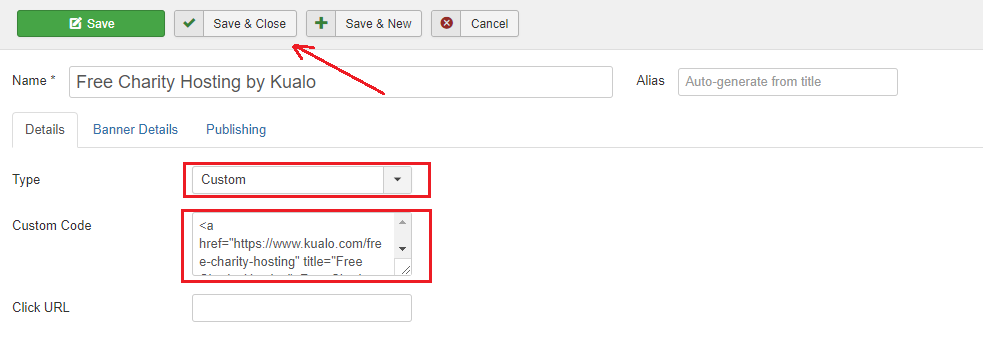
- Click Save & Close.
- Go to Extensions > Modules and click New > Banners.
- Choose a title and a position for the module. Available positions depend on your active template.
- Click Save.
Magento
- Log in to your Magento admin area and go to Content > Blocks.
- Click Add New Block, enter a Block Title and an Identifier, then paste the HTML code into the block content.
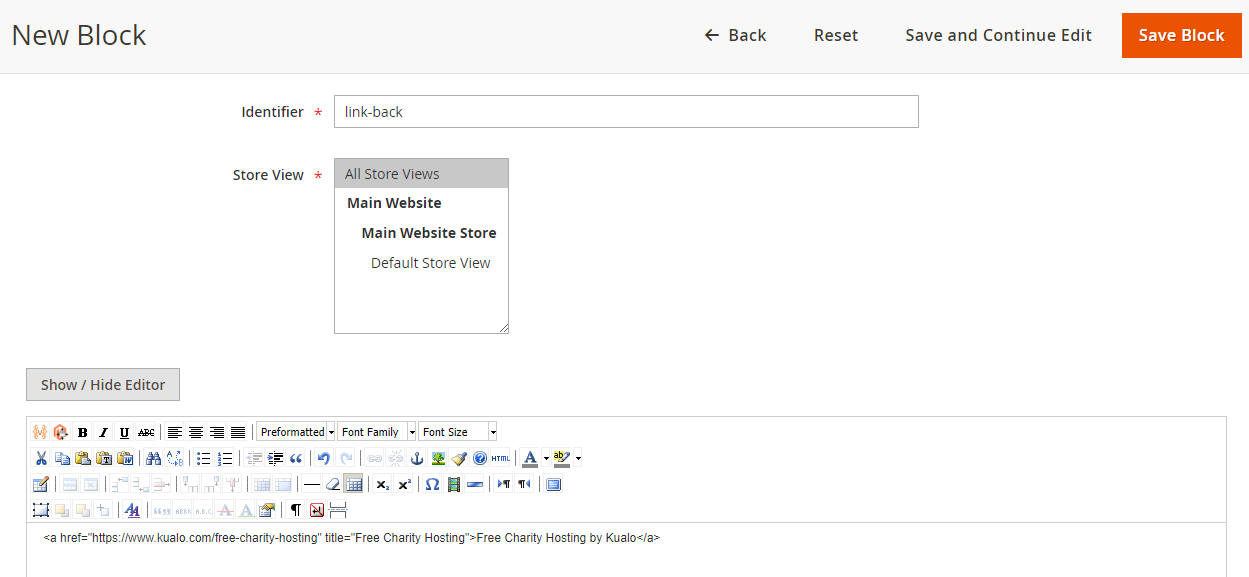
- Save the block. You can now display it either globally or on a specific page:
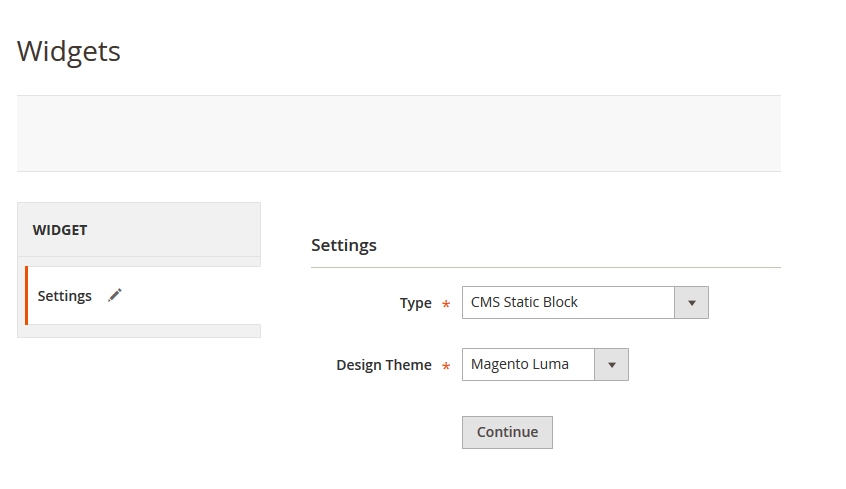
- Globally: go to Content > Widgets > Add Widget, select Type: CMS Static Block and your design theme, then click Continue.
- On a specific page: go to Content > Pages and edit the relevant page.
- Give the widget a title and assign it to a store view. If you have multiple widgets, use the Sort Order field to arrange them.
- Under Layout Updates, set the Display On and Container values for the position where you want the link to appear.
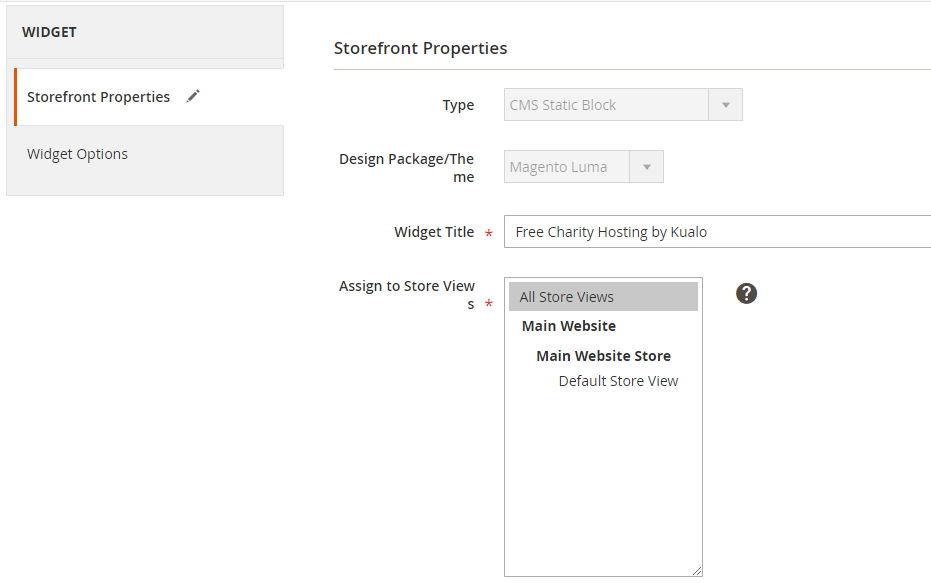
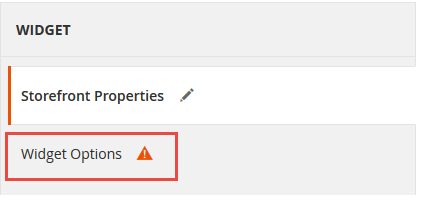
- Select Widget Options and choose the static block you created.
- Click Save, then Flush Magento Cache.
ProSite
- Log in to cPanel and open the ProSite builder.
- Go to the Advanced tab in the top navigation and select the HTML block, then place it on your page.
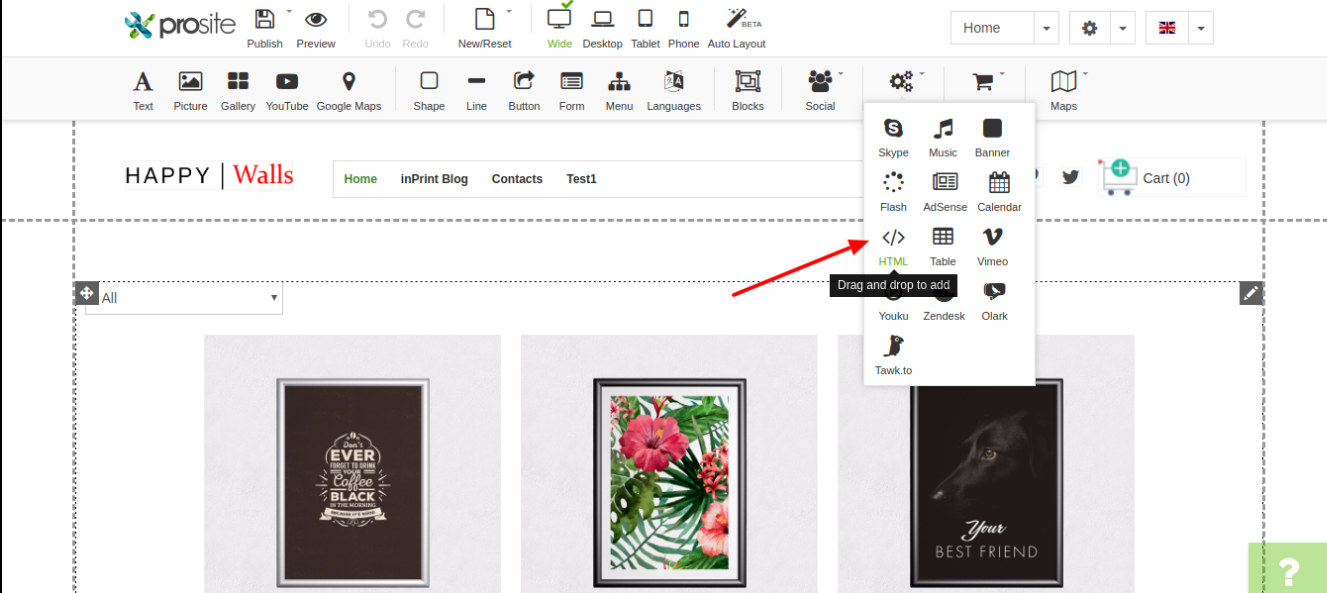
- Double-click the HTML block to edit its content.
- Paste the HTML code for the charity hosting link.
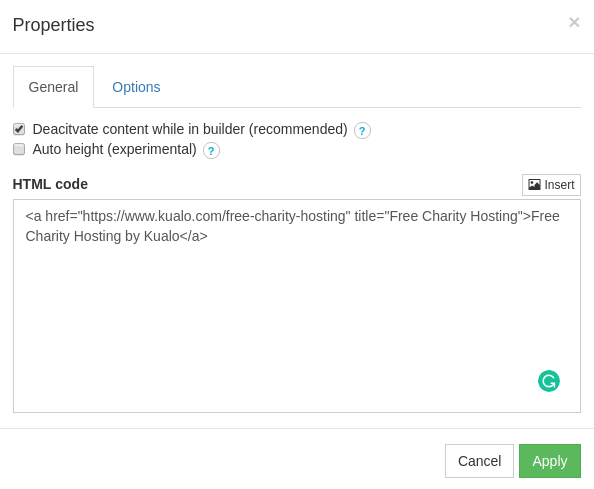
- Click Apply.
If you need help adding the link to your website, please get in touch to let us know - we'll be happy to assist.