
On this page
How to migrate an existing website to Kualo
Kualo offers a free website migration service within your first 30 days - here is how to request it and what to expect.
Kualo offers a free website migration service within your first 30 days as a customer, so moving from another host is as straightforward as possible.
Requesting a migration
- Log in to your MyKualo client area.
- Go to Support > Transfer Website.
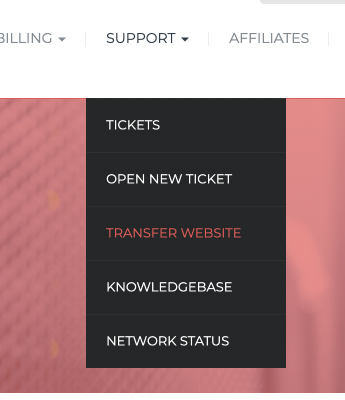
- Select the hosting account you want to migrate content into. If you only have one account, you will go straight to the next step.
- Review the migration types explained on screen. If you are within your 30-day free migration window, the number of days remaining will be shown.
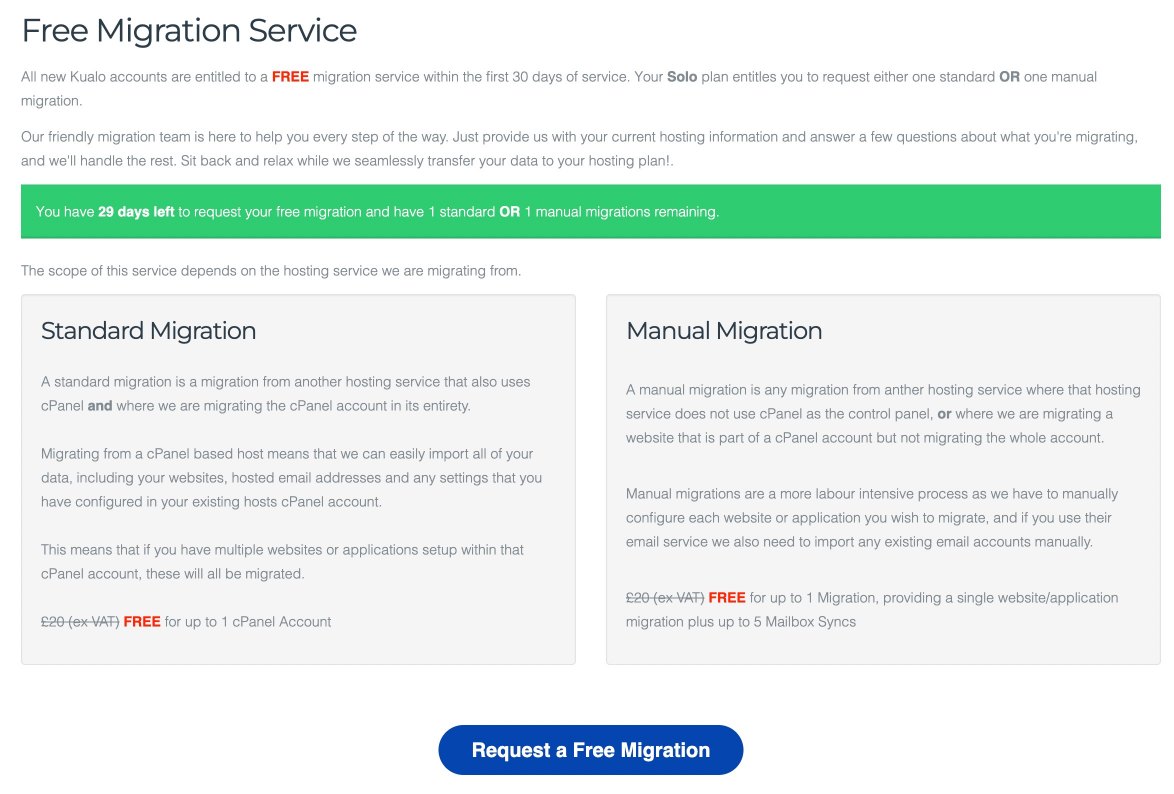
- Click the blue Request a Migration button.
- Answer the questions about your migration requirements and submit the form.
Once submitted, we will create a support ticket and an internal task to process your migration. If we run into any problems we will let you know via the ticket, and you are welcome to add any extra information to that same ticket at any time.
Migration types
Standard migration - your current host uses cPanel. We package up your entire account - files, databases, email accounts, subdomains, and all other settings - and restore an exact replica on Kualo. This is the quickest and most complete option.
Manual migration - your current host does not use cPanel. We move your files manually and set everything up from scratch. We can also sync existing email data, though this is a manual process. Because manual migrations take longer, they are limited to one website or application per account and up to five email address syncs. Additional websites, applications, or email addresses can be migrated for a small surcharge.
What to have ready before you start
Having the following information to hand will help us complete your migration quickly.
- Login details for your current hosting control panel (cPanel or equivalent).
- If your current host has no control panel, provide one of the following in order of preference:
- SSH login credentials for your old host
- An archive of your website data (for example, a zip file)
- FTP login credentials for your old host (if your site uses a database, we will also need a database export uploaded via FTP)
- Your application login details (possible with certain applications only)
- If your old host does not use cPanel and you want us to migrate emails, a list of your current email addresses and their passwords so we can connect and sync the data.
- If you use a third-party email service such as Google Workspace or Microsoft 365, you can let us know in the migration request form and we will leave those settings untouched.
If a fee applies
A fee may be due if:
- you are outside the 30-day free migration window, or
- you are requesting a manual migration with more than one website or application, or more than five email addresses.
You can pay any applicable fee when you submit the migration request.
After your migration
Migrating from cPanel
Your email accounts, messages, and forwarders will all be migrated. You will just need to reconfigure your email client to connect to your new Kualo account. We have guides for the most common email clients in our knowledgebase:
Search the knowledgebase for your device or email client (for example, Apple Mail, Outlook, iPhone, or Android) to find the relevant configuration guide.
Migrating from another control panel
You will need to create your email accounts in cPanel first, then reconfigure your email client to connect to them. See our guide: How to create an email account in cPanel
If you need any further help migrating your website or syncing email from your old host, just get in touch via your support ticket.
Migration conditions
Within the first 30 days of service, the free transfer allowance is as follows:
| Account type | cPanel to cPanel | Manual migration |
|---|---|---|
| Web hosting | 1 full account transfer (including email) | 1 website + 5 IMAP email accounts |
| Reseller | 30 account transfers | 10 websites (up to 5 IMAP email accounts each) |
| Fully managed dedicated or VPS | 60 account transfers | 20 websites (up to 5 IMAP email accounts each) |