# How to properly change the Magento admin panel URL
> Change your Magento admin panel URL to a custom path to protect your store from brute force attacks.
Source: https://www.kualo.com/knowledgebase/magento-getting-started/how-to-properly-change-the-magento-admin-panel-url
Updated: 2026-06-09
---
Changing the default Magento admin URL is one of the simplest ways to protect your store from brute force attacks and automated login attempts. This guide walks you through editing the `local.xml` configuration file to set a custom admin path.
:::info
This guide applies to Magento 1.x. The `local.xml` file and `frontName` setting described below are specific to that version.
:::
## Before you start
In this example, the Magento store is at `http://mymagento.com` and the current admin URL is `http://mymagento.com/index.php/admin/`. The goal is to change it to something like `http://mymagento.com/index.php/SecureAdmin99/`.
Choose a custom path that is hard to guess - avoid obvious strings like `backend`, `myadmin`, or `store-admin`.
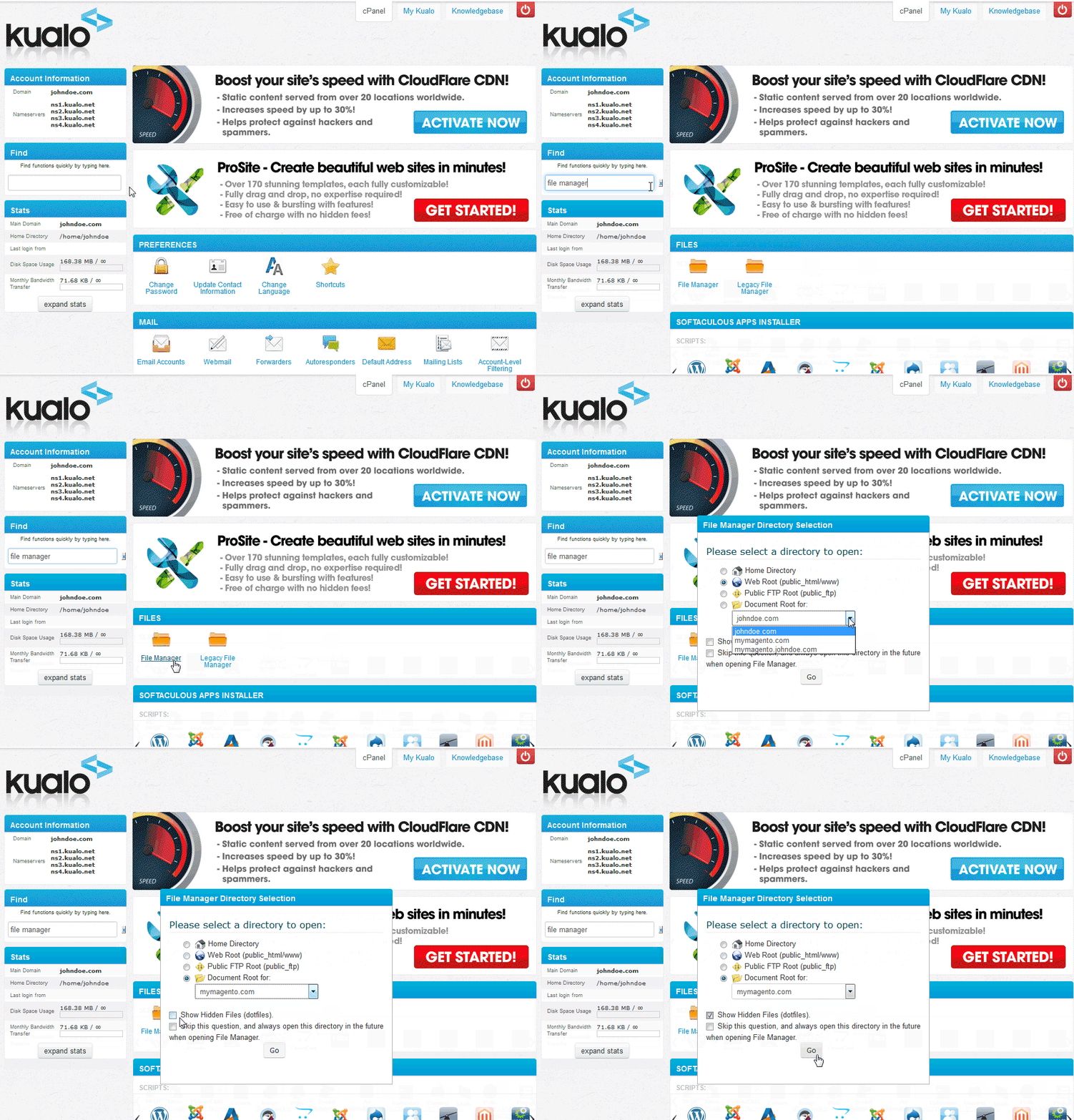
## Step 1 - open the file manager in cPanel
[Log in to cPanel](/knowledgebase/cpanel-how-tos/how-to-login-to-cpanel), then open **File Manager** and navigate to the document root folder of your Magento installation.
## Step 2 - back up local.xml
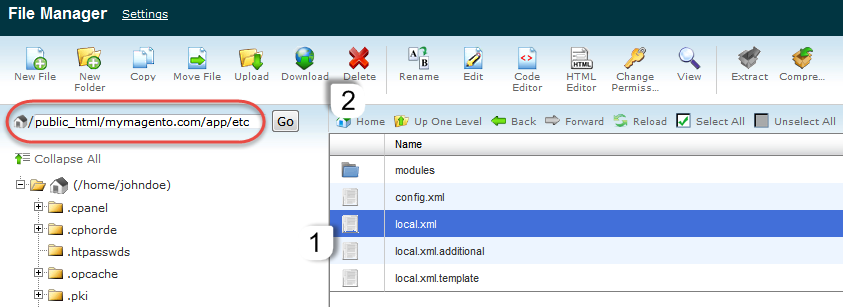
Inside the document root, open the **app** folder, then the **etc** folder. Before making any changes, download a backup of `local.xml` to your computer: click the file, then select **Download**.
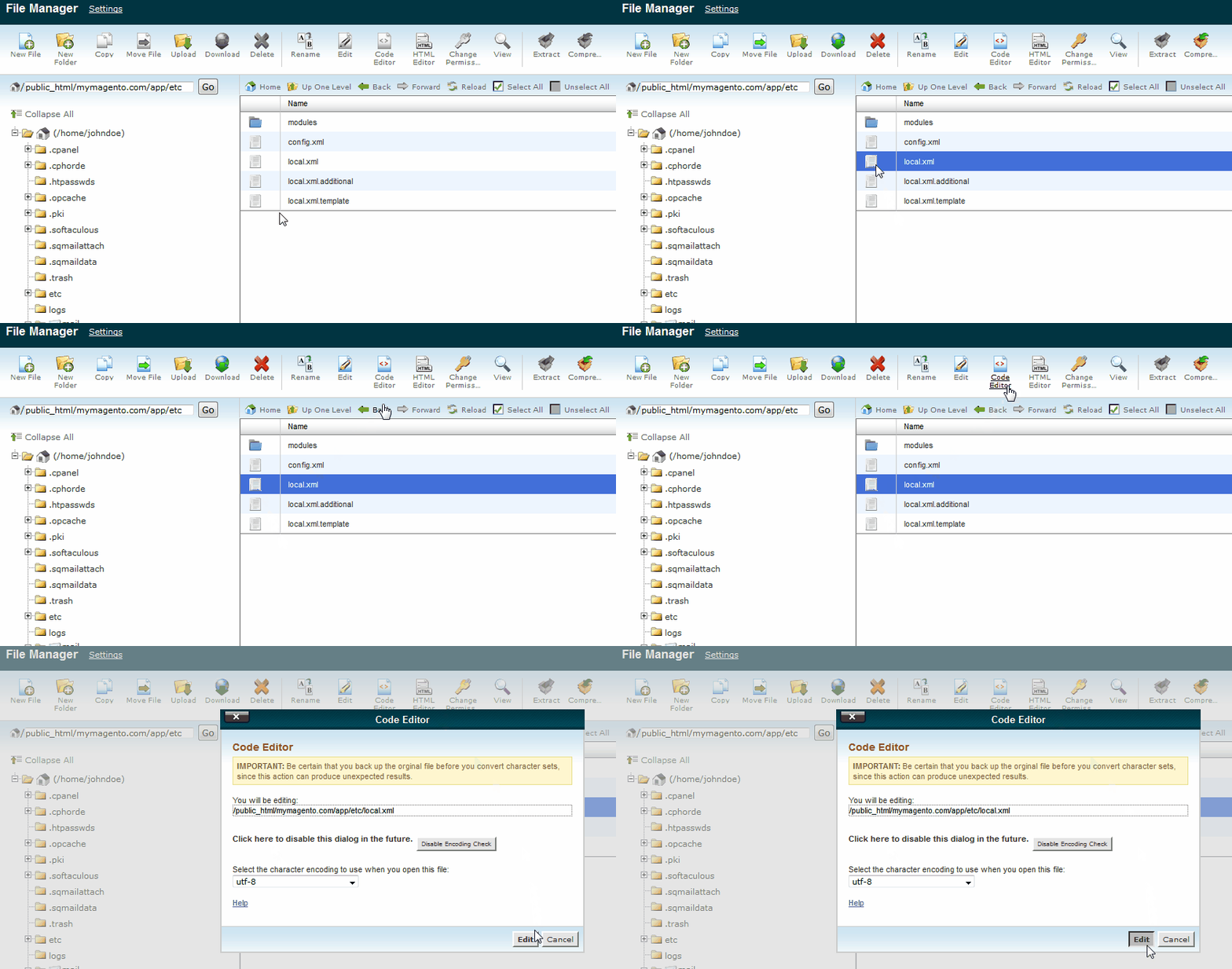
## Step 3 - open local.xml in the code editor
With your backup saved, click `local.xml` again and select **Code Editor**, then **Edit**.
## Step 4 - find the frontName setting
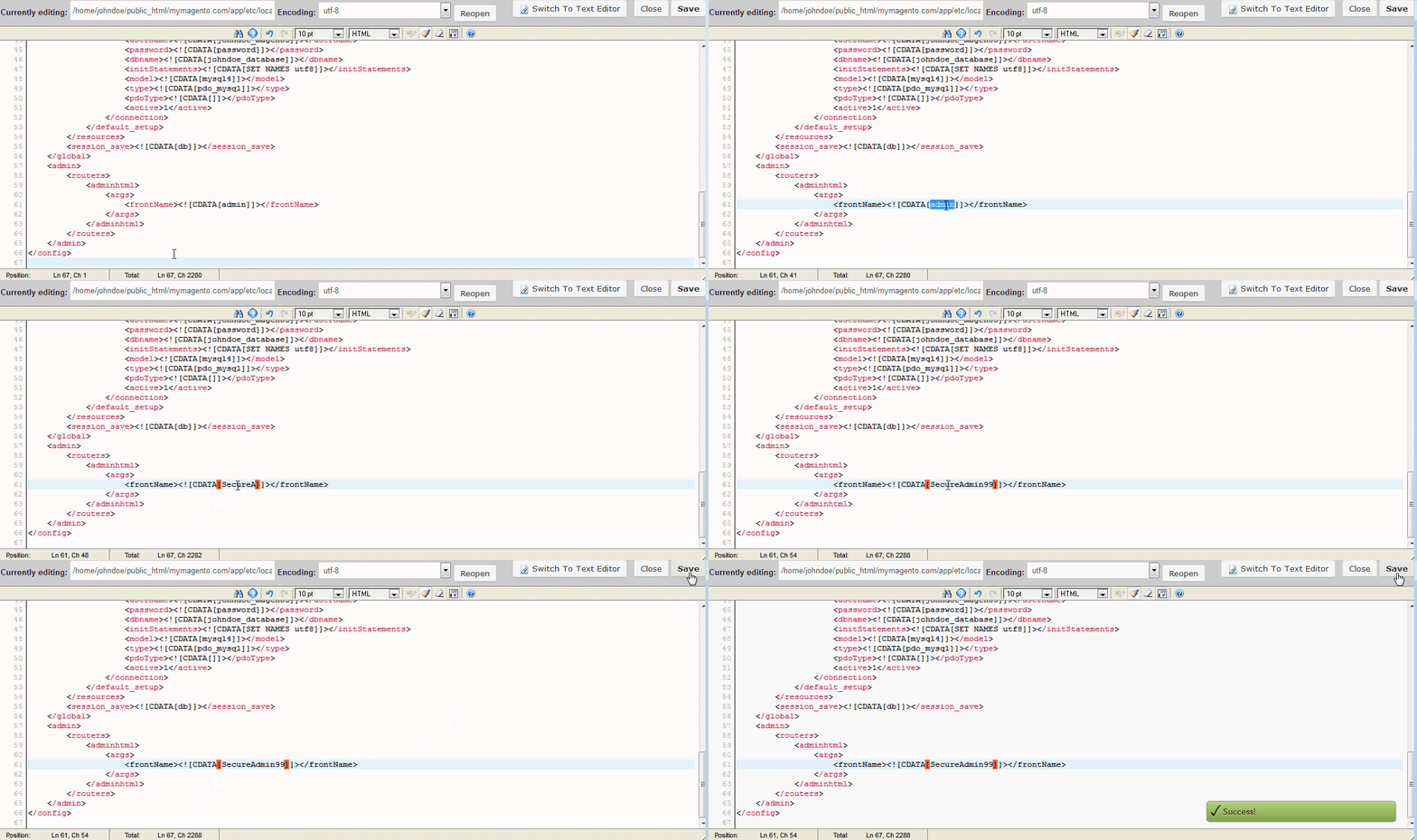
Locate the following line (around line 61):
```xml
```
## Step 5 - change the admin path
Replace `admin` with your chosen custom string:
```xml
```
Use a unique, hard-to-guess value rather than the example above. Save the file when done.
## Step 6 - flush the Magento cache
Log in to your Magento admin panel using the old URL while it still works, then go to **System > Cache Management** and click **Flush Magento Cache**.

## Step 7 - verify the new URL
You can now access your Magento admin panel at the new URL. The old `/admin/` path will no longer work.
:::tip
Make a note of your new admin URL and store it somewhere secure. If you forget it, you can always check or update the `frontName` value in `local.xml` again.
:::
If you have any questions, open a support ticket from within your Kualo client area.
---
_Source: Kualo Knowledgebase — https://www.kualo.com/knowledgebase/magento-getting-started/how-to-properly-change-the-magento-admin-panel-url · © Kualo Ltd._