# How to set up an IMAP email account on your iPhone
> Set up your Kualo email account on iPhone using IMAP to keep messages synchronised across all your devices.
Source: https://www.kualo.com/knowledgebase/email-apple/how-to-setup-an-imap-email-account-on-your-iphone
Updated: 2026-06-09
---
This guide assumes you have already [created an email account in cPanel](/knowledgebase/cpanel-how-tos/how-to-create-an-email-account-in-cpanel). Setting up IMAP on your iPhone keeps your messages synchronised across every device you use - unlike POP, which downloads emails to a single device and removes them from the server, IMAP leaves everything on the server so any action you take on your iPhone is instantly reflected on your laptop, tablet, or in Webmail.
## Get your IMAP connection details from cPanel
Before configuring your iPhone, collect the server settings from cPanel.
1. [Log in to cPanel.](/knowledgebase/cpanel-how-tos/how-to-login-to-cpanel)
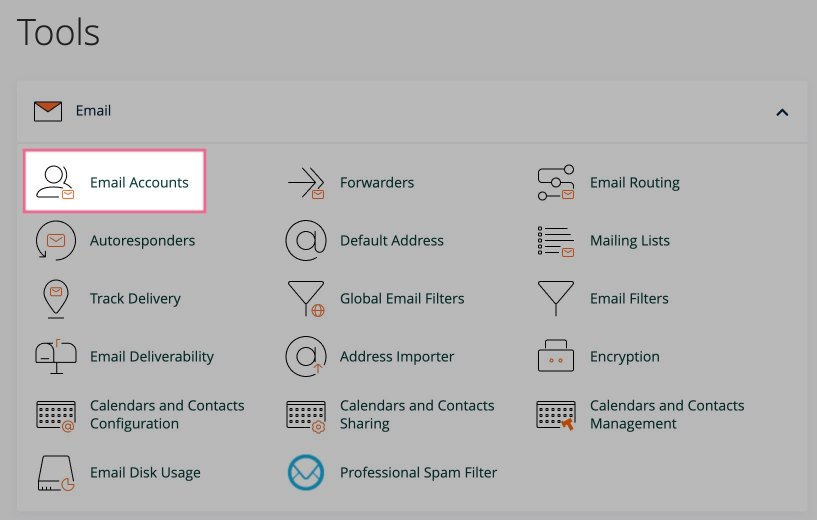
2. In the **Email** section, click **Email Accounts**.
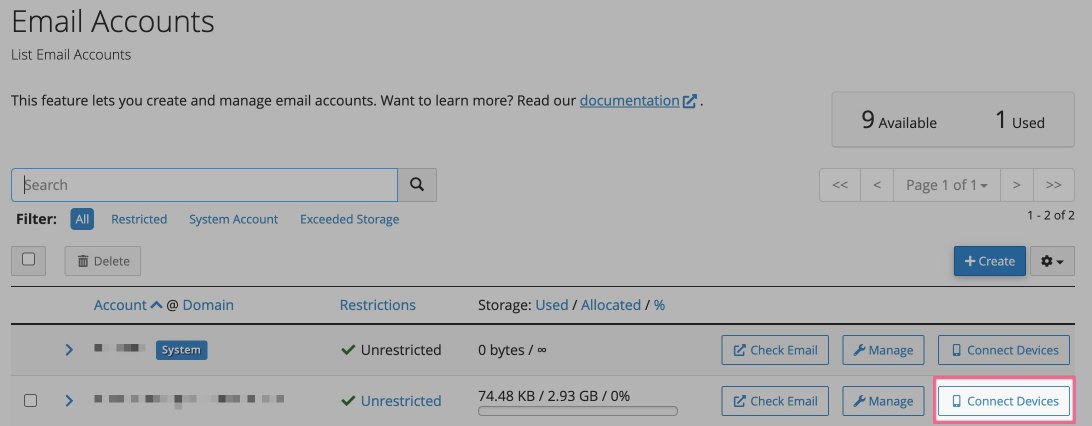
 3. Find the email account you want to set up, then click **Connect Devices** next to it.
 4. Under **Mail Client Manual Settings**, note the IMAP and SMTP server details - hostnames, ports, and SSL settings. You will also need the password you set when you created the account.
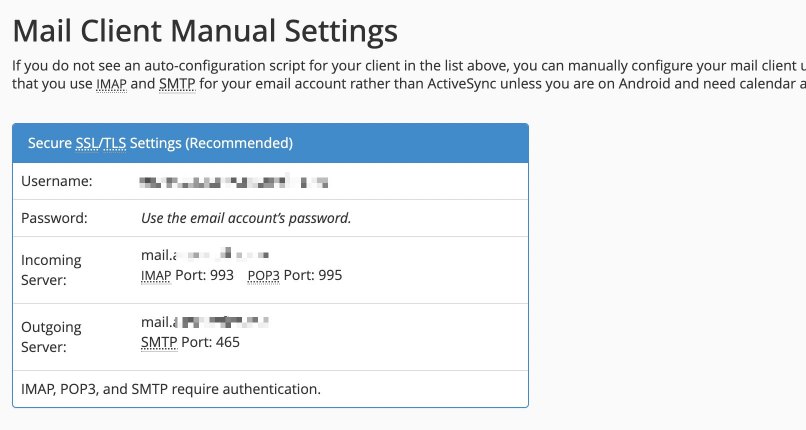 The typical settings are:
| Setting | Value |
|---|---|
| Incoming server (IMAP) | mail.yourdomain.com |
| IMAP port | 993 (SSL) |
| Outgoing server (SMTP) | mail.yourdomain.com |
| SMTP port | 465 (SSL) |
:::info
If AutoSSL has not yet issued a certificate for your domain, cPanel may show the server hostname instead of `mail.yourdomain.com`. You can use the server hostname in the meantime, but we recommend waiting for AutoSSL to complete so you can use the `mail.` hostname.
:::
If you have forgotten your email password, go back to **Email Accounts**, click **Manage** next to the account, and set a new password there.
## Set up IMAP email on your iPhone
1. Open the **Settings** app on your iPhone.
The typical settings are:
| Setting | Value |
|---|---|
| Incoming server (IMAP) | mail.yourdomain.com |
| IMAP port | 993 (SSL) |
| Outgoing server (SMTP) | mail.yourdomain.com |
| SMTP port | 465 (SSL) |
:::info
If AutoSSL has not yet issued a certificate for your domain, cPanel may show the server hostname instead of `mail.yourdomain.com`. You can use the server hostname in the meantime, but we recommend waiting for AutoSSL to complete so you can use the `mail.` hostname.
:::
If you have forgotten your email password, go back to **Email Accounts**, click **Manage** next to the account, and set a new password there.
## Set up IMAP email on your iPhone
1. Open the **Settings** app on your iPhone.
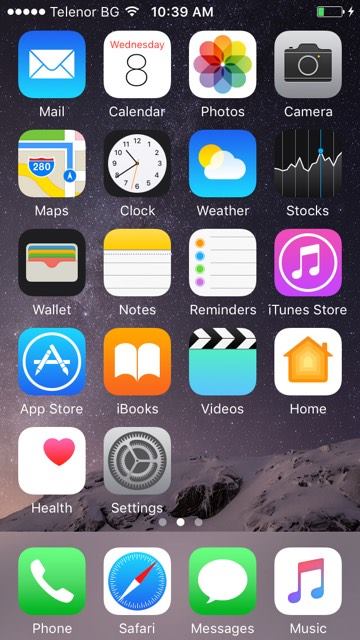 2. Scroll down and tap **Mail**.
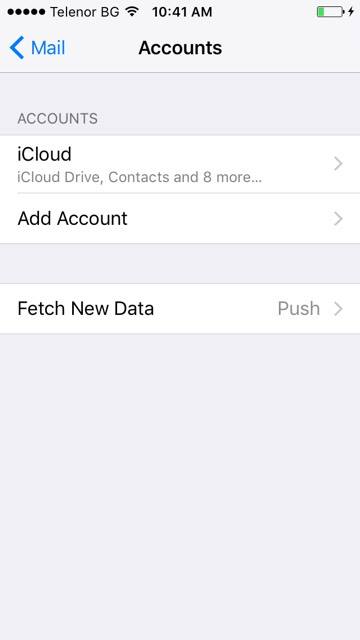
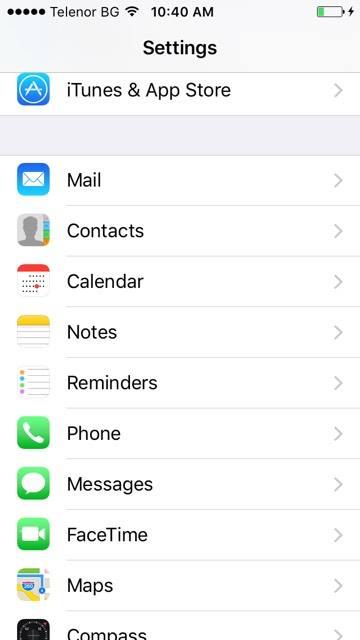 3. Tap **Accounts**, then tap **Add Account**.
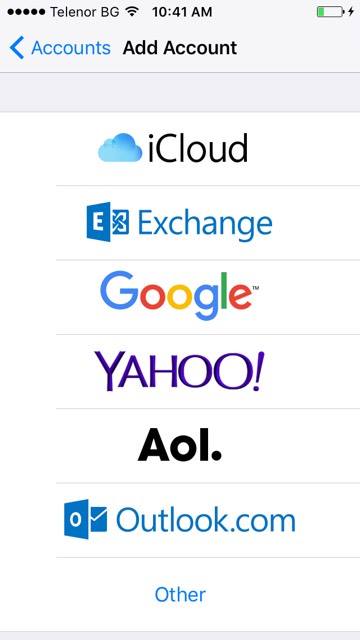
 4. Tap **Other**.
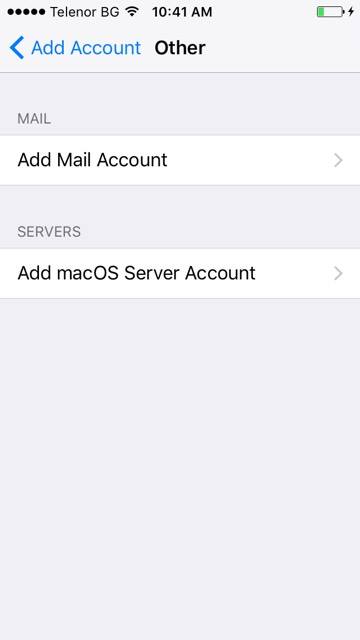
 5. Tap **Add Mail Account**.
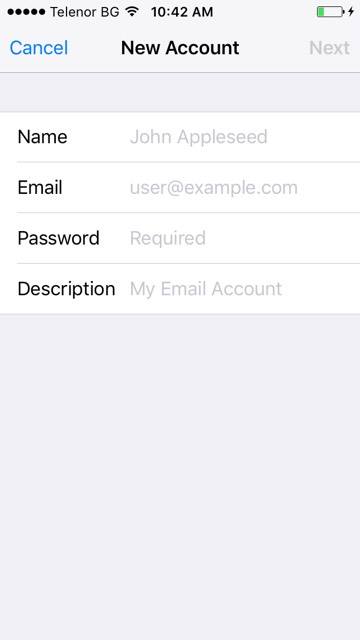
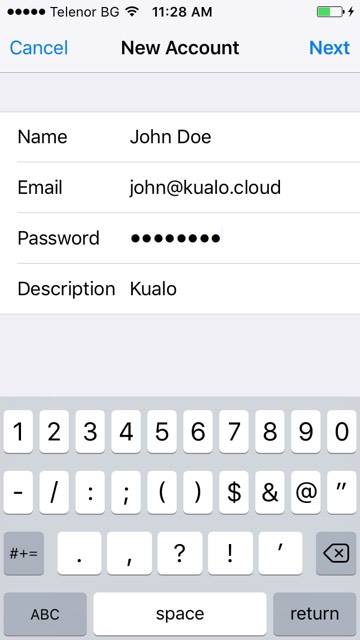
 6. Fill in your **Name**, **Email** address, **Password**, and a **Description** for the account (the description can be anything you like), then tap **Next**.
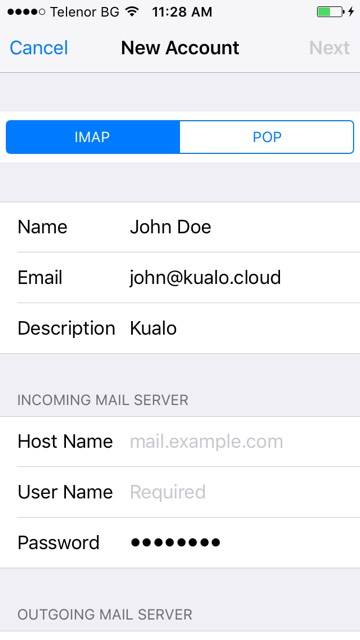
 7. Make sure **IMAP** is selected at the top of the screen.
 8. Under **Incoming Mail Server**, enter:
- **Host Name** - the hostname from cPanel (typically `mail.yourdomain.com`)
- **User Name** - your full email address
- **Password** - your email account password
8. Under **Incoming Mail Server**, enter:
- **Host Name** - the hostname from cPanel (typically `mail.yourdomain.com`)
- **User Name** - your full email address
- **Password** - your email account password
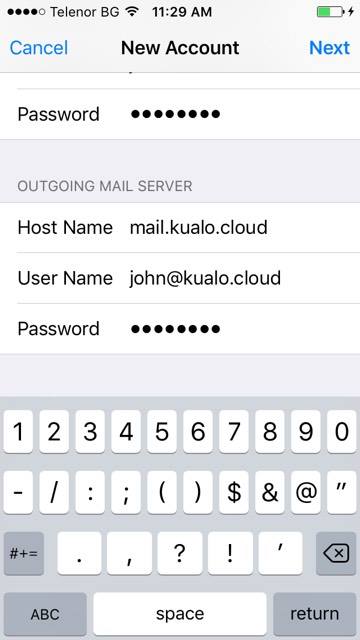
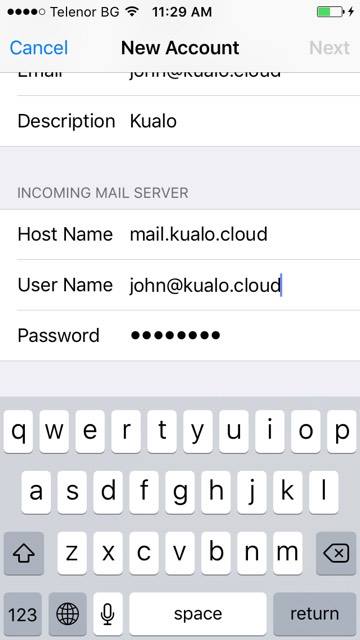 9. Under **Outgoing Mail Server**, enter the same hostname, username, and password. Although iOS labels these fields as optional, they are required on Kualo's servers - you must complete them to be able to send email.
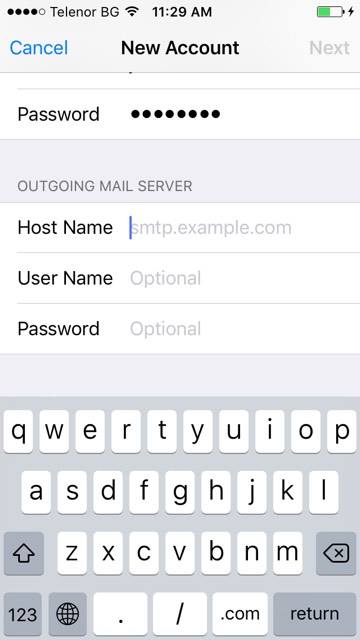 10. Tap **Next**.
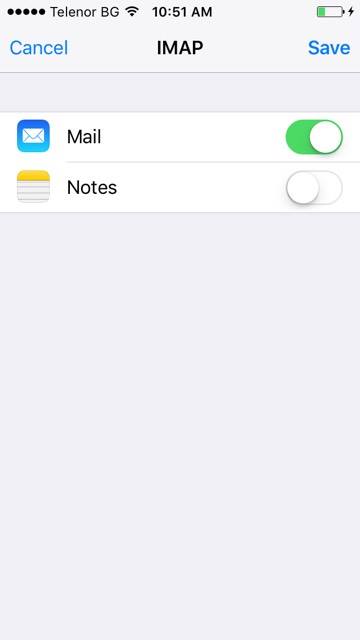
 11. Tap **Save**. Your account will appear in the **Accounts** list.
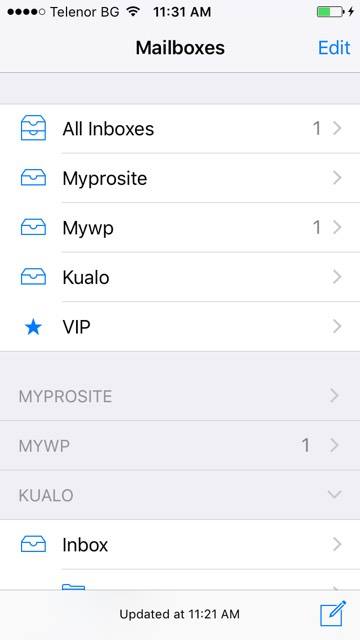
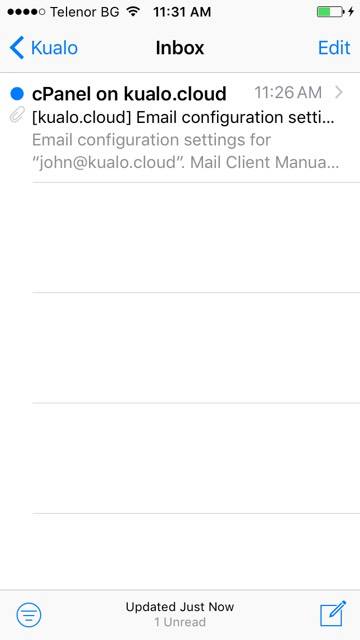
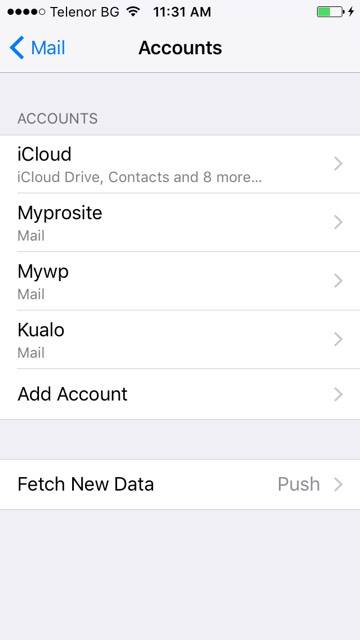 12. Return to the home screen and open the **Mail** app. If you have multiple accounts, select the one you just added to view your inbox.
 ## Troubleshooting
- **Incorrect username or password** - make sure you are using your full email address as the username, not just the part before the `@`.
- **Cannot connect using SSL** - check that SSL is enabled and that you are using port 993 for IMAP and port 465 for SMTP.
- **Cannot send emails** - confirm that the outgoing mail server (SMTP) has the hostname, email address, and password filled in, with SSL enabled on port 465.
---
_Source: Kualo Knowledgebase — https://www.kualo.com/knowledgebase/email-apple/how-to-setup-an-imap-email-account-on-your-iphone · © Kualo Ltd._
## Troubleshooting
- **Incorrect username or password** - make sure you are using your full email address as the username, not just the part before the `@`.
- **Cannot connect using SSL** - check that SSL is enabled and that you are using port 993 for IMAP and port 465 for SMTP.
- **Cannot send emails** - confirm that the outgoing mail server (SMTP) has the hostname, email address, and password filled in, with SSL enabled on port 465.
---
_Source: Kualo Knowledgebase — https://www.kualo.com/knowledgebase/email-apple/how-to-setup-an-imap-email-account-on-your-iphone · © Kualo Ltd._